Using Page Templates
Complexity Level: Intermediate
Overview
Page templates are pre-designed page layouts that help you create new pages quickly and consistently. They're like starting with a partially completed page instead of a blank one. Templates can include text, images, and other content that will be cloned onto every page created with that template. You can use default, pre-loaded templates that already exist in your Springboard or you can create your own.
When to Use This Feature
You'll want to use page templates when:
- You need to create multiple pages with a similar layout (like product pages or staff bios).
- You want all your pages to have a consistent look and feel.
- You want to save time by not starting from scratch for each new page.
- You need to make sure certain information appears on every page of a new section.
- You want to make it easier for others to create pages that match your website's style.
Step-by-Step Instructions
Using a Template When Creating a New Page
-
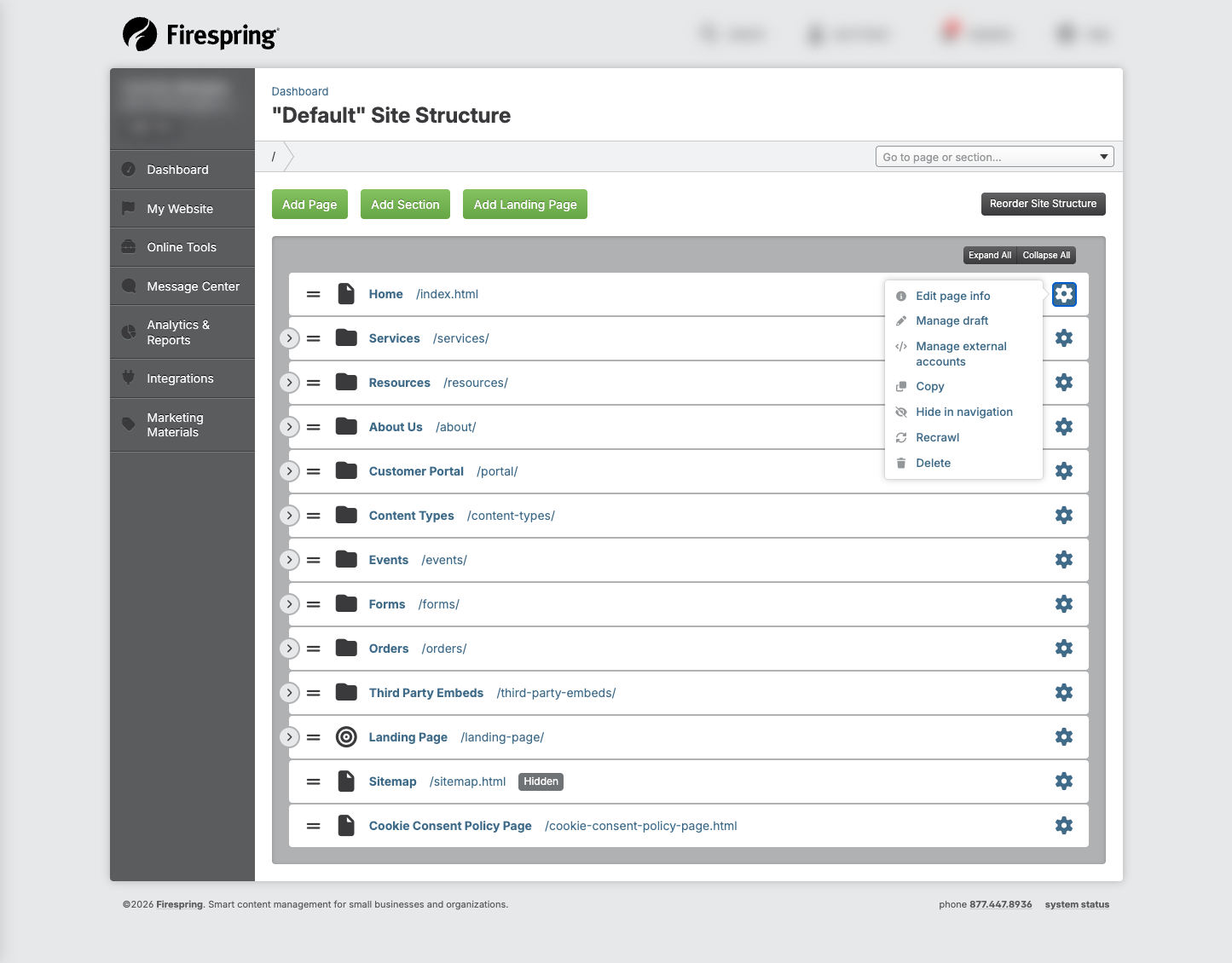
From the Site Structure, click the green Add Page button.
-
Enter a Title for your page. This will appear in the site navigation on your website, and in your site structure.
-
Update the URL if necessary by clicking Edit next to the URL. This will fill in automatically based on your page title.
-
Leave the default setting for Page layout. When using a template you do not need to update the page layout.
-
Select your preferred Content template using the dropdown menu.
-
By default, your page will be set to Display in site navigation. If you would like this page to be hidden, toggle to No.
-
By default, your page will be included in the sitemap. If you would like to hide this page on the sitemap, toggle to No.
-
For Page redirect, leave the default setting of No redirect.
-
Fill out the SEO Info for your new page as desired.
-
Fill out the Social Sharing Info for your new page as desired.
-
Select "Page" from the menu that appears
-
Click Save & Finish.
Your new page will be created with all the content from the template. You can now edit this page as you would any other, and update any content added from the template as needed.
Applying a Template to an Existing Page
-
In the Site Structure, locate the page to which you wish to apply a template and click the Page title to edit.
-
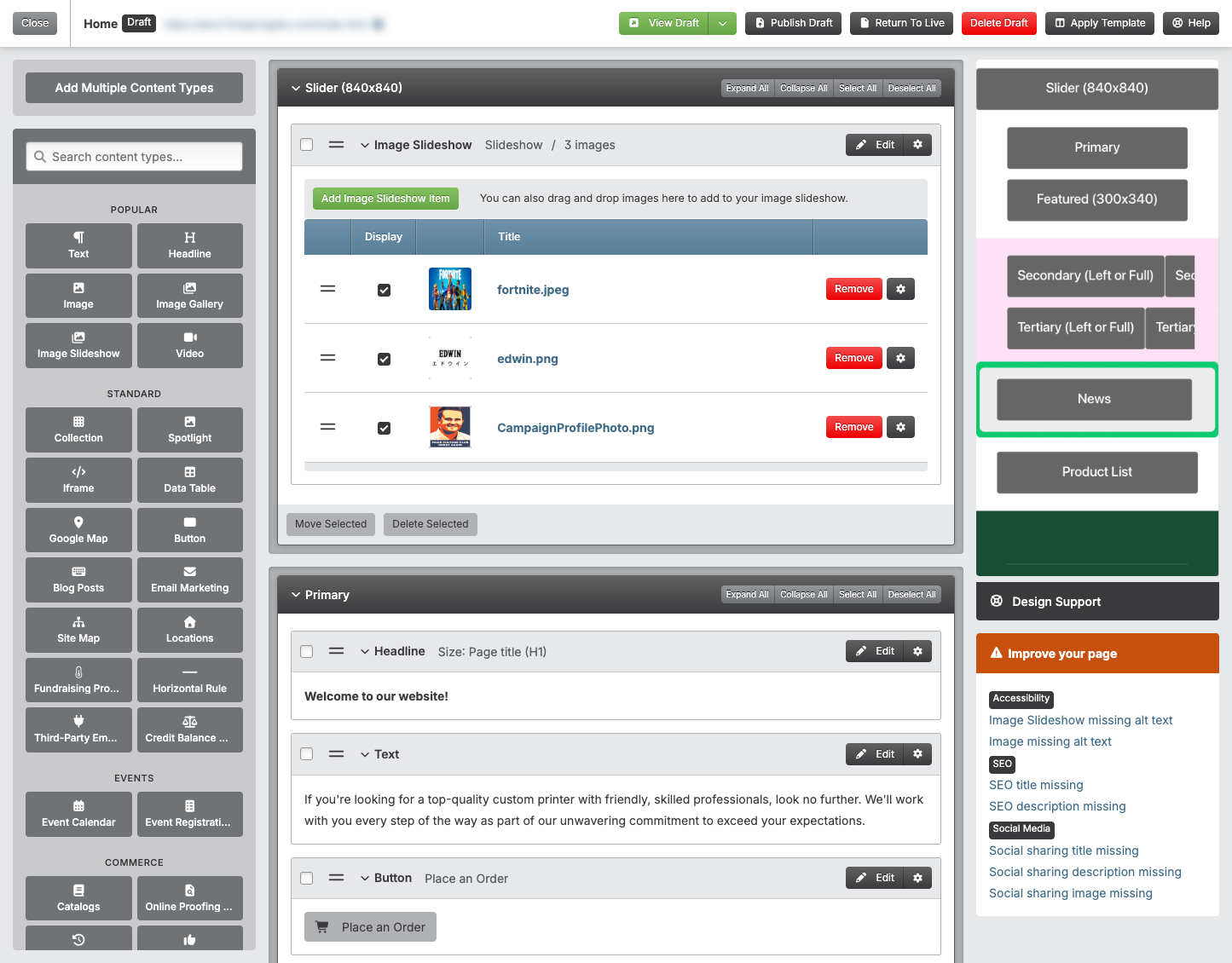
In the upper right hand corner, click the arrow next to Edit Page Info, then click Apply Template.
-
Click the title of your preferred Content template.
-
Confirm the template by clicking Yes, Apply the Template.
-
Your new templated content will be added beneath any existing content in the content spaces on your page, and can be edited like any other content.
Adding a New Content Template
-
Click My Website.
-
Under Libraries, click Templates.
-
Click the green Add Template button in the top left corner.
-
To build a template that can be applied to internal pages, choose Content.
-
Enter a Title for your template. This will be visible when choosing a template to add to a new or existing page.
-
Toggle to your Clone preference:
- Existing template: Create your template based on an existing template in your template library. Choose the template you wish to clone from the dropdown menu.
- Website page: Clone a current website page to use as a template in the future.
- Portal page: Create a template cloned from a page in a specific portal on your website.
- Nothing (Create a template from scratch): Start with a blank page and build your template from scratch.
-
Click the green Next button in the top right corner.
-
You can now edit any existing content on your new template by clicking Edit to the right of the content, or add new content using the left hand menu to drag and drop new content types into your preferred placement on the page.
-
When you're done editing your template, click the green Finish button in the top right corner.
Tips & Helpful Guidance
- Templates are just starting points - You can always add, remove, or update content after creating a page.
- You can create new Templates to meet your needs - You can build as many new templates as you'd like to make working on your website easier for you and your team.
- Templates can be added to new or existing pages - Whether you're adding a new page, or updating an existing one, templates can come in handy to help you build content quicker.
- Updating a template will not update a page - Any updates you make to templates in the template library will not affect pages to which the template has already been applied.
Troubleshooting
Problem: You can't find any templates in the dropdown
Solution:
- Your website might not have any templates set up yet. Follow the steps to create a new template, to start building your templates library.
- You might need permission to access templates - check with your website administrator.
Problem: The template doesn't look right after you create the page
Solution:
- Check that the template you're adding to the page matches the page type. Landing page templates should be applied to landing pages, while content templates can be applied to internal pages.
- Navigate to the Templates library to audit the template, and make any necessary updates to fix the template for future use.