Creating Image Galleries and Slideshows
Complexity Level: Basic
Overview
This page shows you how to create beautiful image galleries and slideshows on your Springboard website. Galleries let you display multiple pictures in an organized and attractive way. You can use galleries to show off products, share event photos, or create a portfolio of your work. Slideshows allow you to display images in a moving carousel.
Words used on this page
- Gallery: A collection of pictures displayed together in a grid or slideshow.
- Slideshow: Pictures that automatically change from one to the next in a carousel.
- Caption: Text that appears under a picture to explain what it shows.
- Layout: How pictures are arranged on the page.
When to Use This Feature
Use this section if you need to:
- Show multiple pictures together in an organized way.
- Create a slideshow of moving pictures.
- Display a collection of images, such as product or team photos.
- Create a portfolio of your work.
Step-by-Step Instructions
Creating a Basic Image Gallery
-
Click My Website, then Website Content.
-
Locate the page to which you would like to add an image gallery.
-
Click the title of the page to edit the page.
-
Locate the Image Gallery content type in the left hand menu, under Popular.
-
Drag the Image Gallery content type to your preferred content location, and drop it into place.
-
Fill in the required Image Gallery Display Settings:
- Content location: This will default to the content space in which you dropped the Image Gallery Content Type. Use the dropdown menu to pick a new content space if desired.
- Content position: This will default to the position in which the Image Gallery Content Type was added. Use the dropdown menu to select a different position if necessary.
- Title: Enter a Title for your image gallery. This title will not display on your website, and is for organizational purposes.
- # of images to display per page: By default, your image gallery will display 12 images per page. You can update this number to display more or less per page. You can add more than the set number of images to your gallery, and it will automatically add page numbers and navigation arrows to your image gallery to make it easier to view.
- Max # of columns: Select your preferred number of columns for your image gallery.
- Image gallery text options: Select what information displays in your image gallery by checking or unchecking the boxes next to the information you wish to display.
- Open gallery items in a lightbox: By default, your images when clicked will open in a lightbox, or floating modal, on top of the page content. Select your Lightbox text options by checking or unchecking the box next to the options you would like to enable. To disable the lightbox setting, toggle to No.
 7. Click Save & Close. Your Image Gallery has now been added to the page.
 8. Click Add Image Gallery Item to select images for your gallery:
- Check the box next to images that already exist in your image library, then click Use Selected Images at the bottom of the screen.
- Click the green Upload Images button to add images from your computer. Select your images on your computer and click Open. Update the Title for your images, and select a Folder for it to live in. Click Finish Uploading. Once your images have been uploaded, they will appear at the top of your images list. Check the box next to the images, then click Use Selected Images at the bottom of the screen.
 9. Your images will now appear in your Image Gallery. Click the title of each image to update the image info:
- Title: Enter a Title for each image. This title will display based on your chosen settings for your image gallery.
- Alternate text: Enter Alternate text for each image. This is a short sentence that describes the image, and will improve your website's accessibility.
- Caption: If desired, enter a Caption for each image. This will display based on your chosen settings for your image gallery.
- Action text: If you are linking an image, enter action text that will act as a clickable link.
- Link: Use the dropdown menu if you would like to set a Link for your image. You can link your image to A page on another site, Another page on your site, A blog post on your site, An event on your site, A downloadable file, An email address, or A phone number.
 10. Click Save & Close.
Changing Gallery Settings
-
Click My Website, then Website Content to navigate to your Site Structure.
-
Locate the page that houses your Image Gallery, and click the title of the page to manage content.
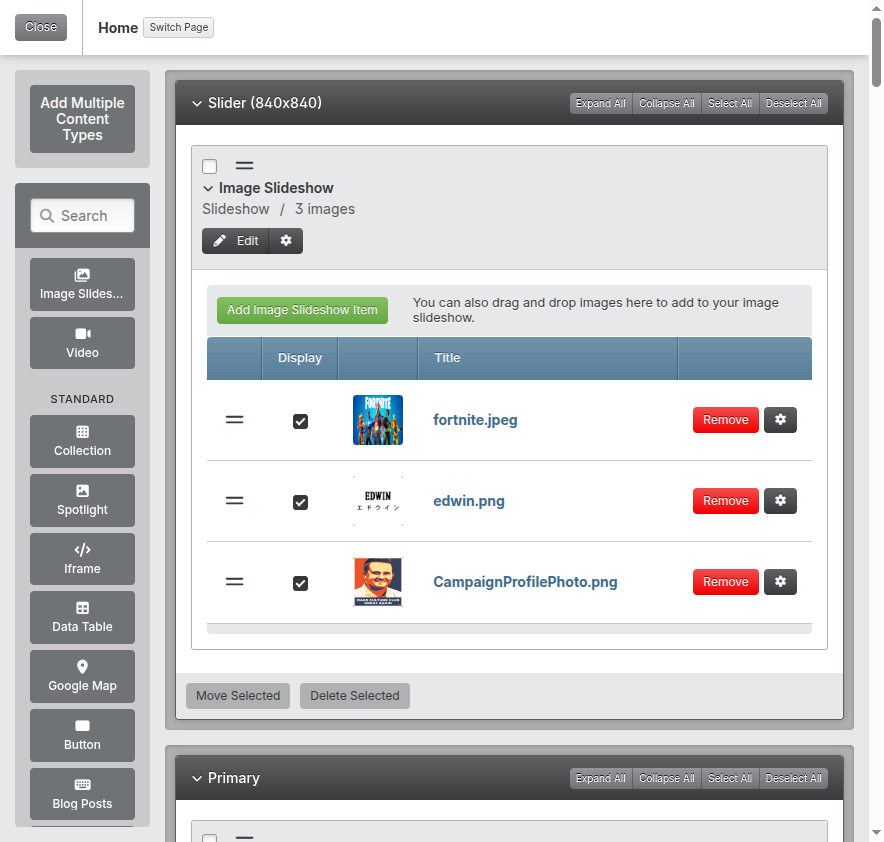 3. Click Edit next to the Image Gallery content type.
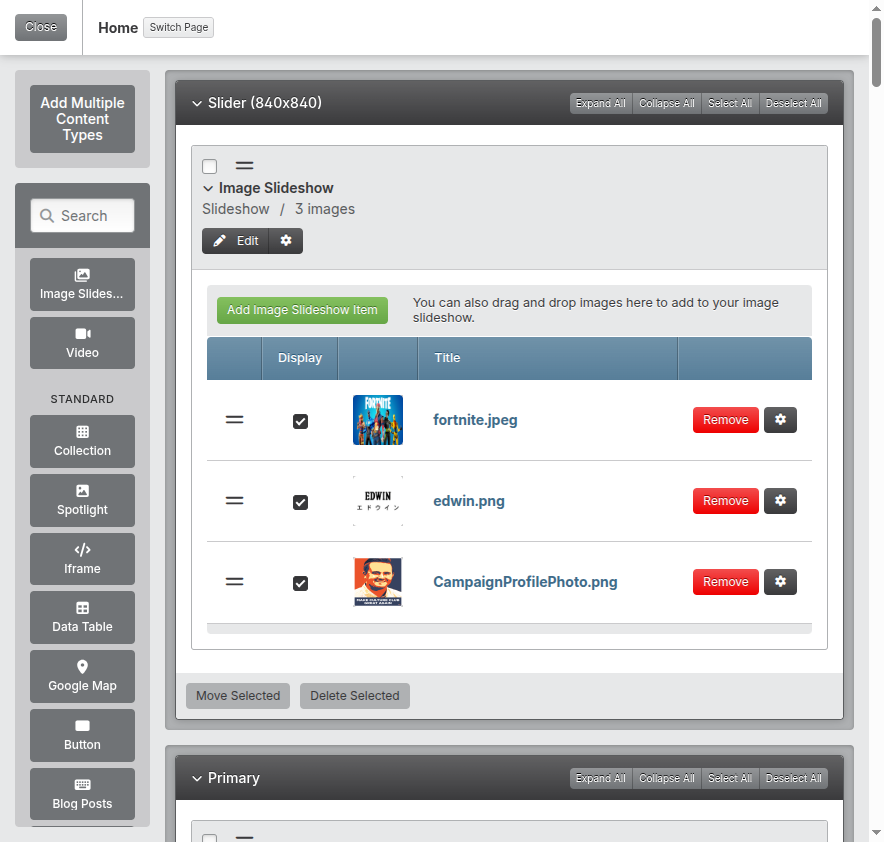 4. Make the desired changes to the Image Gallery Display Settings.
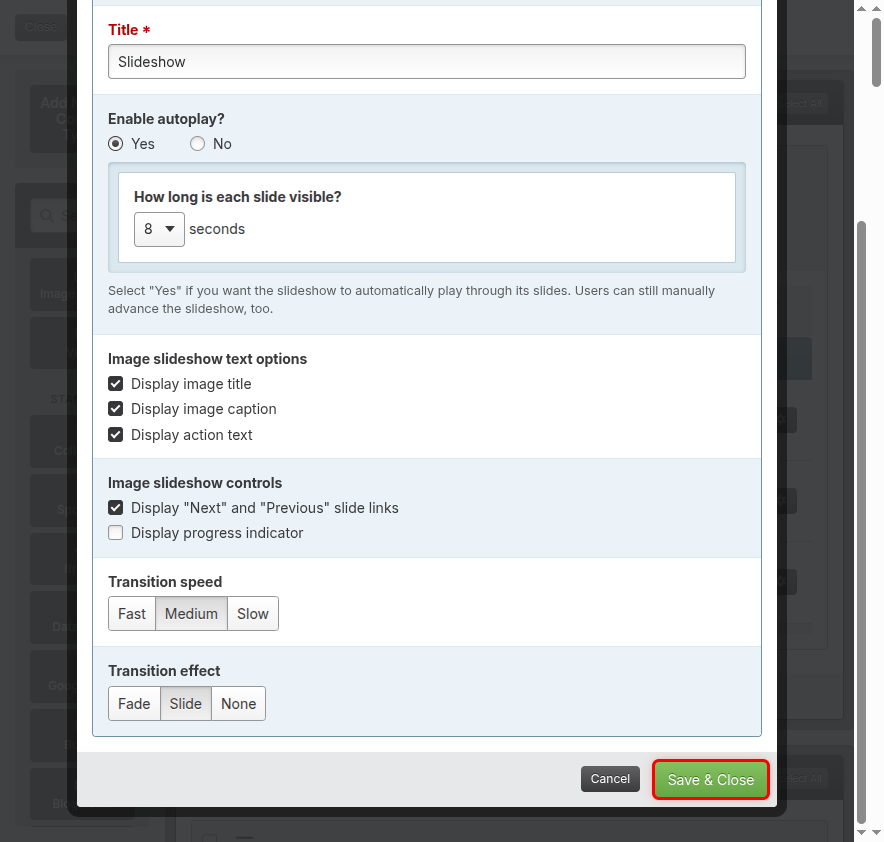
 5. Click Save & Close to save your changes.
 6. Click the green View Page button in the top right corner to view your changes.
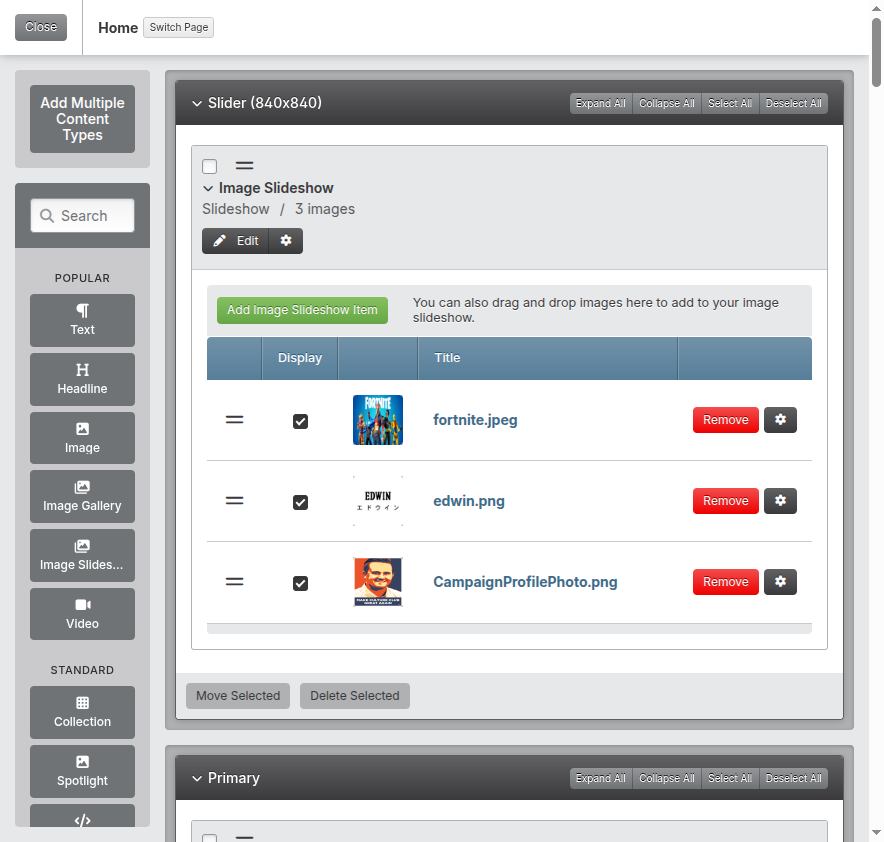
Creating an Image Slideshow
Image slideshows allow you to display multiple images in a stylized slideshow.
-
Locate the page to which you would like to add an image gallery.
-
Click the title of the page to edit the page.
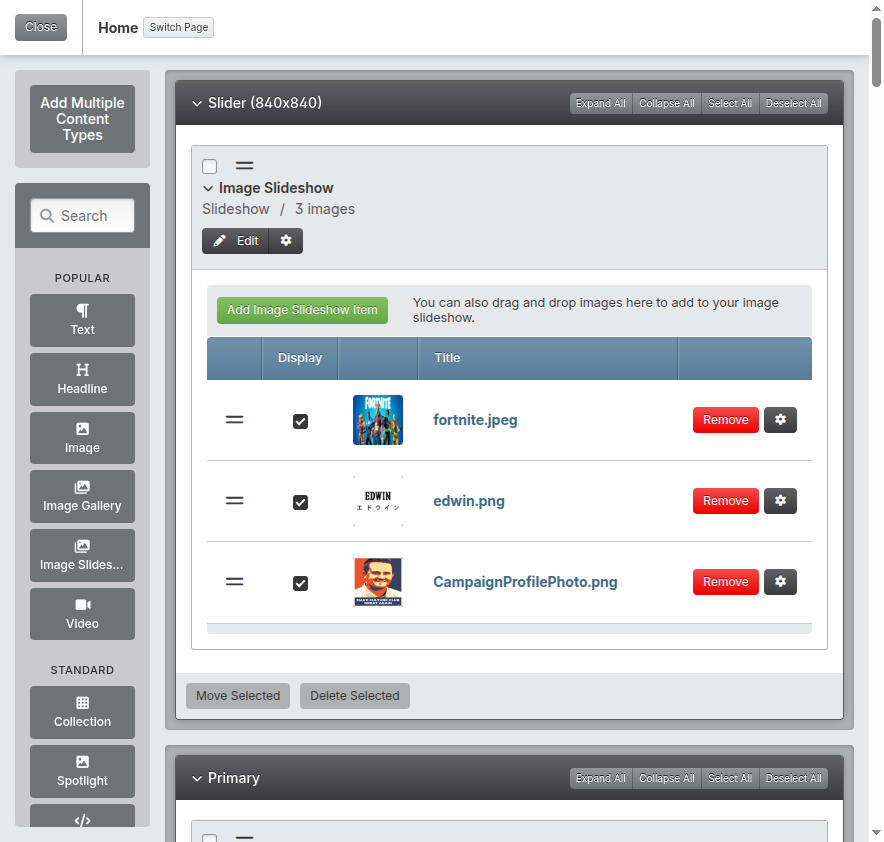 3. Locate the Image Slideshow content type in the left hand menu, under Popular.
 -
Drag the Image Slideshow content type to your preferred content location, and drop it into place.
-
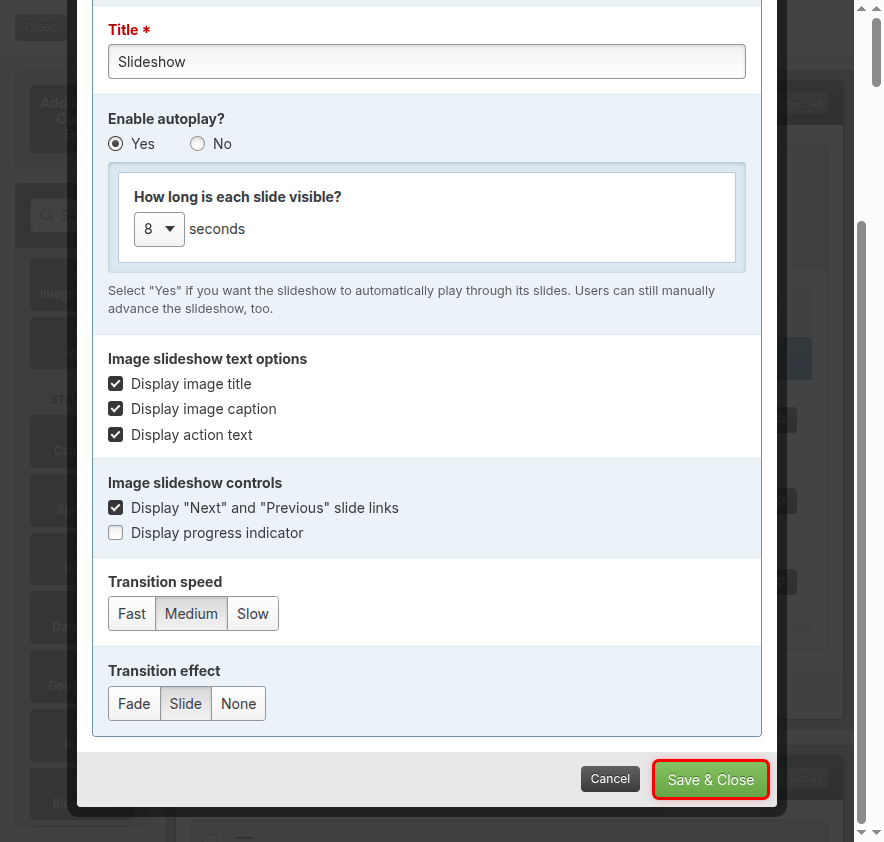
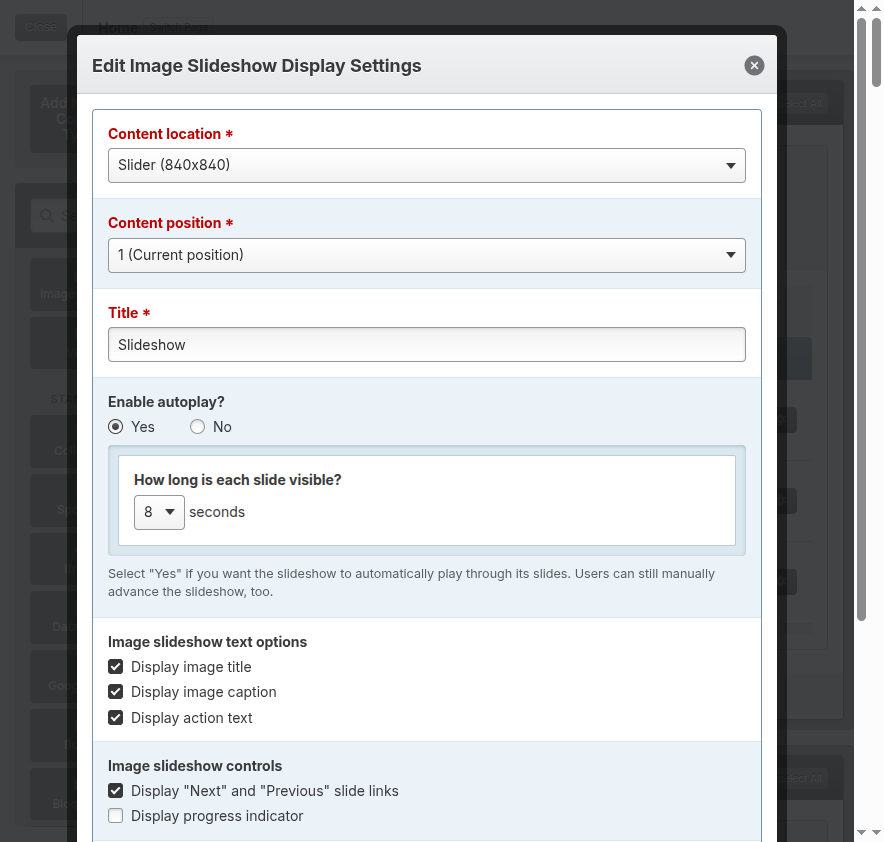
Fill in the required Image Slideshow Display Settings:
- Content location: This will default to the content space in which you dropped the Image Slideshow Content Type. Use the dropdown menu to pick a new content space if desired.
- Content position: This will default to the position in which the Image Slideshow Content Type was added. Use the dropdown menu to select a different position if necessary.
- Title: Enter a Title for your image slideshow. This title will not display on your website, and is for organizational purposes.
- Enable autoplay: By default, your image slideshow will be set to automatically play through its slides. Users can still manually advance the slideshow if they would like, too. Use the dropdown menu to select how long each slide is visible. Toggle to No if you would like to disable autoplay.
- Image slideshow text options: Select what information displays in your image slideshow by checking or unchecking the boxes next to the information you wish to display.
- Image slideshow controls: Select what controls display for your image slideshow by checking or unchecking the boxes next to the controls.
- Transition speed: Select your preferred transition speed.
- Transition effect: Select your preferred transition effect.
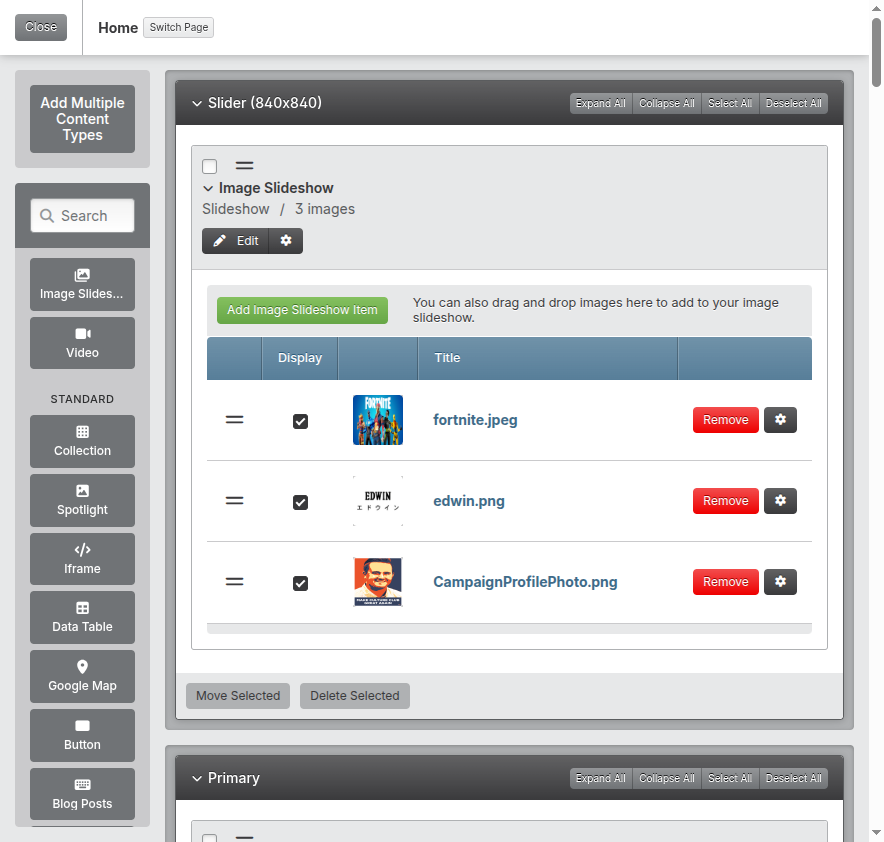 6. Click Save & Close. Your Image Slideshow has now been added to the page.
-
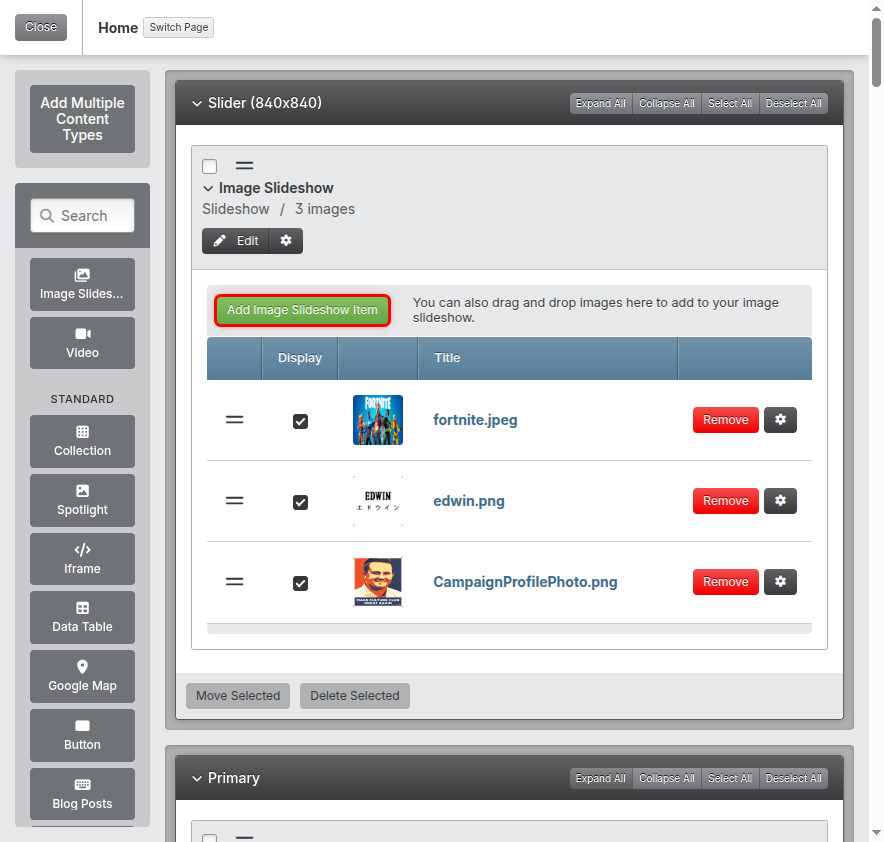
Click Add Image Slideshow Item to select images for your slideshow:
- Check the box next to images that already exist in your image library, then click Use Selected Images at the bottom of the screen.
- Click the green Upload Images button to add images from your computer. Select your images on your computer and click Open. Update the Title for your images, and select a Folder for it to live in. Click Finish Uploading. Once your images have been uploaded, they will appear at the top of your images list. Check the box next to the images, then click Use Selected Images at the bottom of the screen.
-
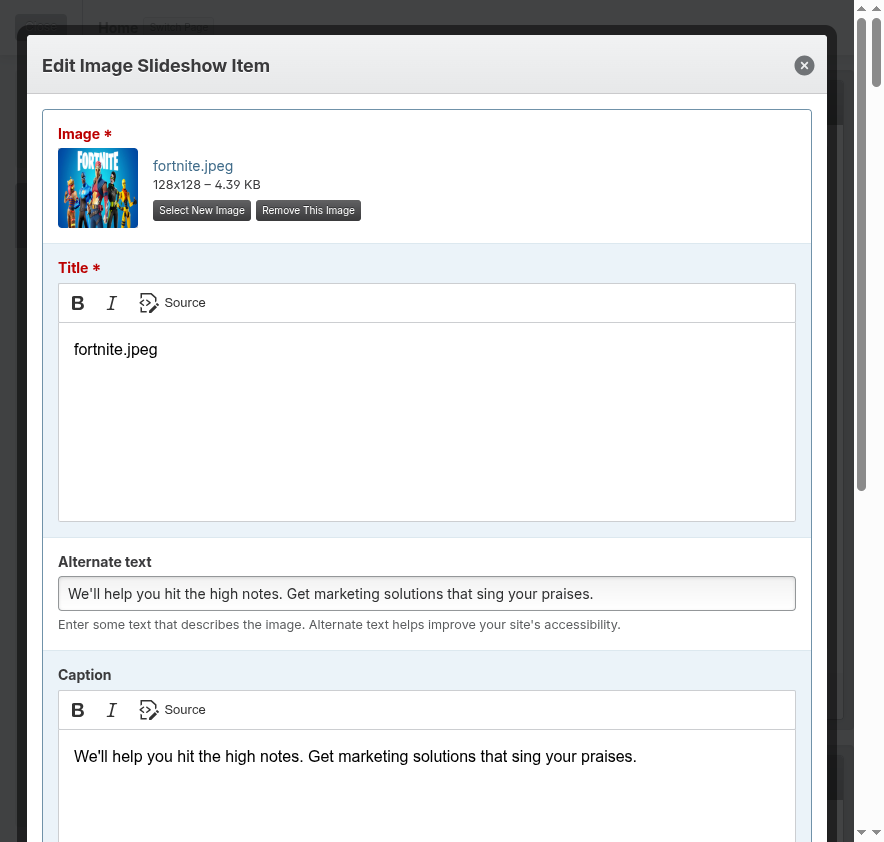
Your images will now appear in your Image Slideshow. Click the title of each image to update the image info:
- Title: Enter a Title for each image. This title will display based on your chosen settings for your image slideshow.
- Alternate text: Enter Alternate text for each image. This is a short sentence that describes the image, and will improve your website's accessibility.
- Caption: If desired, enter a Caption for each image. This will display based on your chosen settings for your image slideshow.
- Action text: If you are linking an image, enter action text that will act as a clickable link.
- Link: Use the dropdown menu if you would like to set a Link for your image. You can link your image to A page on another site, Another page on your site, A blog post on your site, An event on your site, A downloadable file, An email address, or A phone number.
-
Click Save & Close.
Changing Slideshow Settings
-
Click My Website, then Website Content to navigate to your Site Structure.
-
Locate the page that houses your Image Slideshow, and click the title of the page to manage content.
3. Click Edit next to the Image Slideshow content type.
4. Make the desired changes to the Image Slideshow Display Settings.
5. Click Save & Close to save your changes.
6. Click the green View Page button in the top right corner to view your changes.
Rearranging Gallery or Slideshow Images
-
Click My Website, then Website Content to navigate to your Site Structure.
-
Locate the page that houses your Image Gallery or Slideshow, and click the title of the page to manage content.
-
Find the Image Gallery or Slideshow content type on the page.
-
Using the double lines icon to the left of the image, drag the images into your preferred placement.
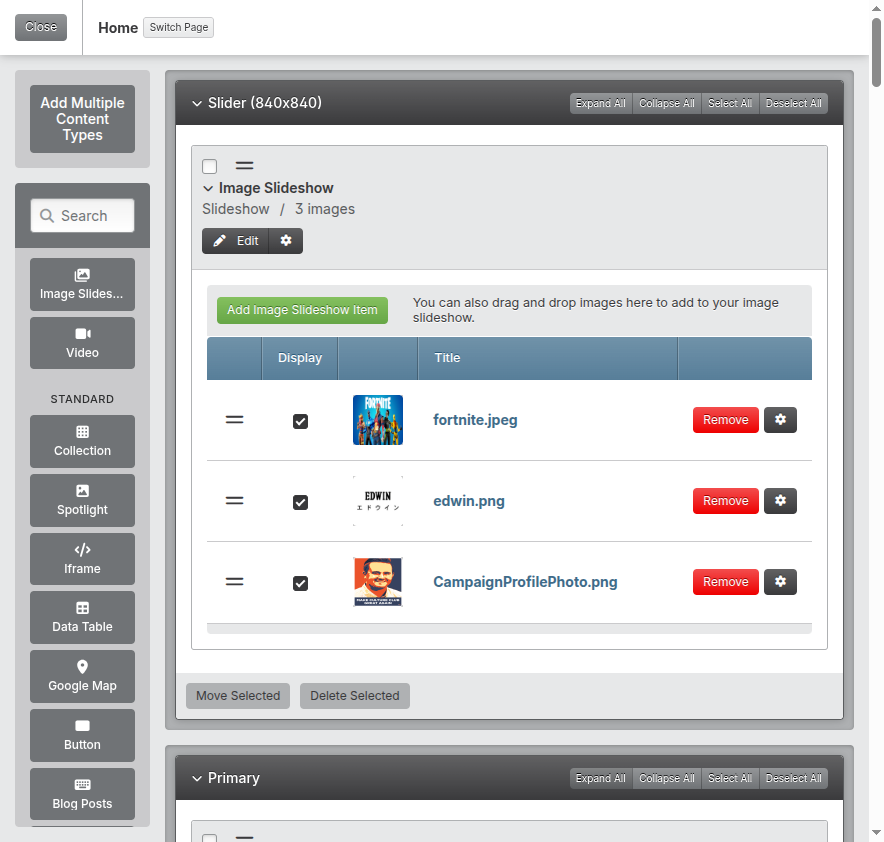 5. Click the green View Page button in the top right corner to view your changes on your website page.
Tips & Helpful Guidance
-
Number of pictures: For best performance, Image Galleries should display up to 12 pictures per page. Once you've set it to display up to 12 images per page in the Image Gallery Display settings, you can load more than 12 images in and it will automatically paginate.
-
Picture sizes: Image Galleries and Slideshows work best when all of the pictures are a consistent size and orientation, whether vertical or horizontal. This helps your website pages look neat and professional.
-
Captions: Keep captions short and descriptive. Long captions can make your Image Gallery look cluttered.
-
Try different styles: There are different content spaces and pages across your site where you can place images. If you try an Image Gallery on a page, and don't like how it looks, try pivoting to an Image Slideshow, or vice versa!
-
Mobile view: When you're working on your Image Galleries and Slideshows, keep mobile users in mind. More than 60% of your website visitors will be on a mobile device, so be sure to test how your images look and load on your own phone or tablet.
Troubleshooting
Problem: Your gallery looks uneven or messy
Solution:
- Make sure your pictures are similar in size and orientation, either vertical or horizontal.
- Try adjusting your Image Gallery Display Settings. Change up the number of columns and images displayed per page to see your images in a different layout.
- If an Image Gallery isn't working, try an Image Slideshow. Some images work better when they are in a moving carousel versus a standard grid.
Problem: Your slideshow isn't changing pictures
Solution:
- Check that autoplay is enabled in the Image Slideshow Display Settings.
- Make sure the speed is set to a reasonable length for visibility. You can set it anywhere between 5 and 15 seconds.
- Cheek to make sure that more than one image has been loaded into the Slideshow.
Problem: Pictures are loading slowly in your gallery
Solution:
- Resize your images to a smaller file size. You can do this on your computer before uploading, or in the Image Library on the Springboard.
- Reduce the number of pictures set to display on a single page. We recommend starting with up to 12 images displaying, so your page loads nicely on mobile devices.
- Consider splitting a large gallery into multiple smaller galleries on different pages.
Problem: Captions are cut off or not showing
Solution:
- If captions are not displaying on your image gallery, check your Image Gallery Display Settings to make sure you've checked the box to display image captions.
- Try shortening your captions, or making them a consistent length across all images.
- In Image Gallery Display Settings, try removing the image captions from the Image Gallery, and displaying it in a lightbox instead.