Working with Content Blocks
Complexity Level: Basic to Intermediate
Overview
This page shows you how to work with content blocks in Springboard. Content blocks are stylized, reusable pieces of content that appear on multiple pages. They are pre-built into your Springboard website based on the design that your website is on. They're used for information that appears in several places on your website, such as contact details, social media links, call to action buttons, footer links, special announcements, or disclaimers.
Support-Level Feature
Content blocks are a support-level feature. To create or add new content types to your content blocks, please contact Firespring Support. Not all content belongs in Content Blocks. Firespring Support is well versed on managing content, and will make sure your content is added in a way that looks best on your site.
Words used on this page
- Content block: A reusable piece of content that can appear on multiple pages.
- Content element: A single item within a content block, like text, an image, or a button.
- Libraries: The section in Springboard where you manage reusable content.
- Site Structure: The section in Springboard where you organize and edit your website pages.
When to Use This
Use this section if you need to:
- Understand how content blocks work on your website
- Request new content blocks from Firespring Support
- Keep your website consistent with standardized content
- Have information update in multiple places at once
Requesting a Content Block
Content blocks are created by Firespring Support. If you need to add a new content block or update the content types that exist in a current one, contact Firespring Support.
-
Identify what content you need to appear in multiple places, and where you would like it on the page.
-
Prepare the content you want in the block, including any text, images, or links.
-
Contact Firespring Support with your request:
- Email: support@firespring.com
- Phone: 877.447.8936
-
Provide details about:
- What you want to name the content block
- What content should be included
- Where you plan to use it on your website
-
Firespring Support will assess and either create a new content block for you, or talk through different ways to display the desired content.
Requesting Updates to a Content Block
You have the ability to edit existing content in your content blocks. If you need to add a content type to a content block, you'll need to contact Firespring Support.
-
Identify which content block needs to be updated.
-
Prepare the specific changes you need:
- What text needs to be changed
- What images need to be updated
- What links need to be modified
-
Contact Firespring Support with your request:
- Email: support@firespring.com
- Phone: 877.447.8936
-
Provide details about:
- The name of the content block
- The specific changes needed
- Any urgency to the request
-
Firespring Support will assess and either update the content block for you, or talk through different ways to display the desired content.
Once updated, the changes will automatically appear everywhere the block is used on your website.
Access and Update your Content Blocks
Each content block is assigned to display in the proper space on each of your website's page layouts. Follow the steps below to access and update your Content Blocks.
-
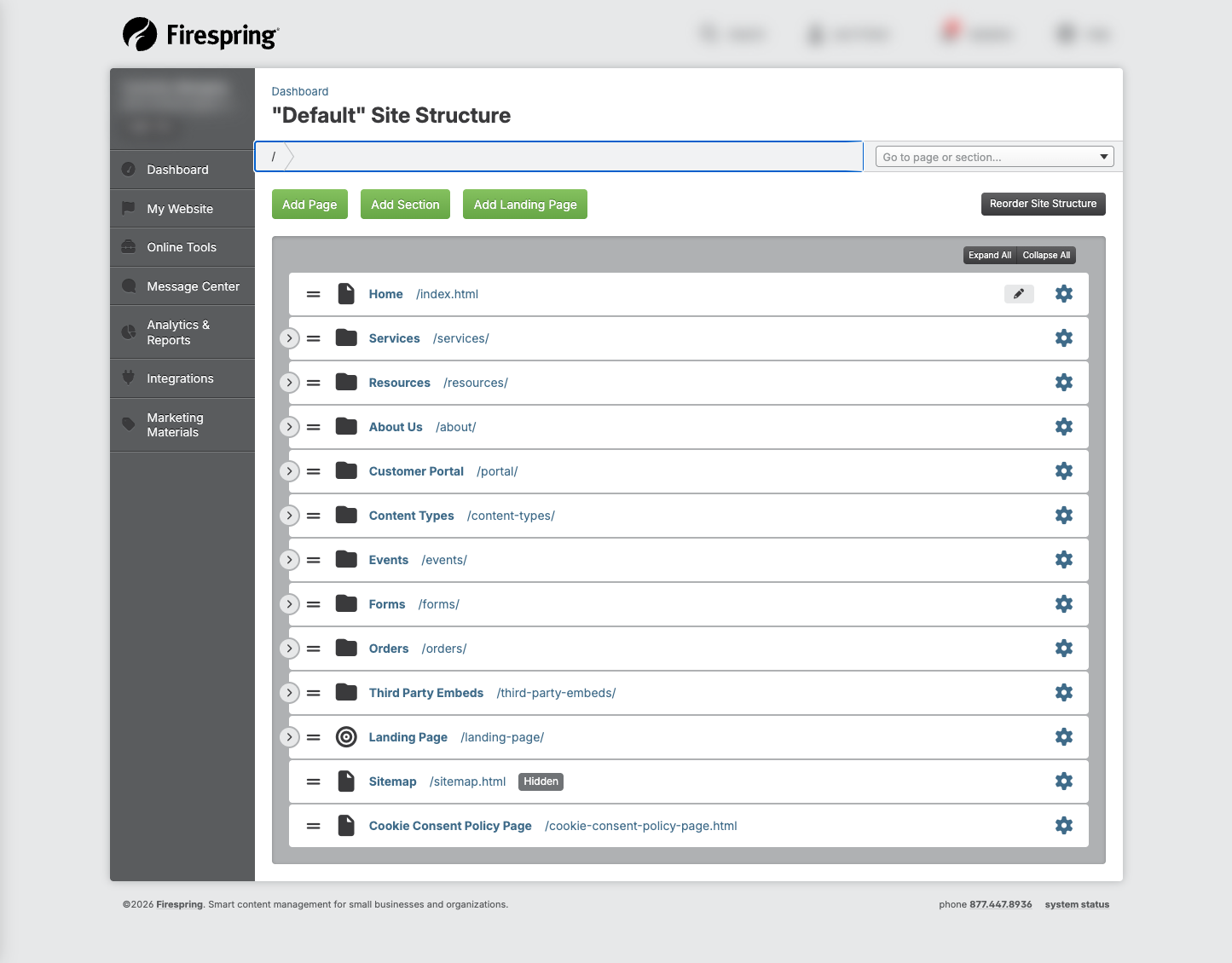
Click My Website, then under Libraries click Content Blocks.
-
Click the title of the content block you wish to update.
You will also see Content Blocks listed as a content space on each page in your site structure. Different content blocks will be listed for each layout in your website. For example, if you're on the homepage you might see different content blocks than you would see on an internal page.
Accessing Content Blocks from a Page
Each content block is assigned to display in the proper space on each of your website's page layouts. Follow the steps below to access and update your Content Blocks.
-
From the Site Structure, click the title of the page you want to edit.
-
Scroll to the Content Blocks content space, near the bottom of the page.
-
There are two ways to manage content blocks from a Springboard page:
-
Click Manage Blocks in the Content Blocks space to open up the Content Blocks library in a new tab. Here you can access all of your content blocks and edit them individually by clicking the title of the content block.
-
To manage an individual content block from the page, click Manage Content Block Content next to the content block you wish to edit. This will open your Content Block in a new tab.
-
Common Content Blocks
Here is a list of the Content Blocks that are pre-built into your website. Content Blocks are added based on the design you have chosen, and may differ per site.
Alert
The Alert Content Block allows you to quickly alert website visitors to important information by displaying a banner across the top of your website. Click Edit next to the Text Content Type to update the alert message. You can hyperlink to a page with more information.
When you are ready for the Alert bar to be removed from your site click the gear icon next to the Text Content Type, and select Hide This Content.
CTA Button
Some sites are equipped with a Call to Action (CTA) button. This content block includes the Button Content Type, which can be updated to link to your preferred page.
To edit the CTA button click Edit next to the Button Content Type. Update the Label, which will become the button text. Using the dropdown menu, update the Link. You have many options on where to link your CTA button, but we recommend linking to a page on your website that you want to promote from your homepage. Leave the default setting for Alignment, as it has been stylized for your website design by the FirespringTeam. Choose your preferred Button icons, then click Save & Close.
Logos
The Logos Content Block allows you to easily display partner and sponsor logos on your site. This content block utilizes the Collection Content Type, and is stylized to display on the design your website is on.
You can update the existing collection items in the content block by clicking the title of the item you wish to update. The label may not be visible on your site, but acts as alternate text for accessibility. You can add a link to the partner's website, and update the image to include the logo. To add a new logo to your logos content block click Add Collection Item, and fill out the required information.
Footer Links
The Footer space on your website will vary depending on the design your website is on. Footer links generally list the section names of your website or important pages, such as a Log In page. You can update the footer links by clicking the title of the collection item you wish to update.
Quicklinks
Quicklinks are often buttons or flags that appear on your homepage to highlight your most important pages.
This content block includes a Collection. To edit the collection items, click the title of the item you wish to update. Update the required information. The Label will display as clickable text linking to your chosen link. Generally this space is built to display 2-4 quicklinks.
Social Media
The Social Media Content Block allows icons to display that link to your organization's social media accounts. These links are added using the Collection Content Type. Generally your social media links will be customized when you are working on setting up your site with your Firespring Onboarding Consultant.
To update your social media links or icons, click the title of the collection item you would like to update. The Label may not be visible on your site, but acts as alternate text for accessibility purposes, as such it should match the social media platform you are linking. Update the linked URL and icon as needed for your social media account.
Tips & Helpful Guidance
-
You cannot delete content types in content blocks: In the Content Blocks area, you are not able to delete content types within a content block. You can hide content from visibility by clicking the gear icon, then Hide this content.
-
You cannot add content types to a content block: You might notice while working on a content block that there is no Add Content button. This is to maintain the integrity of the design of your website, and to ensure everything fits nicely on the page. Depending on the content block, the Firespring Support team will be able to help you if you have questions about the content in a content block.
-
You can modify the content that exists in a content block: Content blocks are pre-built for you with the standard, default content. You have the ability to edit content that already exists in the content block. For example, with a collection you can modify, delete or sort collection items. You can even hide items from displaying, but you cannot delete the collection.
-
Check your permission level: If you are unable to access Content Blocks, check in with your website's Primary Administrator to update your permission access.
Troubleshooting
For questions or help troubleshooting your Content Blocks, please reach out to Firespring Support.