Managing Documents
Complexity Level: Basic
Overview
This page shows you how to add, organize, and share documents using your Springboard website. Documents like PDFs, Word files, and Spreadsheets can be important resources for your website visitors. You'll learn how to upload documents, organize them into folders, and add them to your website pages for visitors to download.
Words used on this page
- Document Library: The place where all your website documents are stored.
- PDF: A common file type that keeps your document looking the same on any device.
- Download: When a visitor saves a file from your website to their own computer.
- File Size: How much computer space a document takes up (measured in KB or MB).
When to Use This Feature
Use this section if you need to:
- Add downloadable forms or applications to your website.
- Share reports or newsletters with your visitors.
- Provide instruction manuals or guides.
- Organize your Documents Library so your documents are easy to access.
Step-by-Step Instructions
Accessing Your Document Library and Uploading Documents
You can upload your documents to the Document Library, so you can access them when you need to add them to a page for users to download.
-
Click My Website, then Documents (under Libraries).
-
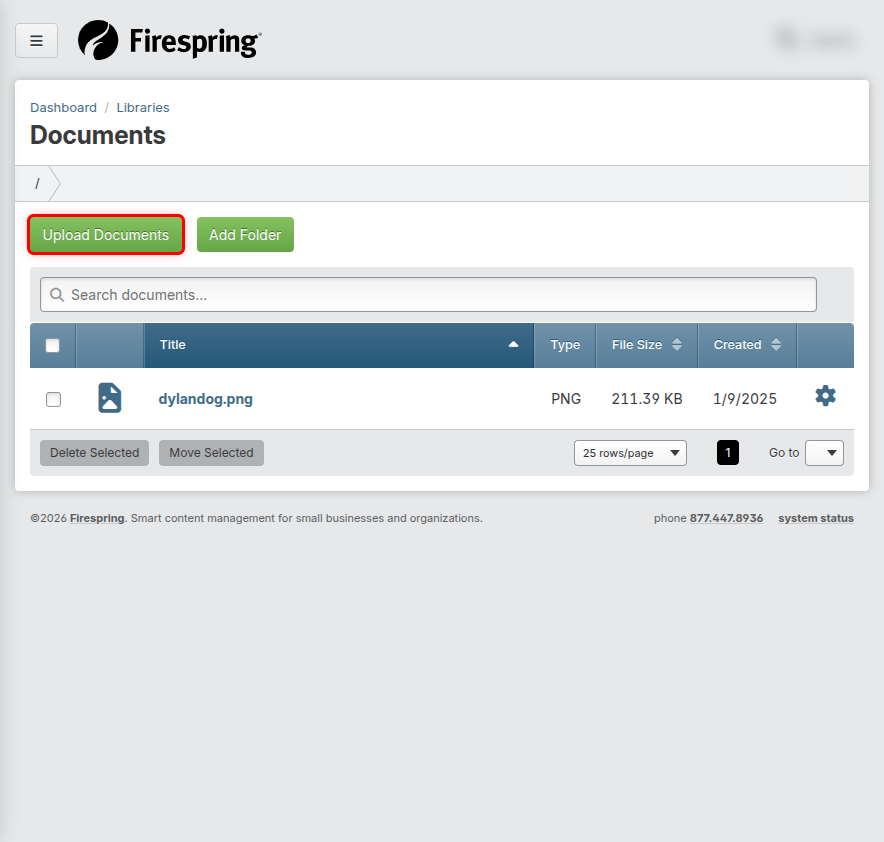
Click the green Upload Documents button in the top left corner.
-
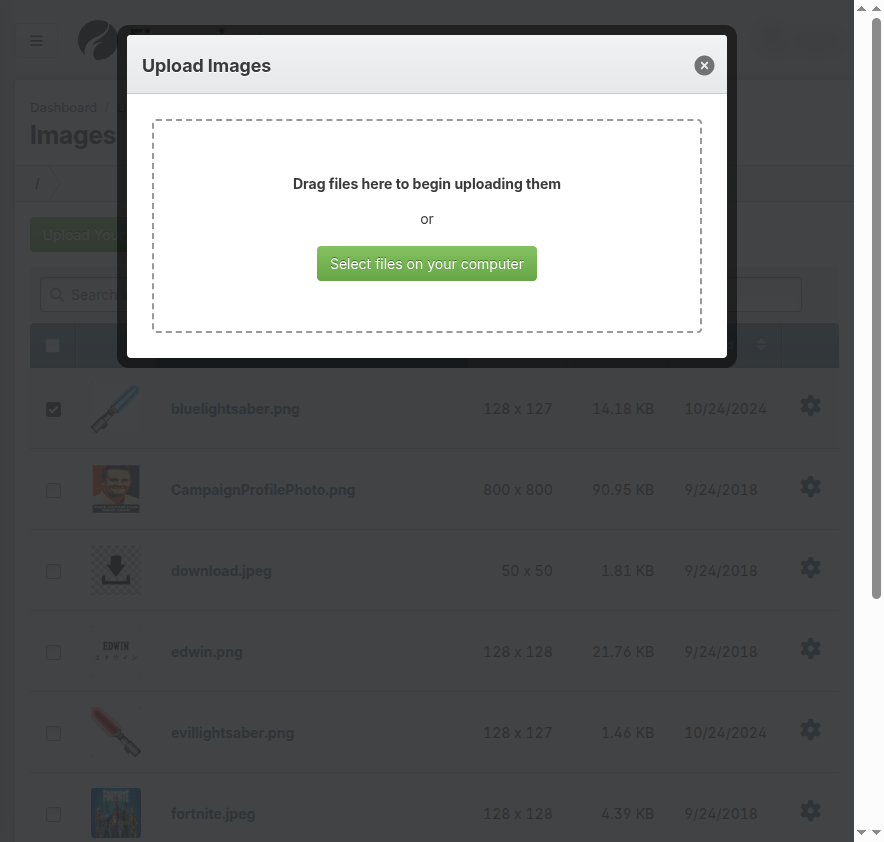
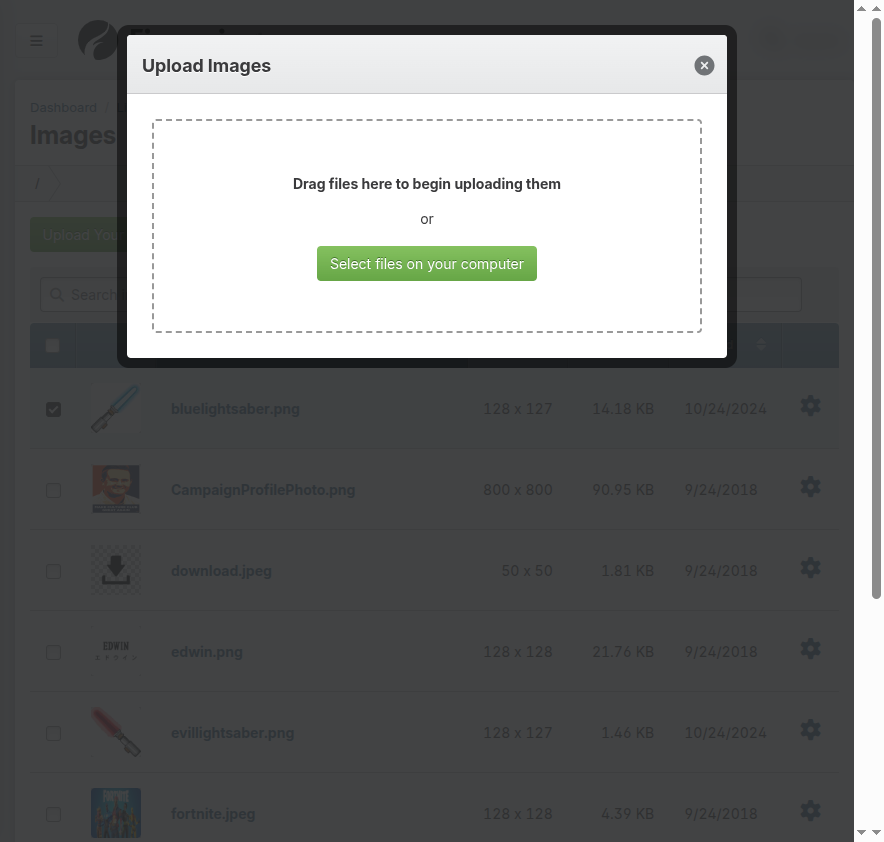
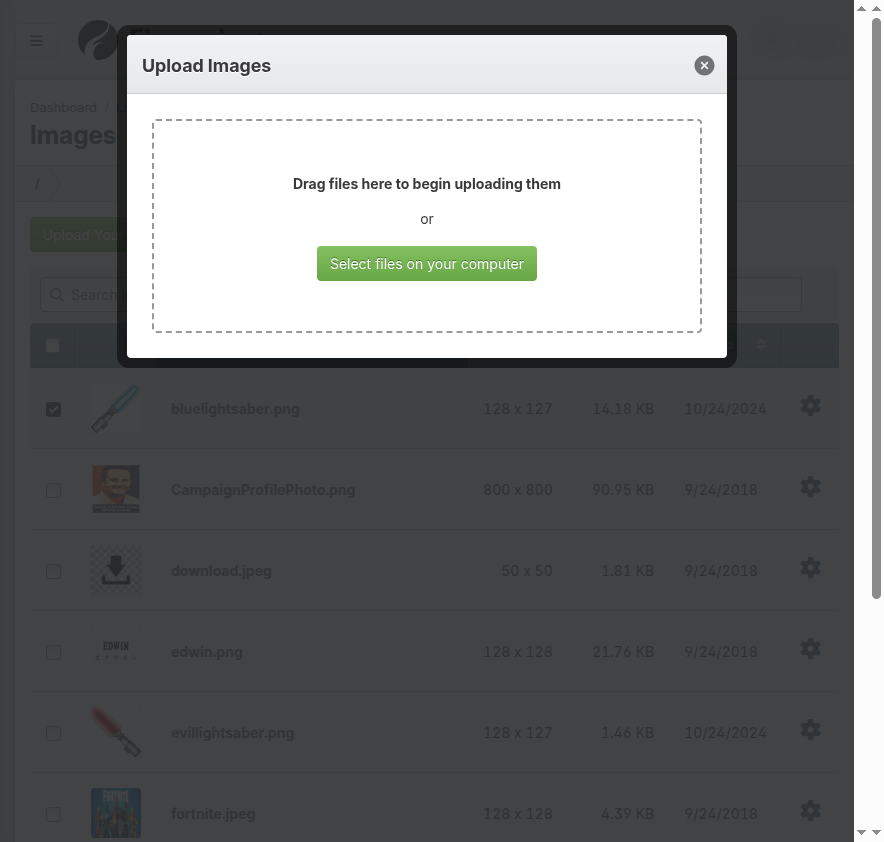
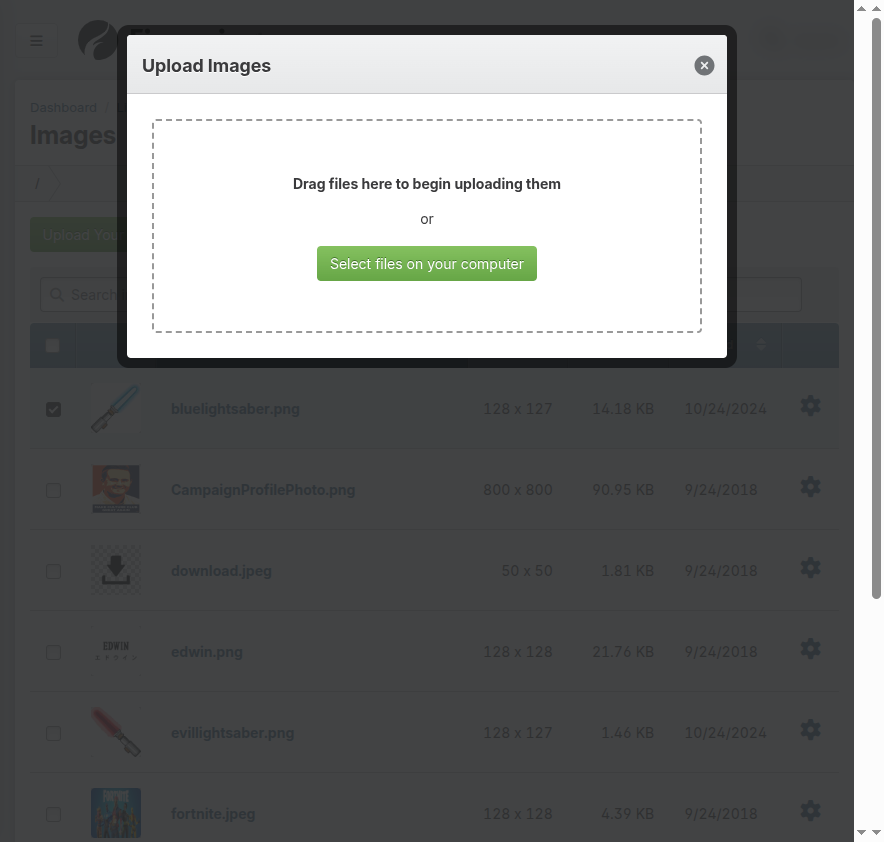
Click Select files on your computer to look through your computer folders, or drag and drop document files from an open folder on your computer to the modal. You can select multiple files by holding down the Ctrl key (or Command key on Mac) while clicking on each picture.
-
If you choose to drag and drop files into the modal, they will start uploading automatically. If you use the button to select files on your computer, click Open when you've selected your documents to start the upload.
-
Update the Title for each document if desired. By default, each document will retain the file name from your computer.
-
Use the dropdown menu to choose a Folder for each document if desired. By default your documents will be uploaded to the Root level, meaning they are not in a folder.
-
Click Finish Uploading. You will see a spinning icon while your files are uploading, and will then be returned to the Document Library.
Creating Document Folders
Folders help you keep your documents organized, especially when you have many files.
-
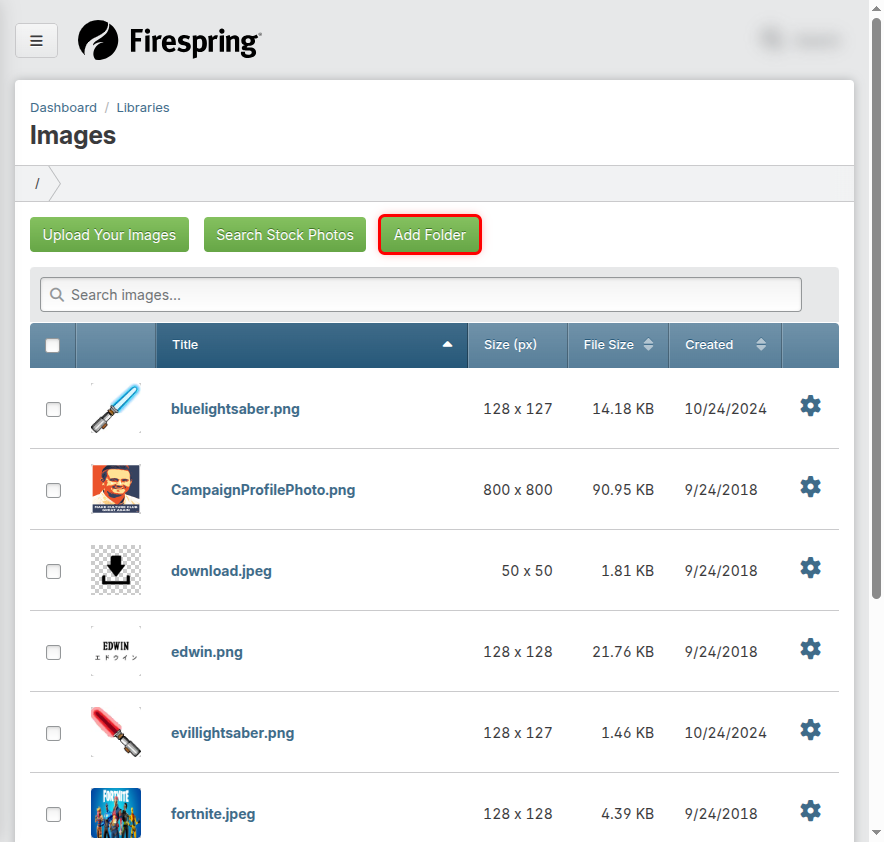
In your Document Library click Add Folder.
-
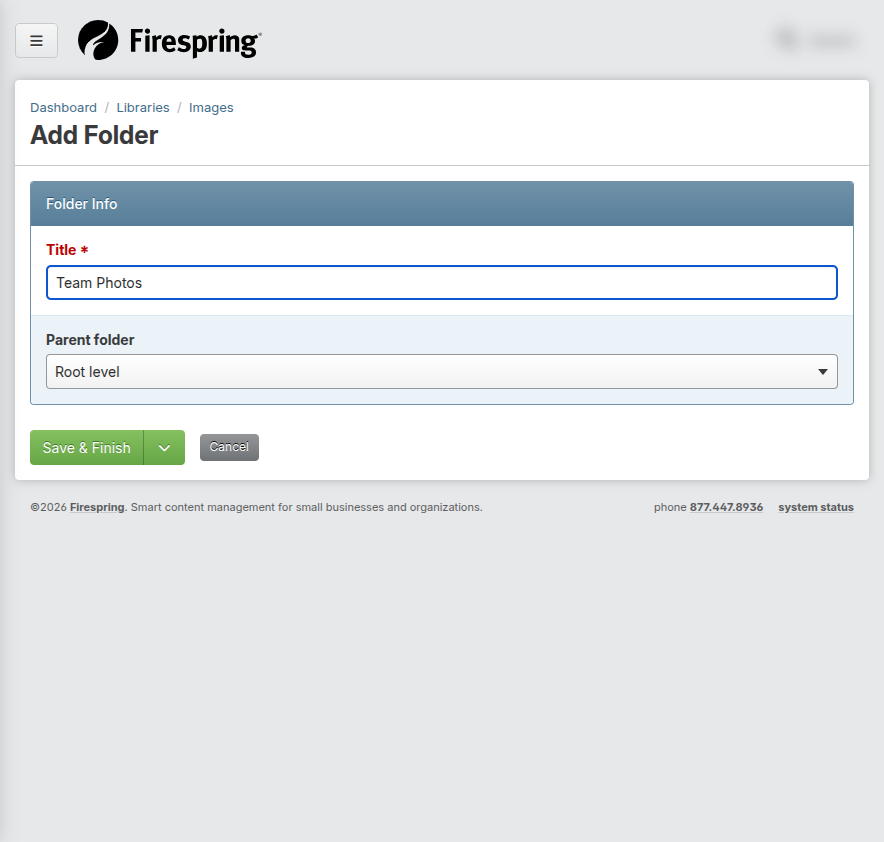
Enter a Title for your new folder, for example, "New Client Forms" or "Team Member Guides."
-
Choose a Parent folder if desired. By default, your new folder will be at the Root level, meaning it is not nested within another folder. You can create sub folders by nesting you new folder within an existing folder.
-
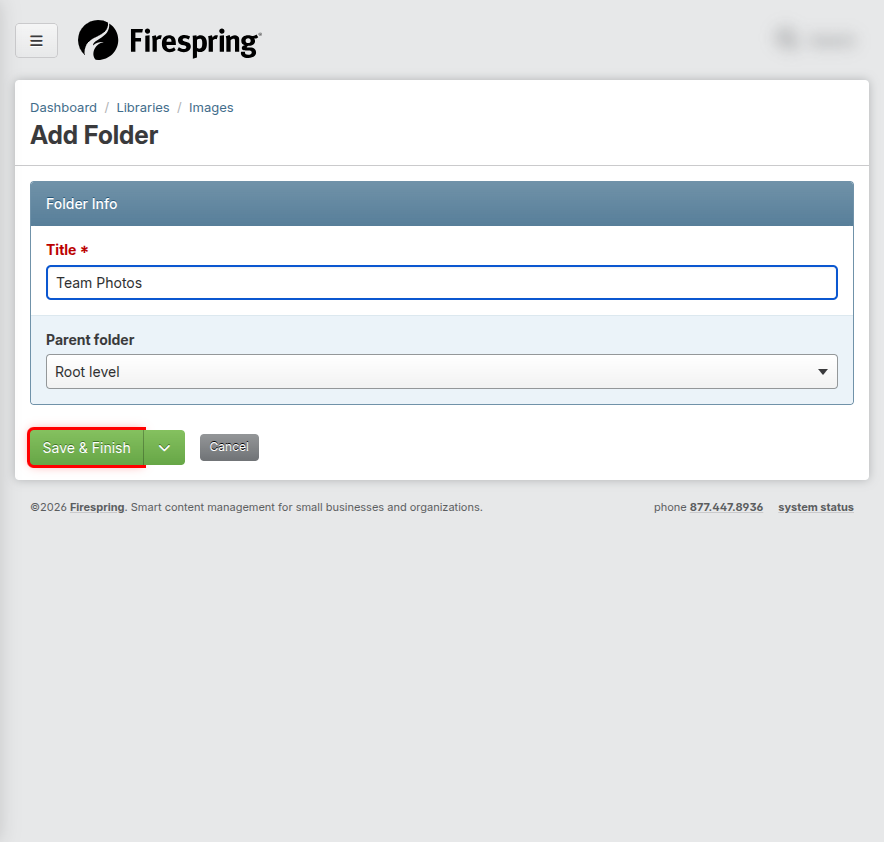
Click Save & Finish, or use the arrow to click Save & Add Another if you need to add another new folder.
-
Your new folder will open upon saving.

Moving Documents into Folders
Move existing documents into folders to keep your Document Library organized.
-
In your Document Library, locate the document(s) you would like to move.
-
Check the box to the left of the document(s).
-
At the bottom of the page, click Move Selected.

-
Choose your preferred folder from the dropdown menu.
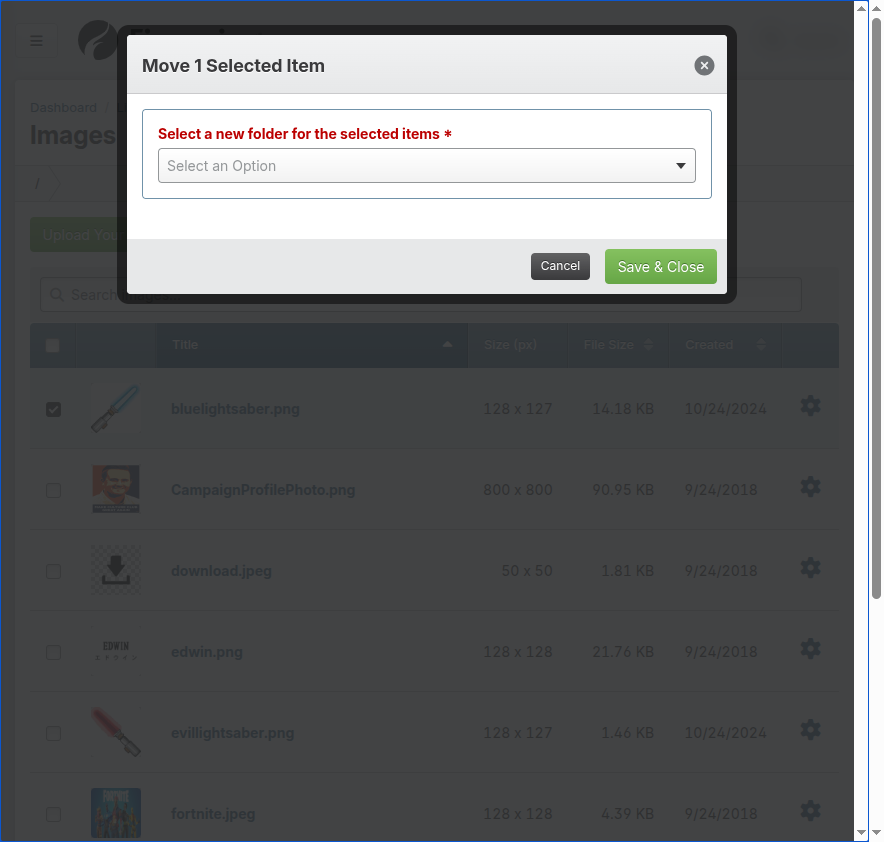
-
Click Save & Close.
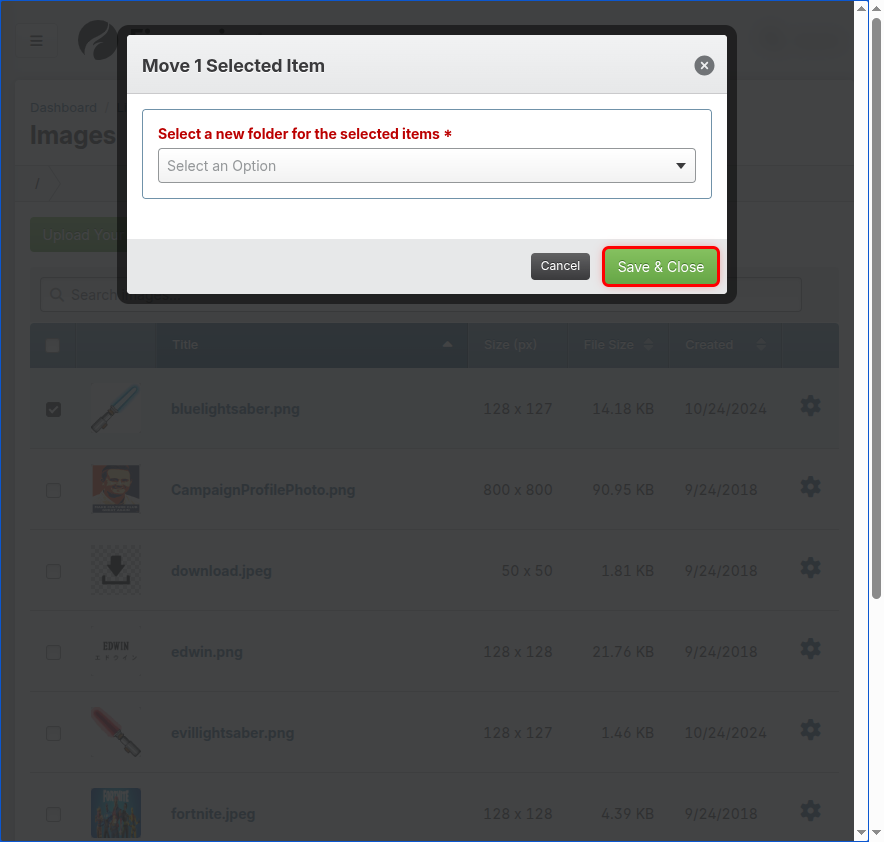
-
The document will now appear in your chosen folder. Click the title of the folder to confirm your documents were moved to the correct folder.
Adding Documents to Your Website Pages Using a Collection
Now that your documents live in your Document Library you can add them to the pages of your website for visitors to download. The Collection Content Type allows you to easily organize multiple documents on one page.
-
Click My Website, then Website Content to navigate to your Site Structure.
-
Click the title of the page to which you would like to add a document.

-
Locate the Collection Content Type in the left hand menu, and drag and drop it into your preferred location on the page.
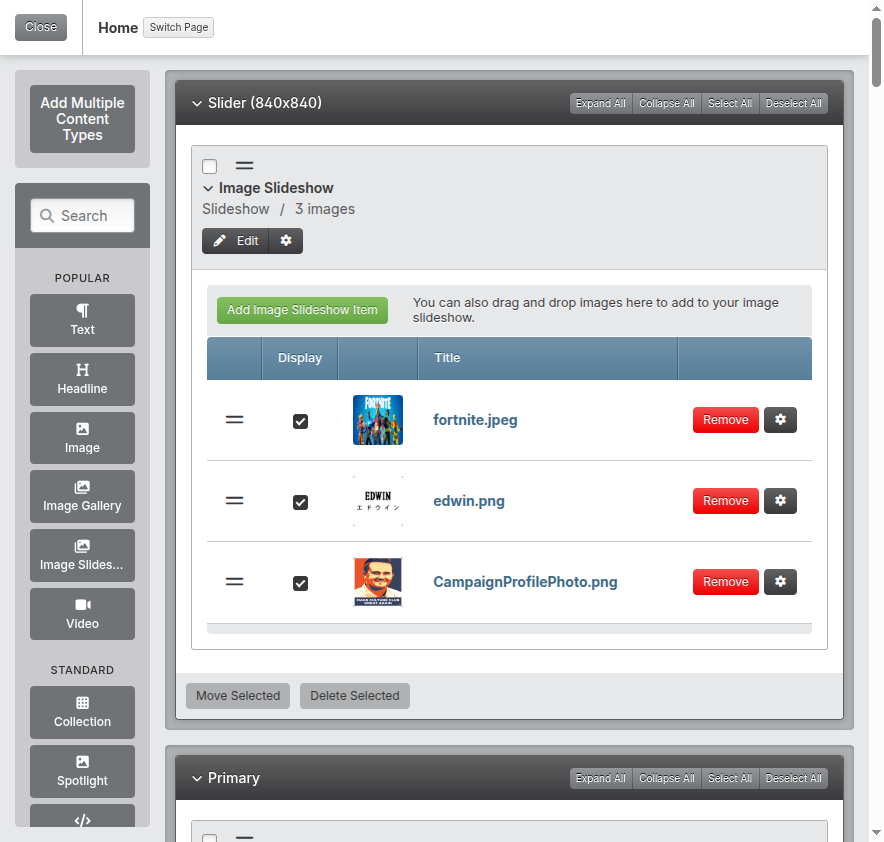
-
If necessary, update the Content location. This will default to the location in which the content type was placed.
-
If necessary, update the Content position. This will default to the order in which the content type was placed within the content space.
-
Enter a Title for your collection. This won't display on your website, but will help you keep your Springboard organized.

-
Choose your preferred Display mode. You can choose from the following:
- List: Display your collection as a bulleted or numbered list of items.
- Gallery: Display your collection with a grid layout of columns and rows.
- Glossary of terms: Display your items in an alphabetized list, including a row of alphabet jump links that populate based on your list.

-
Update the required display settings for your chosen Display mode.

-
Once you've updated your display settings, click Save & Close.

-
Click the green Add Collection Item button.
-
Enter a Label for your item, such as your document name.
-
Enter a Description for your item. You can use this space to give important details about your document to website visitors.
-
Using the Link dropdown, select To a downloadable file.
-
Click the gray Select File button to choose your Downloadable file.
-
Locate your document in the window that appears, and click Select This Document next to the title. You might need to click into folders if your file doesn't live at the root level.
-
Use the following guidelines to choose how you would like your document to open:
- For a PDF File: Toggle to Yes to open the document in a new window, and toggle to No for automatic download.
- For a Word Doc or.docx file: Toggle to No to open the document in a new window, and toggle to Yes to download the document automatically.
Download Required
Word documents are not able to open in a browser window, so they will always need to be downloaded directly to the user's computer. If you would prefer your document open in a new window, save the file on your computer as a PDF, then follow the directions to upload it to the Document Library.
-
If you would like to add an image to your collection item, click Select Image. Locate your image in the window that appears, then click Select This Image next to your chosen image.
-
Choose your preferred Alignment for your image if you are using one. The default alignment has been styled for you by the Firespring team for the design your website is on. You can also choose to left, center or right align your image.
-
Toggle to Yes if you prefer to Customize image display settings. Update the Border width, Border color, Padding, Background Color, and Margins as desired.
-
Click Save & Close.
Accessing the Download URL for a Document
Each document uploaded to your Document Library will be assigned a URL for easy linking within the text content type, or in email campaigns.
-
Click My Website, then Documents (under Libraries).
-
Locate the document to which you would like to link with text.
-
Click the gear icon to the right of the document, then click Copy URL.
Linking to a Document with the Text Content Type
You can use the document URL to link to a document with the Text Content Type. This comes in handy if you need to link to a document within a paragraph of text.
-
Click My Website, then Website Content to navigate to your Site Structure.
-
Click the title of the page that houses the text you would like to link to your document.
-
Click Edit next to the Text Content Type.
-
Highlight the text you would like to link to a document, then click the chain link icon in the Visual Editor menu bar.
-
Paste your Document URL in the Link URL space.
-
Use these guidelines when choosing the setting to Open in a new window:
- For a PDF File: Toggle the bar to green to open the document in a new window.
- For a Word Doc or.docx file: Leave the default setting so the document downloads to a user's computer.
-
Click the green checkmark to save your link.
-
Finish making any text edits, then click Save & Close.
-
Click the green View Page in the top right corner to view your page and test your link.
Tips & Helpful Guidance
-
File names: Give your documents clear, descriptive names before uploading them. Names like "membership-application-2023.pdf" are better than "doc1.pdf".
-
File types: The most common document types to use are:
- PDF: Best for most documents that you want to open in the browser
- DOC/DOCX: Microsoft Word documents that people might need to edit
- XLS/XLSX: Microsoft Excel spreadsheets for data and calculations
- PPT/PPTX: Microsoft PowerPoint presentations
-
File size: Try to keep your documents under 2GB in size. Large files can slow down your website load time, and take a long time for people to download from your site. If you are uploading a batch of documents the total size for all files will need to be under 2GB.
-
Organization: Create folders with specific names like "Forms," "Newsletters," or "Reports" to keep your documents organized in your Documents Library.
Troubleshooting
Problem: Your document won't upload
Solution: Check that your document isn't too large. Try making the file smaller or saving it in a different format. Documents should be less than X in size.
Problem: You can't find a document you uploaded
Solution:
- Use the search box at the top of the Document Library to search by name.
- Check if the document is in a folder by clicking on different folders.
Problem: Visitors can't download your document
Solution:
- Make sure you've uploaded a common file type that most people can open (like PDF).
- Check your collection item settings to make sure Word documents (.doc or .docx) are set to download to a user's computer instead of opening in a new window. Word documents are not able to open in a browser, and as such must be set to download instead.
- Try saving your document as a different file, such as a PDF, then upload it and try again.
Problem: Your document download link doesn't work
Solution:
- Edit the page and check that the document is still properly linked.
- Make sure you haven't deleted the document from your Document Library.
- Change the toggle for Open in a new window in the link settings, and test again.
- Try removing the link, and adding it again by copying the URL from the document in the Document Library.