Managing Users and Permissions
Complexity Level: Basic to Advanced
Overview
Use this guide to invite Springboard users, edit user details, organize users into groups, and control what each group can access in the Springboard.
Words used on this page
- User: A person who can sign in to your Springboard account.
- Group: A set of users who share the same access rules.
- Permission: A rule that controls what someone can see or do.
- Invite: An email request that lets someone join your account.
- User level: A label that shows the user's access level.
When to Use This Feature
Use this section if you need to:
- Add new users to your Springboard account
- Invite a new user by email
- Update a user's information, or access level
- Place users into groups
- Set group permissions for website sections
Step-by-Step Instructions
Viewing Your Team
-
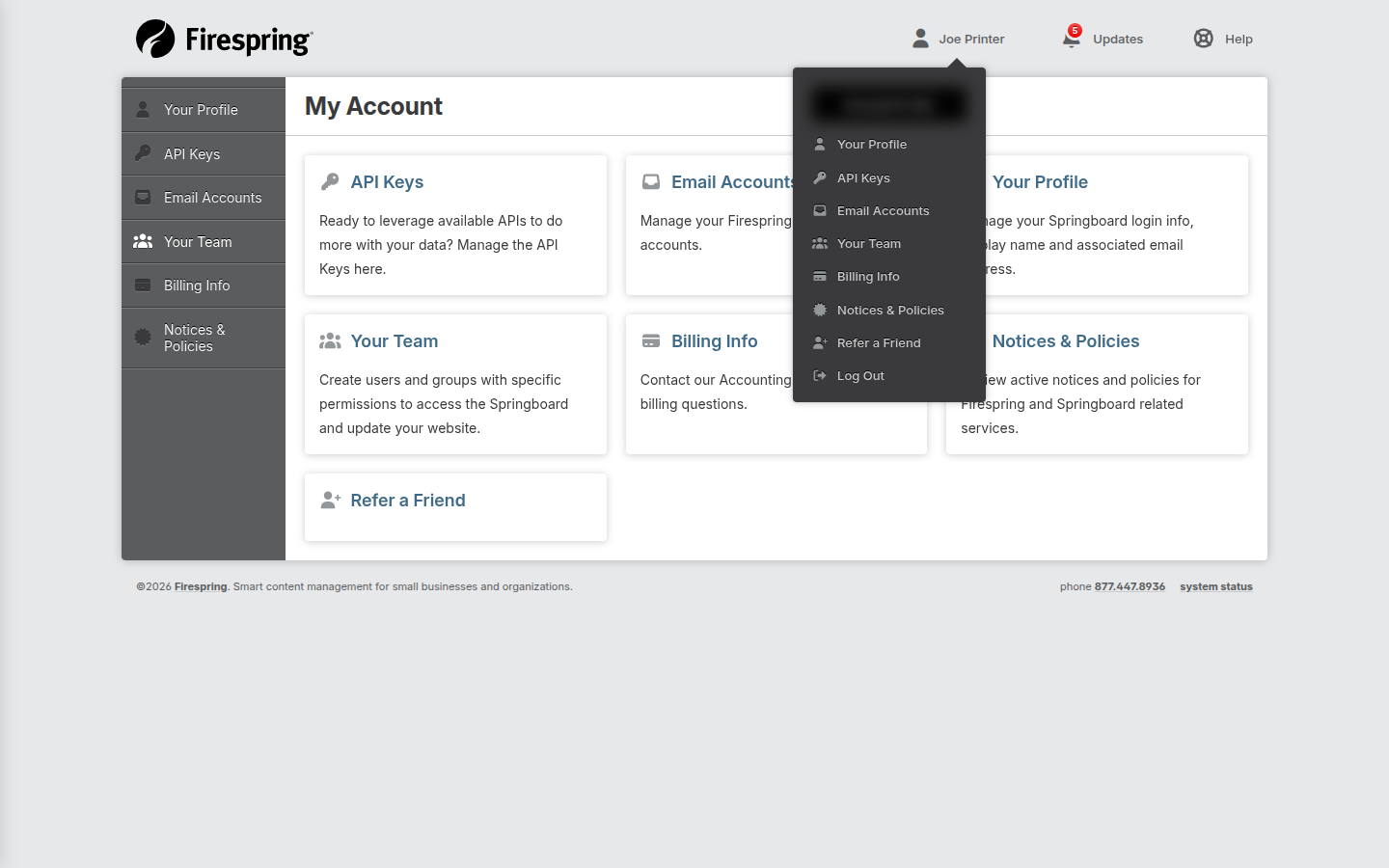
Click Your name in the top right corner, then click Your Team.
-
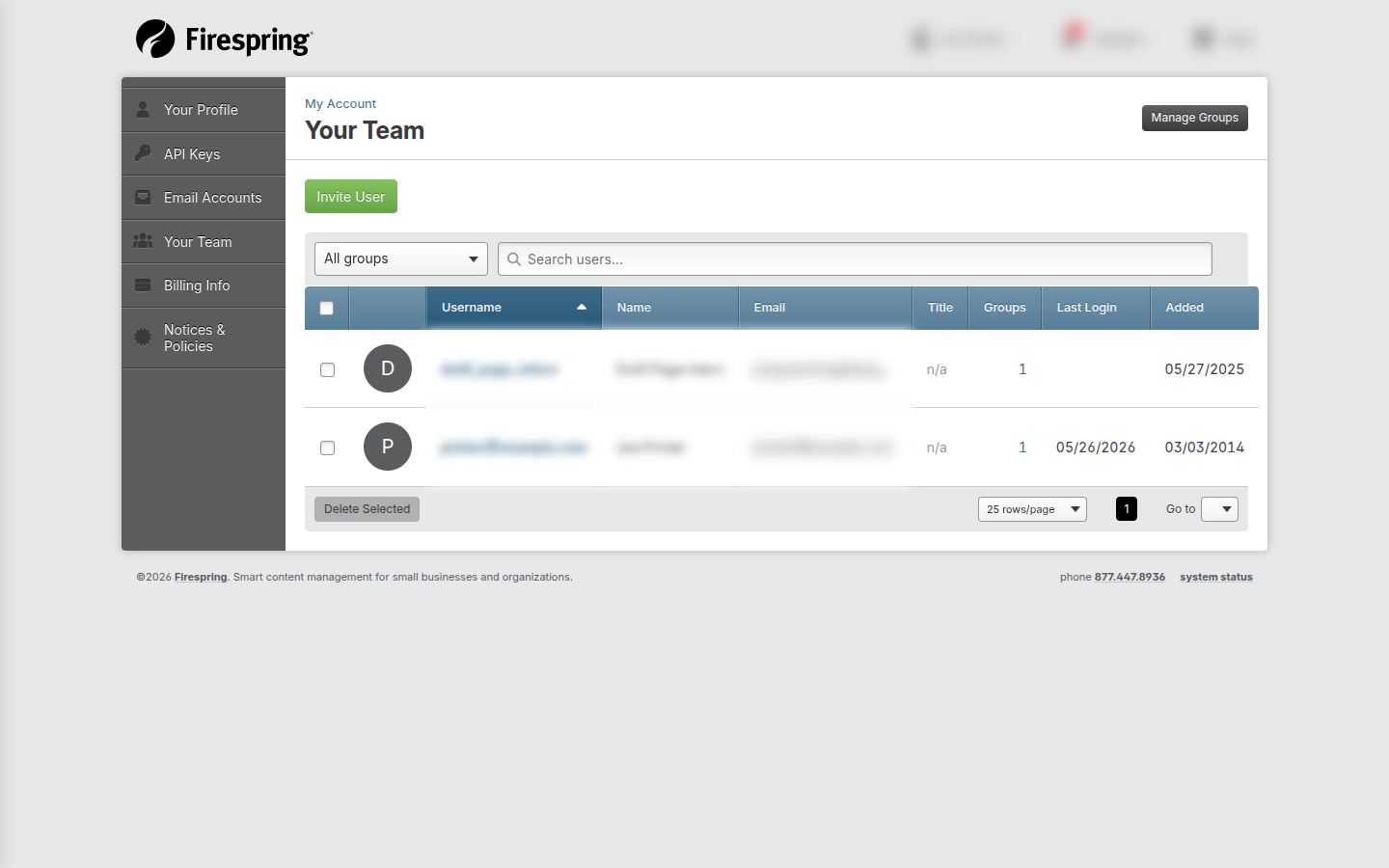
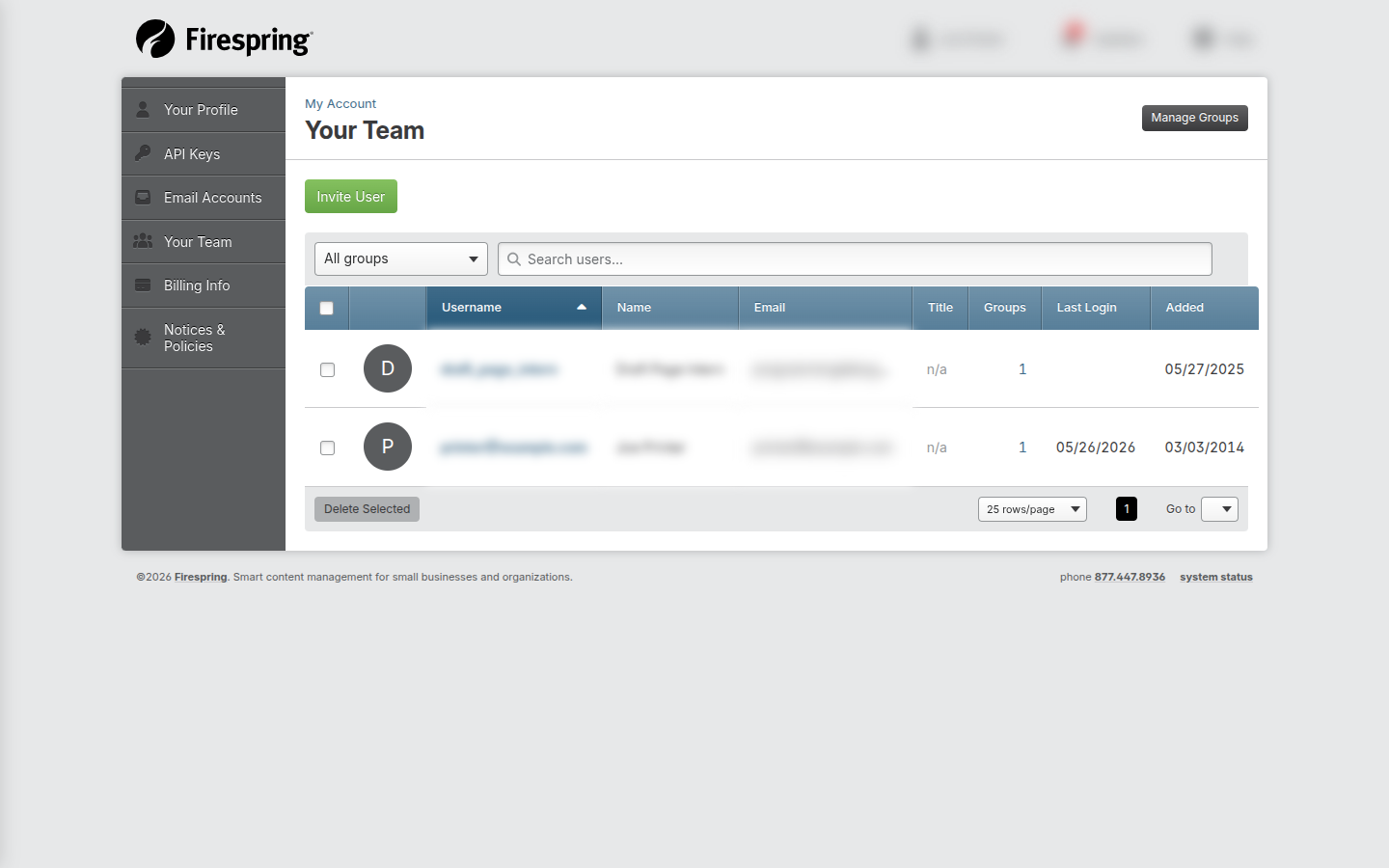
You will see a list of Your Team.
-
Use the filters above the list to find team members as needed:
- All groups dropdown: Sort your team members by group by selecting a group from the list.
- Search users box: Search for specific team members by typing a search term in the box.
-
The list shows columns for:
- Username
- Name
- Groups
-
If you need to delete team members, you can check the checkbox to the left of the username, then click Delete Selected at the bottom of the page.
Inviting a User
-
Click Your name in the top right corner, then click Your Team.
-
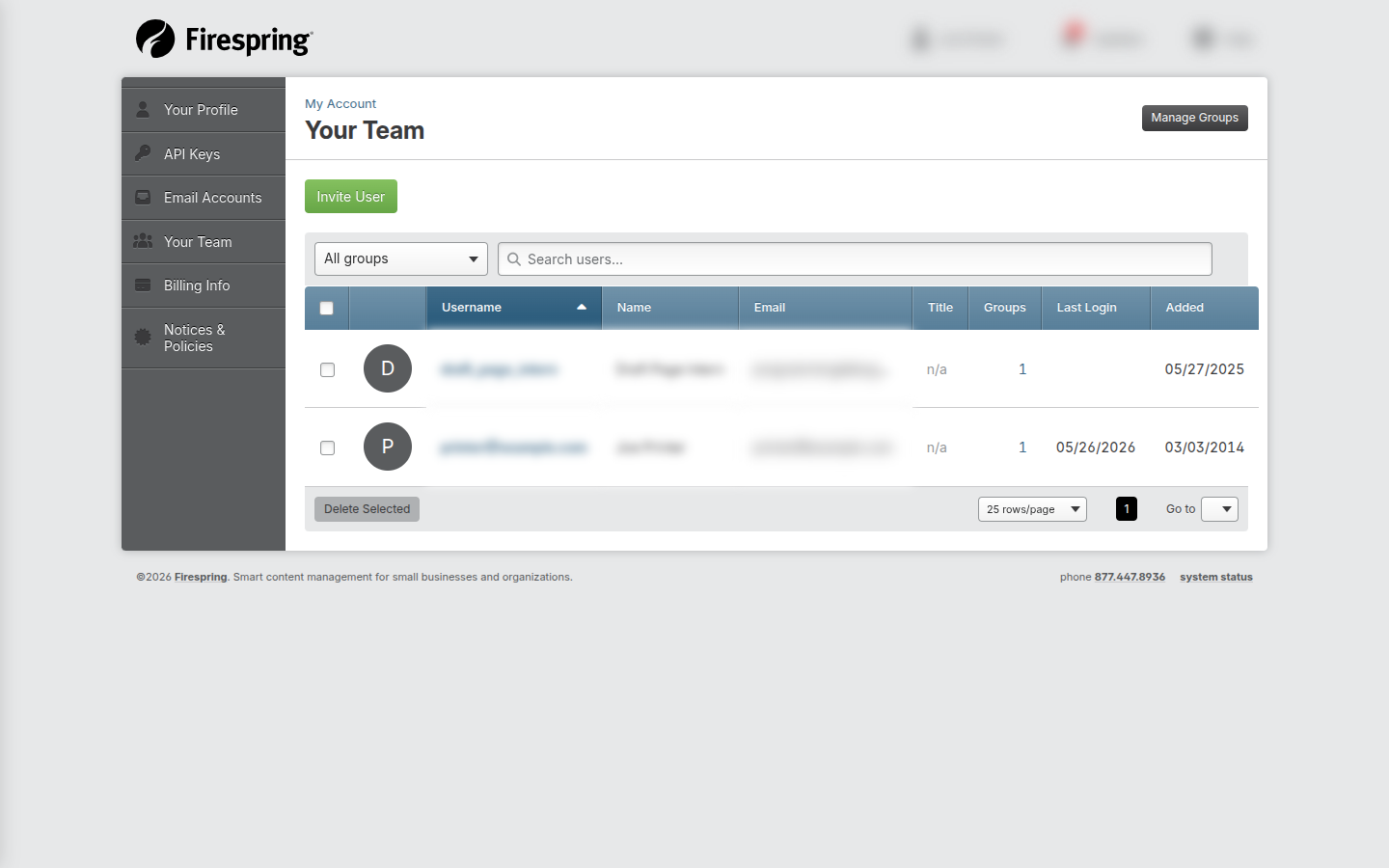
Click the green Invite User button.
-
Enter your new user's Email address. This will become your new user's username.
-
Select your new user's Assigned groups by toggling to Yes by the group(s) to which you would like to add this new user.
-
Click Send Invite, or use the arrow to Send & Invite Another.
Editing a User
-
Click Your name in the top right corner, then click Your Team.
-
Click a user's Username to open their profile.
-
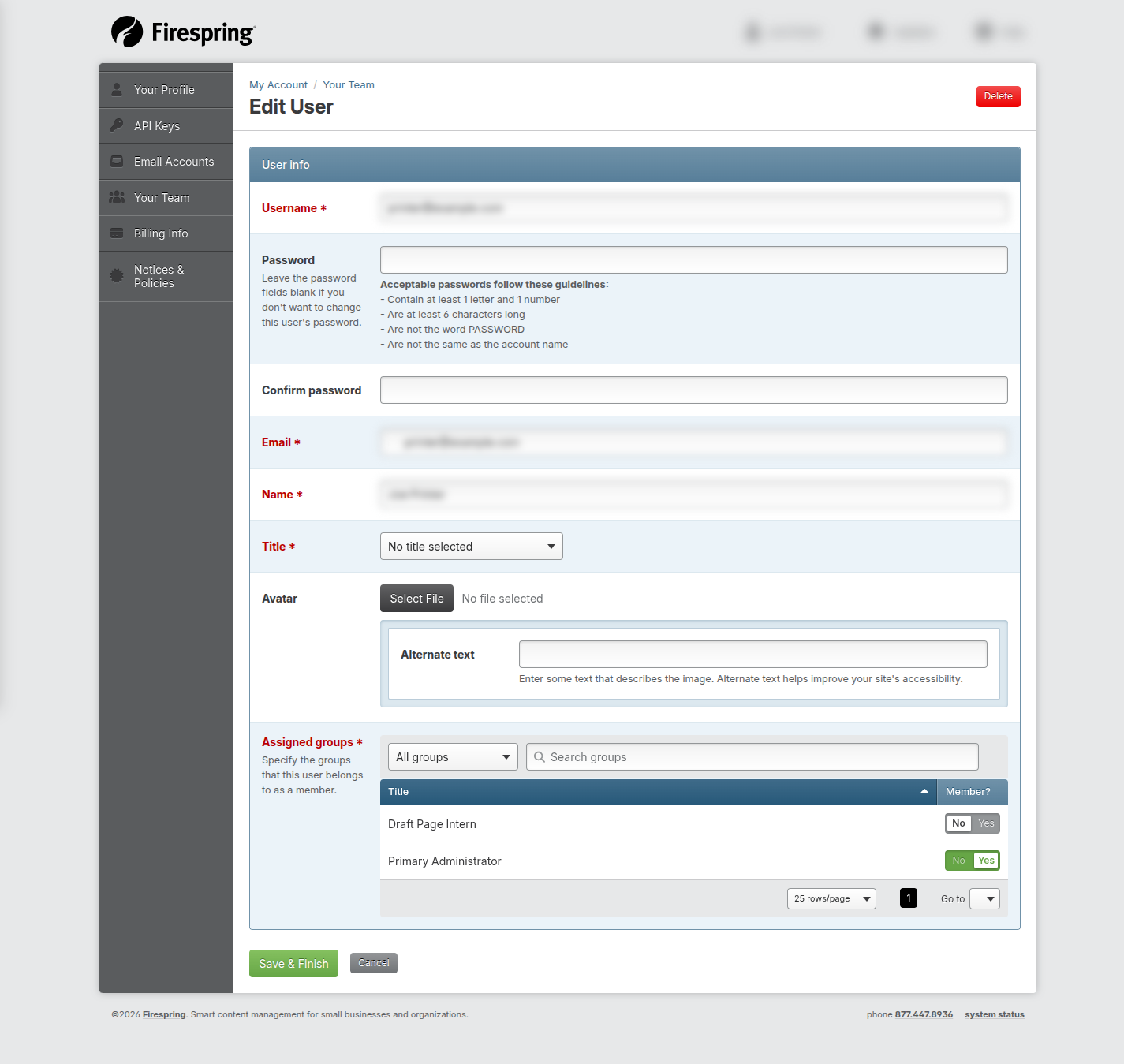
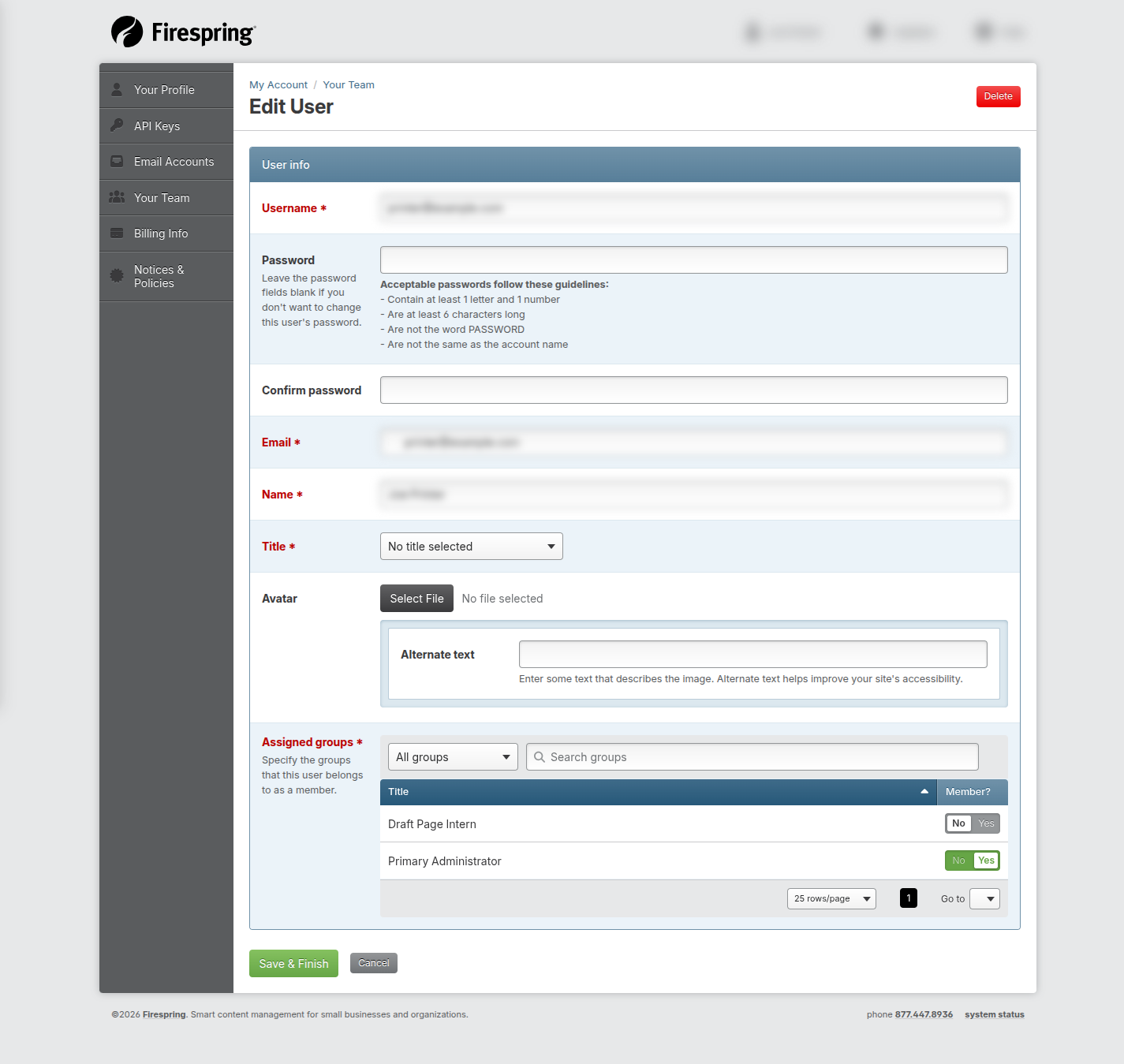
On the Edit User page, update the fields as needed:
- Username
- Password: Leave the password field blank if you don't want to change the user's password.
- Confirm password
- Name
- Assigned groups: Toggle to Yes next to the group(s) to which you would like to add this user.
-
Click Save & Finish when you are done.
-
To remove a user, click Delete in the top-right corner of their profile page.
Managing Groups
-
Click Your name in the top right corner, then click Your Team.
-
Click the grey Manage Groups button in the top right corner.
-
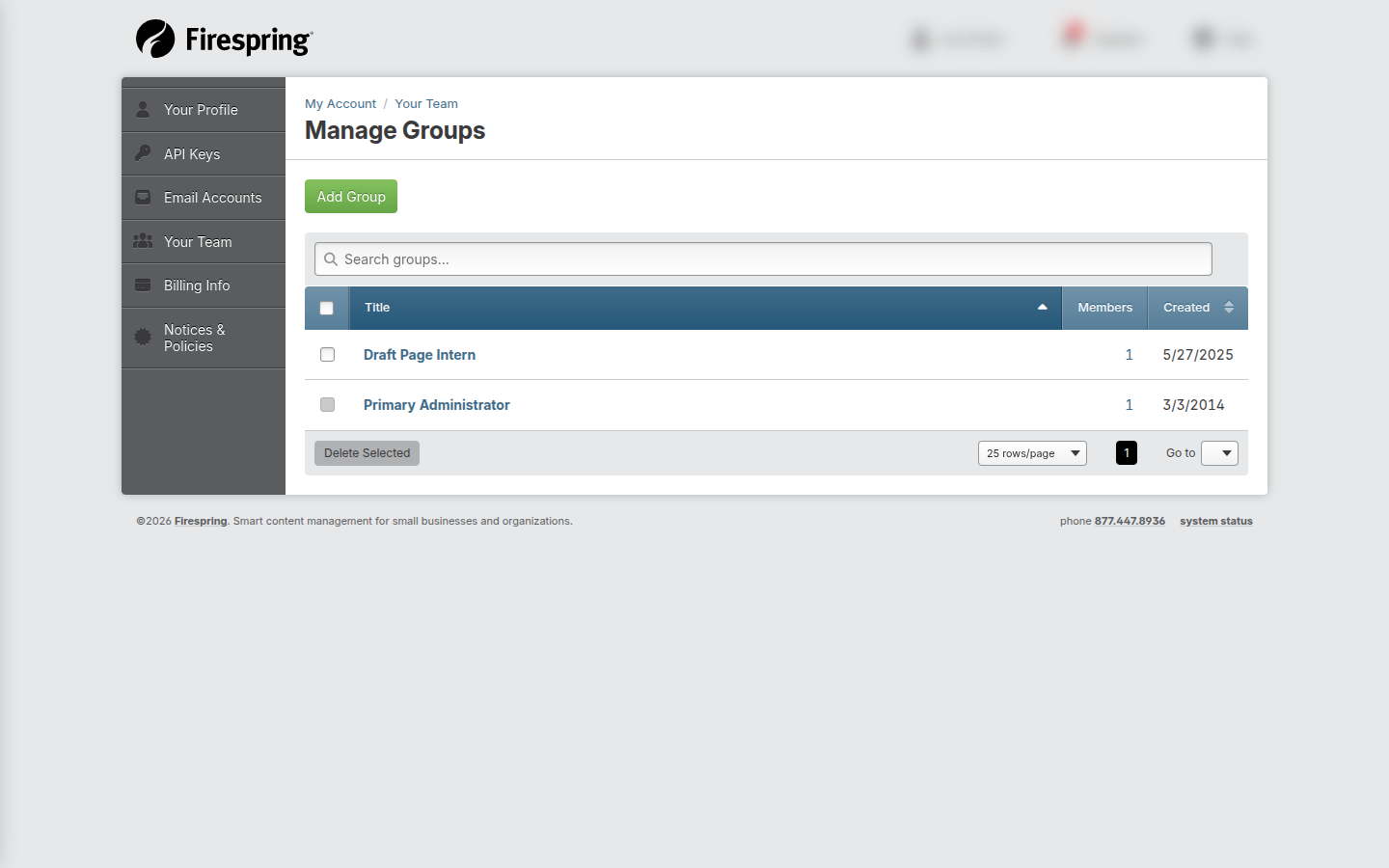
You will see the Manage Groups list.
-
Click the green Add Group button to create a new group:
- Title: Enter a Title for your new group.
- Assigned users: Specify which current users should be members of this group if applicable.
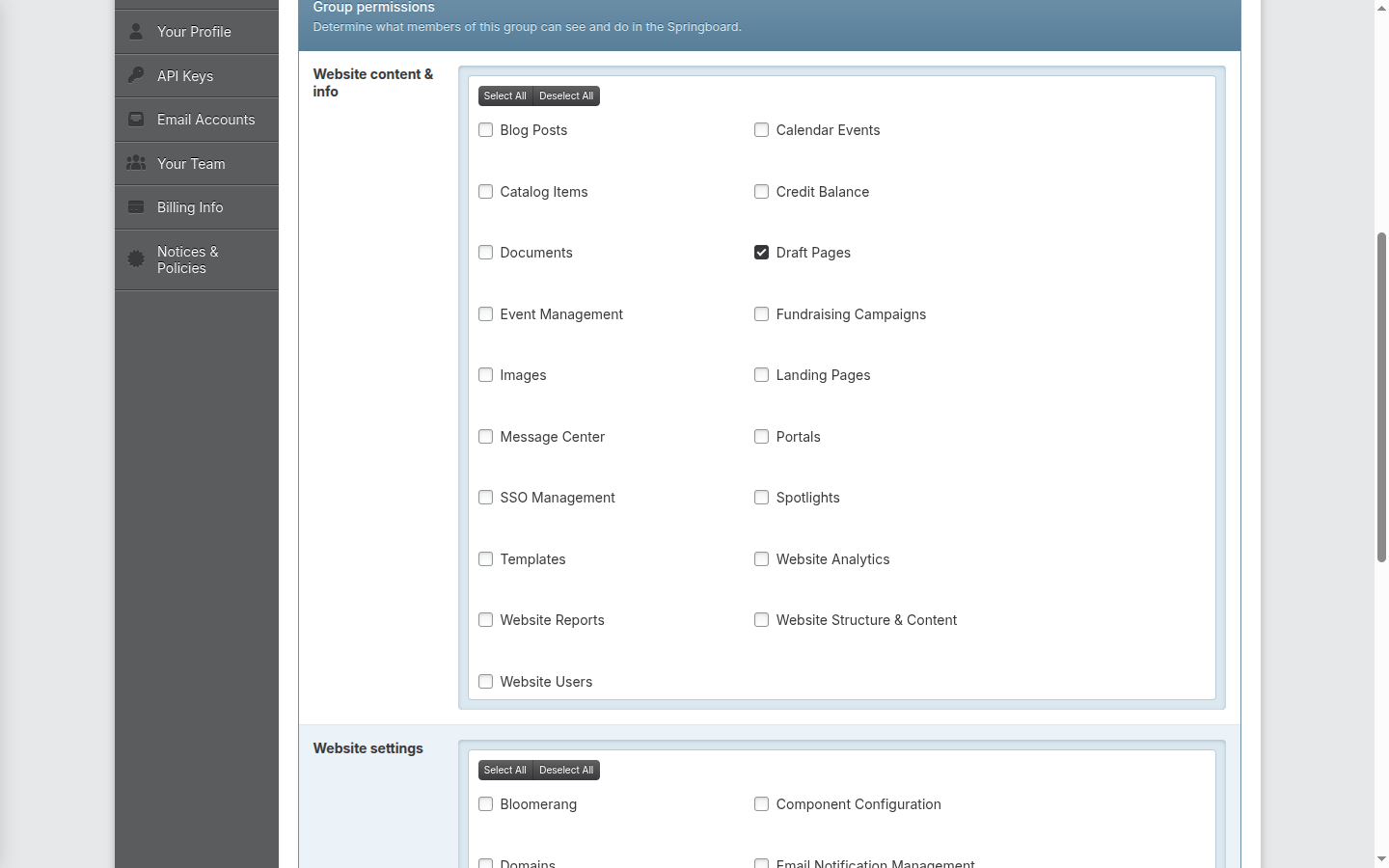
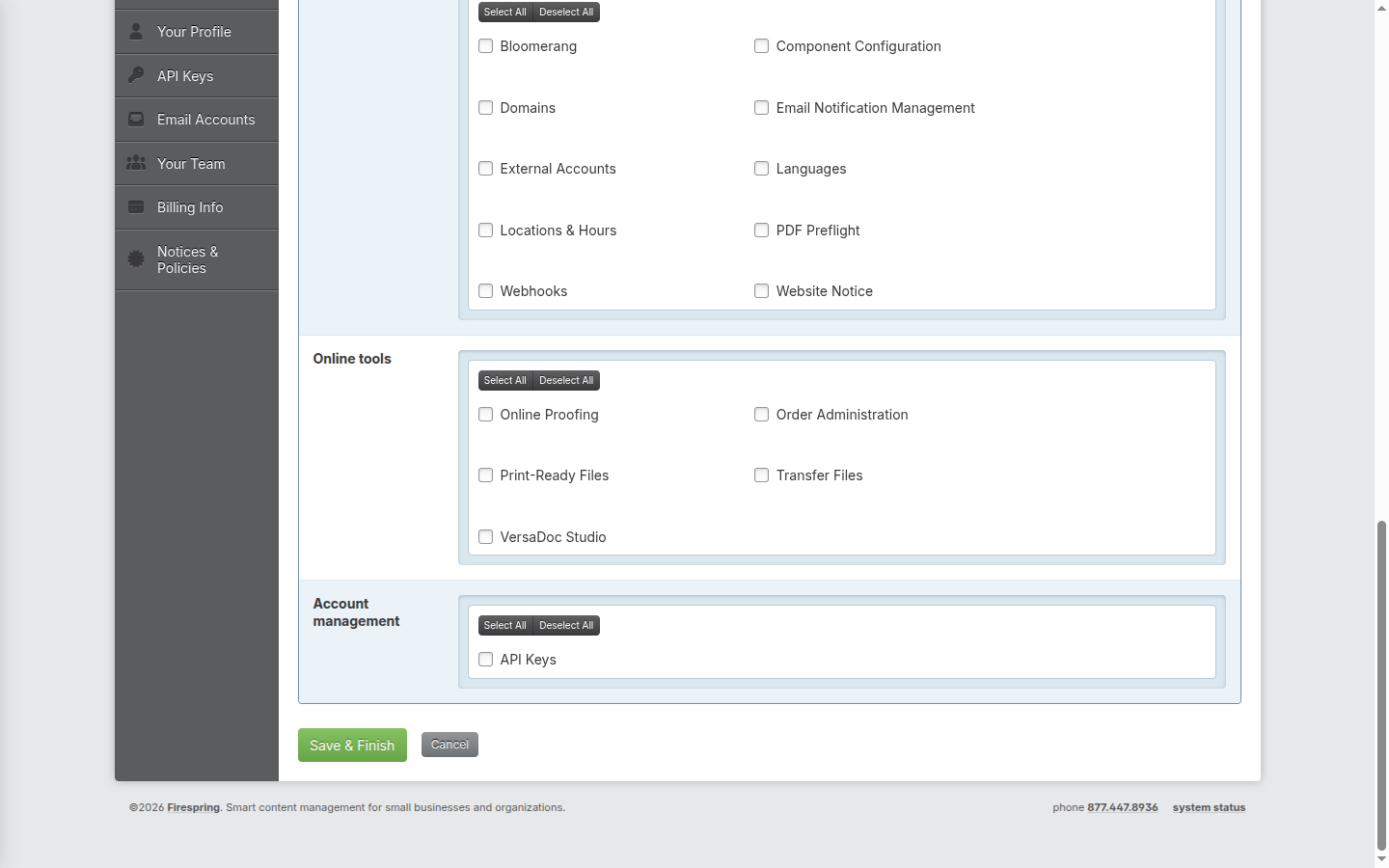
- Group permissions: Check the box next to each area of the Springboard that this group should have permission to access. You can also click Select All in the different sections to grant access to an entire section of permissions.
- Click Save & Finish or use the arrow to click Save & Add Another.
-
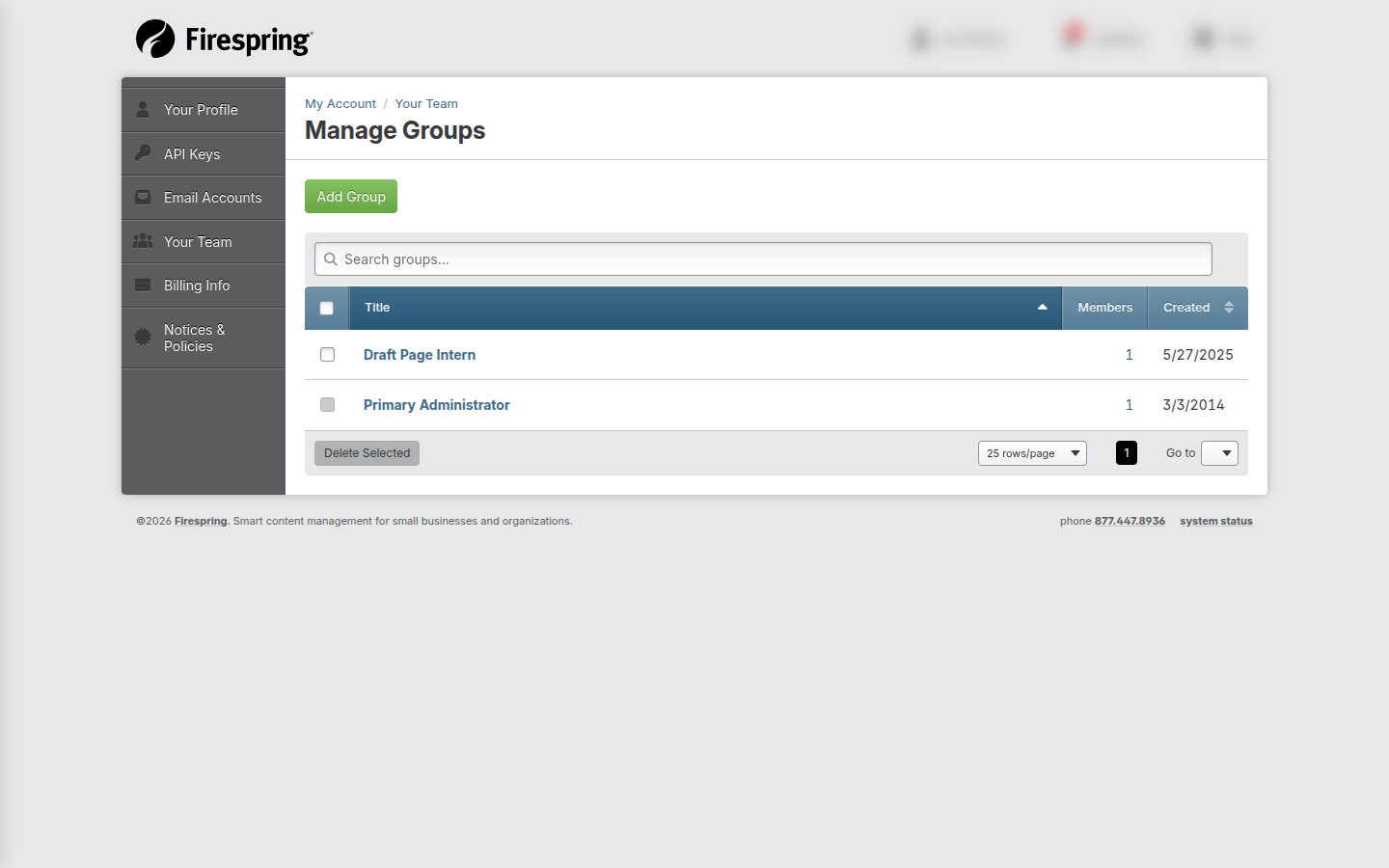
Use the search box to find groups quickly.
Editing a Group
-
Click Your name in the top right corner, then click Your Team.
-
Click the grey Manage Groups button in the top right corner.
-
Click on a group title to edit that group.
-
On the Edit Group page, update:
- Title: This is what you'll select when adding new users to this group.
- Assigned users: Use the toggle to the right of existing users to add or remove them from this group. You can also use the dropdown to view by group, or search using the search box.
- Group permissions: Check or uncheck the box next to each area of the Springboard that this group should have permission to access. You can also click Select All in the different sections to grant access to an entire section of permissions.
-
Click Save & Finish when you are done.
-
To delete a group, click Delete in the top-right corner of the Edit Group page.
Tips & Helpful Guidance
- Use groups for access control: You can set up as many different groups as you need to tailor access to the Springboard for your users.
- Set user level carefully: Choose the smallest access level that fits the user's job.
- Name groups clearly: Clear names help you assign users quickly.
- Review permissions regularly: Remove access, or users, when roles change.
Troubleshooting
Problem: A user can’t sign in
Solution:
- Double-check the username. Generally their username will be their email address.
- Ask them to reset their password.
- Make sure they are assigned to a group with permissions set up.
Problem: A user isn't getting their initial invite or reset password email
Solution:
- Check that the email address in the Springboard doesn't have any typos.
- Have the user check their spam or junk folders.
Problem: A user doesn't have access to something they should
Solution:
- Check the users group assignments.
- Confirm the user is assigned to the correct group.
- Check the group permissions to verify that the area you're looking for has been assigned.