Logging In and Navigating Your Dashboard
Overview
The dashboard is the main screen you see after logging in to the Springboard. The dashboard is your “home base” for managing your website in the Springboard, Firespring’s website management platform.
When You Would Use This
- When you first start using the Springboard to manage your website
- Every time you need to make changes to your website
- When you want to check recent activity on your website
- If you need to update your account information
- When you want to find help or training resources
Logging In to the Springboard
Logging in to the Springboard is the first step to managing your website.
- Open your web browser (like Chrome, Firefox, or Safari).
- Enter
https://my.firespring.comin the address bar at the top of your browser. - Press the Enter key on your keyboard.
- You will be redirected to the login page at accounts.firespring.com/login.
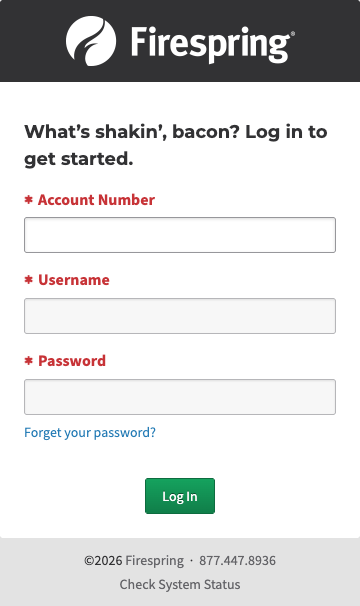
- On the login screen, fill in:
- Account: Enter your organization’s account identifier (ask your administrator if you’re not sure).
- Username (or Email): Enter your username or email address.
- Password: Enter your password (you’ll see dots instead of letters for security).
- Click the Log In button.
- After successful login, you will be redirected to the Springboard.
Tips for Logging In
- If you can’t remember your password, click the Forgot Password link below the login button.
- Make sure the Caps Lock key on your keyboard is turned off.
- If you’re not sure what to enter in the Account field, contact your website administrator or Firespring support.
Selecting a Website After Logging In
If you manage only one website, you will be taken directly to your dashboard after logging in. You won’t need to select a website since there’s only one option.
If you manage more than one website, you’ll need to choose which one you want to work on after logging in. What you see next may vary depending on your account setup:
Website List View
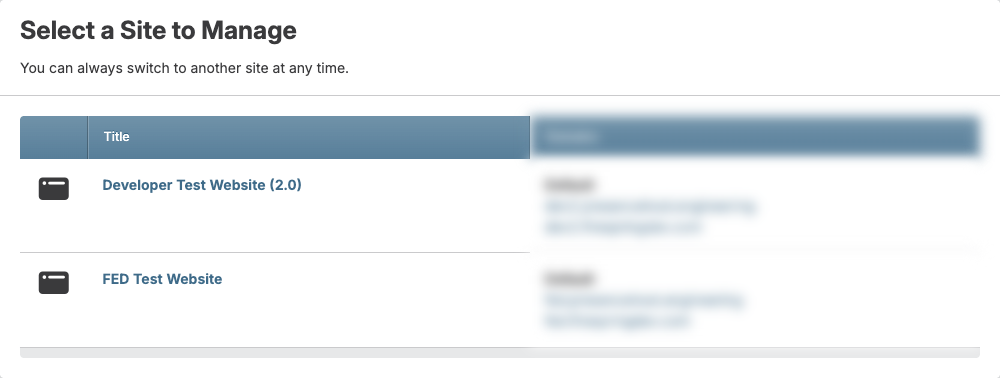
In most cases, you’ll see a list of websites you can manage:
-
Each website in the list will show:
-
Title - The website name
- Account - The account it belongs to (if you work with multiple accounts)
-
Domains - The website address (URL)
-
To select a website:
-
Click on the website name to go to that website’s dashboard.
Search-First View
In some cases, you may see a search interface instead of a complete list:
- A search bar will appear at the top of the page.
- Type part of the website name for which you're searching.
- As you type, matching websites will appear in a list below the search bar.
- Click on the website name to go to that website’s dashboard.
Using the Dashboard
Once you’ve logged in (and selected a website if you manage multiple sites), you’ll see your dashboard. The dashboard is your control center for managing your website in the Springboard.
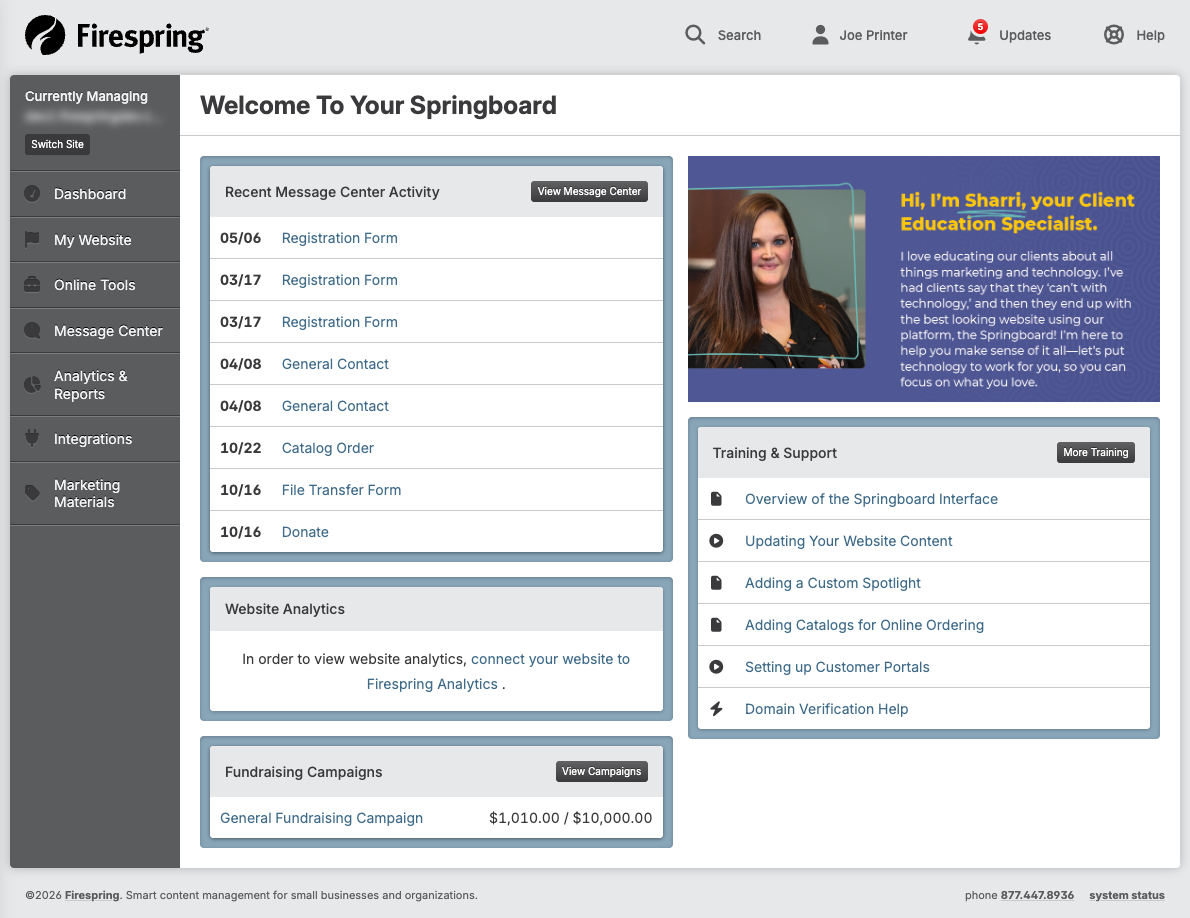
The dashboard has several important parts:
-
Top Navigation Bar: Runs across the top of the screen and contains:
-
Your website name
- Your account name
- Notifications bell (shows alerts and messages)
-
Your profile picture or icon
-
Side Menu: Located on the left side of the screen and shows:
- Information for the website you're Currently Managing
- Main sections of your website management
-
Links to important online tools
-
Main Content Area: The large area in the center that shows:
- Recent analytics activity for your website
- Quick access buttons to common tasks
-
Important notices or alerts
-
Help Resources: Links to resources to help you as you learn
Accessing Your Account Settings
Your account settings let you change your personal information and preferences.
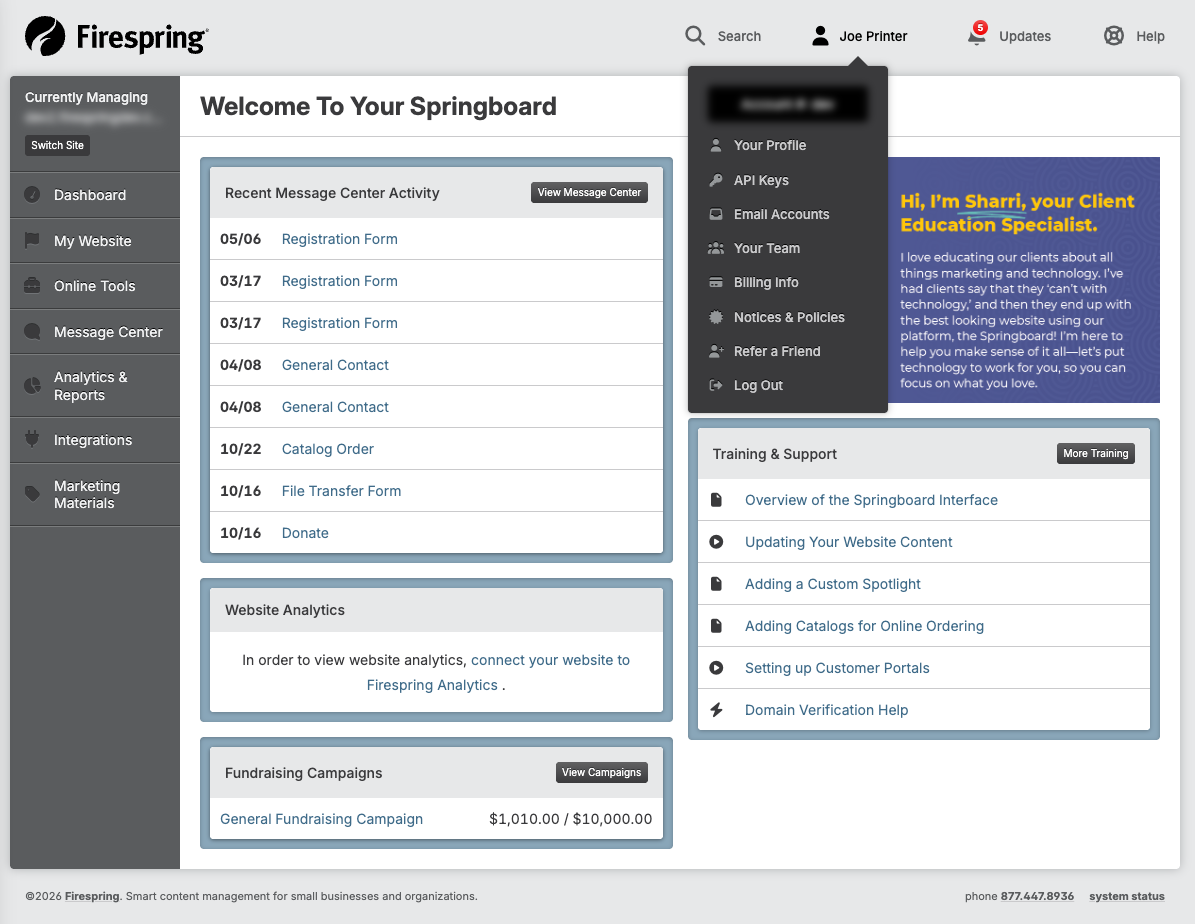
- Find your name or profile picture in the top right corner of the screen.
- Click on it to open the dropdown menu.
- Select Your Profile from the menu.
- You’ll be taken to your profile page where you can:
- Update your personal information
- Change your password
- Set your notification preferences
- Manage your security settings
Re-entering Your Password for Security
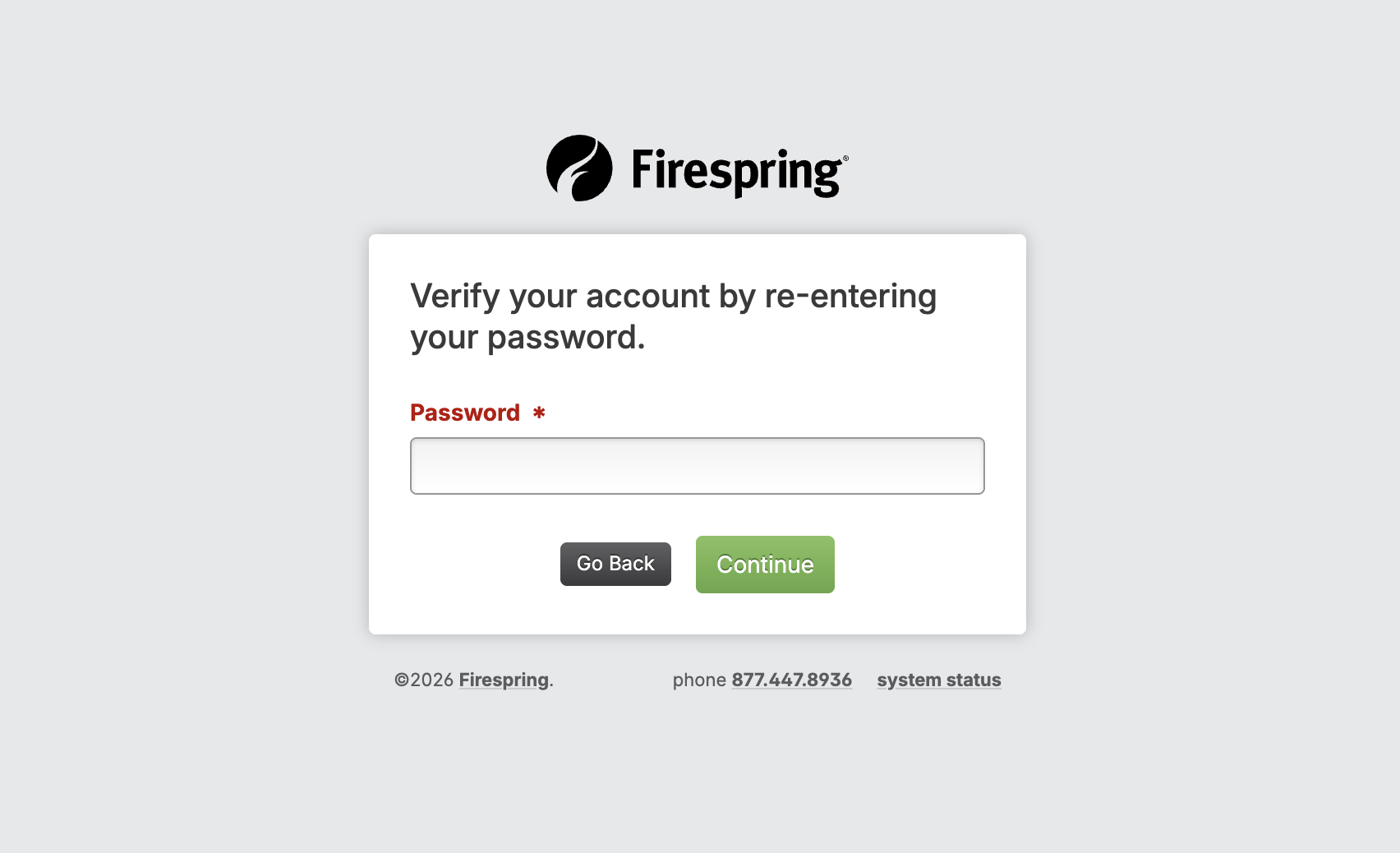
For some sensitive settings, the Springboard will ask you to enter your password again for security.
- If you click on a secure area like account settings, you might see a password verification screen.
- This extra step helps protect your account.
- Enter your current password in the box.
- Click Verify to continue.
Logging Out of the Springboard
When you finish using the Springboard, it’s important to log out, especially if you’re using a shared computer.
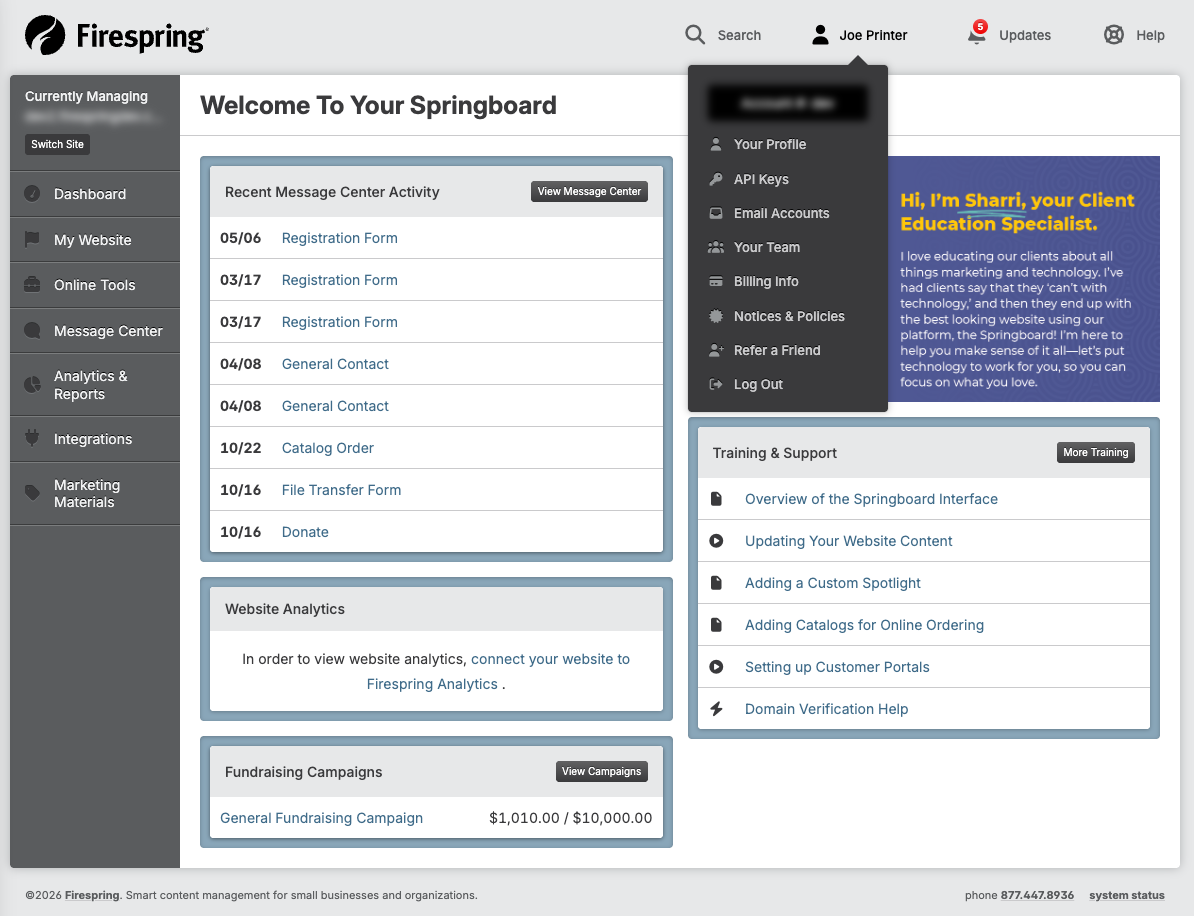
- Find your name or profile picture in the top right corner.
- Click on it to open the dropdown menu.
- Click Log Out at the bottom of the menu.
- You’ll be returned to the login screen.
Tips for Using Your Dashboard
- Notifications: The bell icon in the top bar shows important alerts. A red dot means you have unread notifications.
- Breadcrumbs: The path at the top of the main content area shows where you are. You can click any part to go back to a previous section.
- Screen Size: If you’re using a small screen or tablet, the side menu might collapse to better fit the screen. Look for a mobile menu icon (three lines) in the left hand corner to expand it.
- Session Timeout: For security, the Springboard will automatically log you out after a period of inactivity.
Troubleshooting
Problem: You can’t log in
Solution: Check that:
- Your account number, username and password are typed correctly.
- Caps Lock is turned off.
- Your internet connection is stable.
- If you still can’t log in, click “Forgot Password” or contact your website's primary administrator.
Problem: You don’t see the website you’re looking for
Solution:
- If you have access, try searching for the website name in the search box.
- If you have access to multiple accounts, check that you are logged in with the correct account number.
- Contact your website's primary administrator if you should have access but don’t see the website.
Problem: The dashboard looks different than expected
Solution:
- Your view may be different based on your role and permissions.
- Ask your administrator about your access level.
- If you have access to multiple accounts, check that you’re in the correct account.
Problem: You’re asked for your password again
Solution:
- This is normal for security-sensitive areas.
- Enter your current password.
- If you can’t remember it, use the password reset option from the login screen.
Problem: You can’t find a specific feature
Solution:
- Use the search function if available.
- Check different sections in the side menu.
- Look for the feature in the “Website Settings” section.
- Reach out to Firespring Support for assistance.