Using Content Templates
Complexity Level: Basic to Intermediate
Overview
This page shows you how to work with content templates in the Springboard. Content templates are pre-made designs you can use as starting points for new pages. They save you time and help keep your website looking consistent.
Words used on this page
- Content template: A pre-made design you can use as a starting point for new pages.
- Landing page: A special page designed to promote something specific, like an event or product.
- Page template: A design for regular website pages.
- Template library: The collection of all your saved templates.
When to Use This
Use this section if you need to:
- Create consistent-looking pages across your website
- Save time when making new pages
- Create a standard layout for certain types of content
- Make special promotional pages (landing pages)
- Reuse successful page designs
Creating a Content Template
Creating a template lets you save a page design to use again later. Here's how:
-
Click My Website.
-
Under Libraries, click Templates.
-
Click the green Add Template button in the top left corner.
-
To build a template that can be applied to internal pages, choose Content.
-
Enter a Title for your template. This will be visible when choosing a template to add to a new or existing page.
-
Toggle to your Clone preference:
- Existing template: Create your template based on an existing template in your template library. Choose the template you wish to clone from the dropdown menu.
- Website page: Clone a current website page to use as a template in the future.
- Portal page: Create a template cloned from a page in a specific portal on your website.
- Nothing (Create a template from scratch): Start with a blank page and build your template from scratch.
-
Click the green Next button in the top right corner.
-
You can now edit any existing content on your new template by clicking Edit to the right of the content, or add new content using the left hand menu to drag and drop new content types into your preferred placement on the page.
-
When you're done editing your template, click the green Finish button in the top right corner.
Using a Template for a New Page
Once you've created templates, you can use them to quickly create new pages:
-
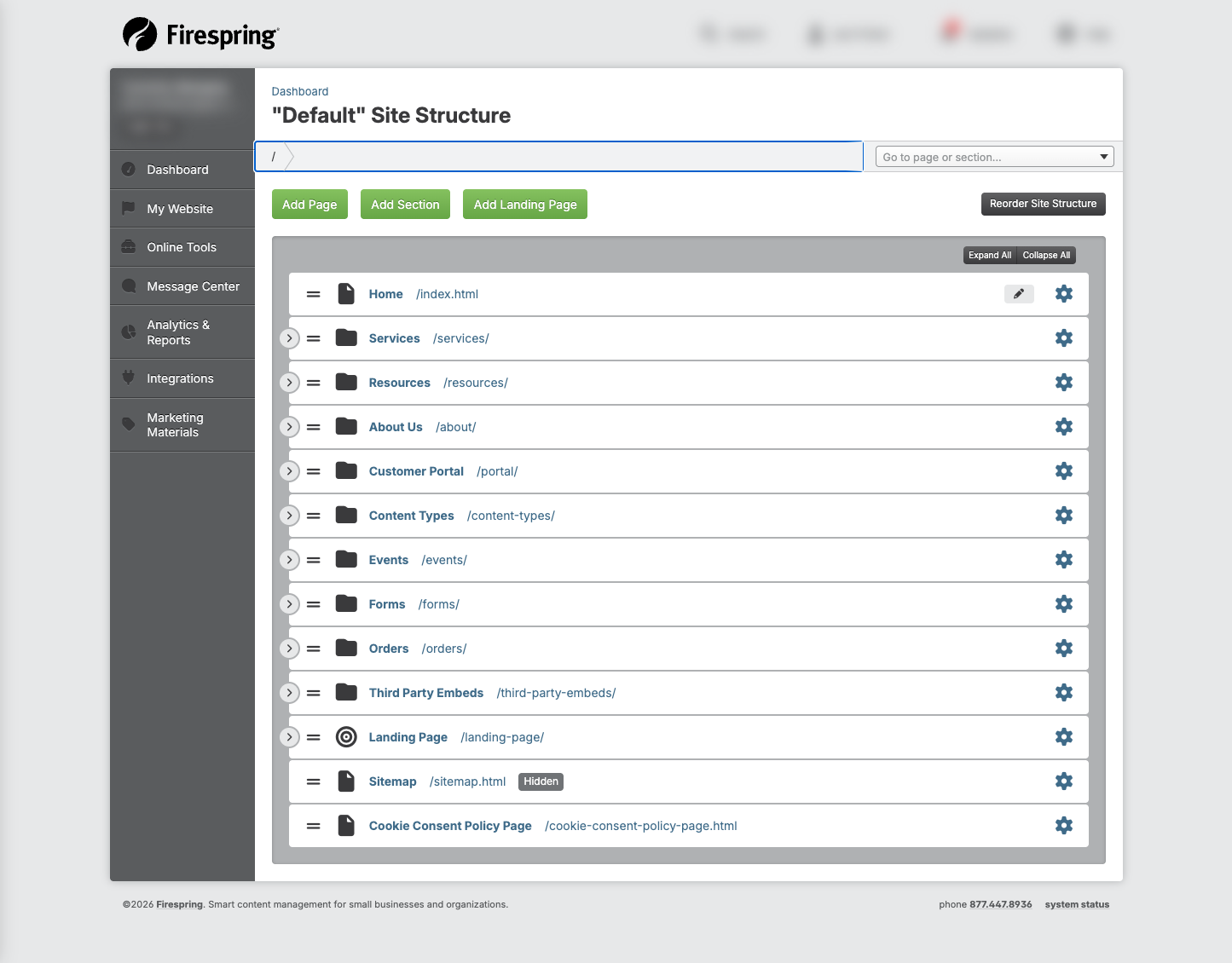
Click My Website, then Website Content.
-
Click the green Add Page button.
-
Enter a Title for your page. This will appear in the site navigation on your website, and in your site structure.
-
Update the URL if necessary by clicking Edit next to the URL. This will fill in automatically based on your page title.
-
Select your preferred Location for your new page using the dropdown menu. By default, your new page will live in the Root section, or the main navigation.
-
Leave the default setting for Page layout. When using a template you do not need to update the page layout.
-
Select your preferred Content template using the dropdown menu.
-
By default, your page will be set to Display in site navigation. If you would like this page to be hidden, toggle to No.
-
By default, your page will be included in the sitemap. If you would like to hide this page on the sitemap, toggle to No.
-
For Page redirect, leave the default setting of No redirect.
-
Fill out the SEO Info for your new page as desired.
-
Fill out the Social Sharing Info for your new page as desired.
-
Click Save & Finish.
Editing an Existing Template
You can update your templates at any time. Here's how:
-
Click My Website.
-
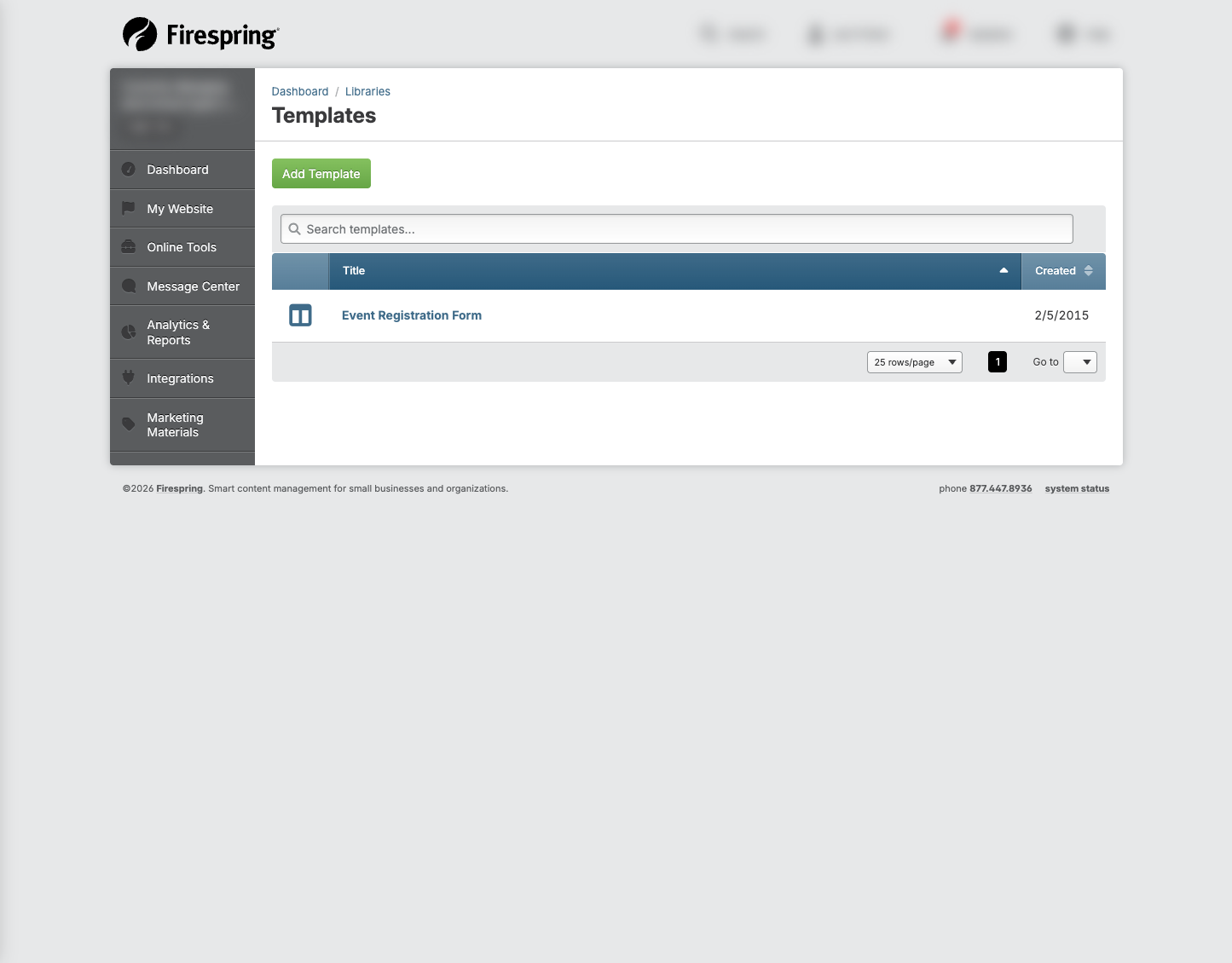
Under Libraries, click Templates.
-
Find the template you want to edit in the list.
-
Click the title of the template.
-
Make your updates by clicking Edit to the right of any existing content. You can also add new content using the left hand menu to drag and drop content types into your preferred placement on the page.
-
When you've finished editing your template, click the gray Complete Changes button in the top left corner.
Any pages you create in the future using this template will include your changes, but pages you've already created will not be retroactively updated.
Creating a Landing Page Template
Landing page templates are special templates designed for promotional pages. They often have a different layout than regular pages and focus on a specific call to action. Here's how to create one:
-
Click My Website.
-
Under Libraries, click Templates.
-
Click the green Add Template button in the top left corner.
-
Click Landing Page.
-
Enter a Title for your template. This will be visible when choosing a template to add to a new or existing page.
-
Toggle to your Clone preference:
- Existing template: Create your template based on an existing template in your template library. Choose the template you wish to clone from the dropdown menu.
- Landing page: Clone a current website page to use as a template in the future.
- Nothing (Create a template from scratch): Start with a blank page and build your template from scratch.
-
Click the green Finish button in the top right corner.
-
You can now edit any existing content on your new landing page template. A landing page consists of two parts, a Page and a Response. The Page includes the call to action, and is the page where your website visitors will start. The Response is where they'll land after submitting the page. To edit the content, first click one of the page titles. Click Edit to the right of the content, or add new content using the left hand menu to drag and drop new content types into your preferred placement on the page.
-
When you're done editing a page, click the gray Close button in the top left corner.
Tips & Helpful Guidance
-
Start simple: Begin with basic templates and add more complex ones as you get comfortable.
-
Be descriptive in your titles: Use clear, descriptive names for your templates that explain their purpose.
-
Create templates for common pages: If you frequently create similar pages (like event pages or staff bios), make templates for them.
-
Use placeholders: In your templates, use obvious placeholder text like "[ADD EVENT DATE HERE]" to make it clear what needs to be changed.
-
Be consistent: Use similar layouts and styles across your templates for a cohesive website look.
-
Update periodically: Review your templates every few months to make sure they still match your website's style and needs.
-
Duplicate templates before major changes: If you're making significant changes to a template, consider creating a new template by copying the existing one.
Troubleshooting
Problem: You can't find a template you created
Solution:
- Use the search box at the top of the Template library to search by name.
- Click the Created column title to organize by date created. If you click the title twice, the templates will be listed by the most recent date.
- If you are still unable to find it, it's possible it was renamed or deleted. Find a page that you created with the template, and build a new template using that page.
Problem: Your template doesn't appear in the dropdown when creating a page
Solution:
- Confirm that you are adding the correct page type for the template you wish to add. Landing Page templates will only show when adding a Landing Page.
- Navigate to the Template Library to confirm the name of the template you're looking for. It's possible it was renamed, or saved differently than you remember.
- If you're still having trouble finding a template, you can create a new one or reach out to Firespring Support for assistance.
Problem: The page created from your template doesn't look right
Solution:
- Check that the template you're adding to the page matches the page type. Landing page templates should be applied to landing pages, while content templates can be applied to internal pages.
- Navigate to the Templates library to audit the template, and make any necessary updates to fix the template for future use.
- If you had placeholder content on the template, make sure you've updated or removed it before previewing.
- If you continue to have display issues, reach out to Firespring Support for help troubleshooting.
Problem: You can't edit a template
Solution:
- Make sure you're signed in with an account that has permission to edit templates.
- If you still can't edit it, try creating a new template based on the existing one.