Setting Up Your Account
Overview
This part of the Springboard helps you manage your account and the people who work with you.
Words used on this page
- Account: Your organization’s space in Springboard.
- Menu: The list of choices you click to move around the site.
- Page: One screen in Springboard, like a form or a list.
Here you can:
- Update your own profile and login details.
- Add or invite teammates.
- Organize teammates into groups.
- Manage email accounts and email aliases.
- Create and delete access keys for other services.
- Read account notices and policies.
- Get billing help.
Use this section if you need to
- Update your email or profile details.
- Add a coworker to your team.
- Invite someone by email.
- Organize people into groups (for example, “Editors” or “Admins”).
- Create or remove access keys for another system.
- Manage email mailboxes or aliases.
- Review account notices or policies
Finishing Account Creation from an Invite Link
Use this when someone invites you to the Springboard by email.

- Click the invite link in your email.
- Look for the Account # and Email address box.
- Check the box that says you saved your login details.
- Type your name.
- Create a password.
- Type the same password again in the Confirm password box.
- Save your password somewhere safe.
- Click Save & Finish.
If the link is expired:
- You will see a message that the link is no longer valid.
- Contact your website administrator to resend the invite link, or contact Firespring Support at the email shown on the page.
Updating Your Profile Information
This is for all users.

-
Click Your name in the upper right corner → Your Profile.
-
In Profile info, find:
- Your name
-
Type your updates.
-
Click Save & Finish.
You will see a message that your profile has been updated.

Changing Your Login Details
This is for all users.

- Click Your name in the upper right corner → Your Profile.
- Find the Login credentials section.
- Click Edit Login Credentials.
- Update:
- Username
- New password
- Confirm new password
- Click Save & Finish.
Viewing Your Team List
This is for primary administrators or users who manage team members.

-
Click Your name in the upper right corner → Your Team.
-
If prompted, re-enter your password.
-
You will see a table with:
- Username
- Name
- Groups
-
Click the number in the Groups column to see what groups a user is associated with.
You can:
- Use the search box to find people.
- Use the groups dropdown to view by group.
Adding or Inviting a Team Member
This is for primary administrators or users who manage team members.

-
Click Your name in the upper right corner → Your Team.
-
Click the green Invite User button.
-
Enter your new user's Email.
-
In Assigned groups, toggle to Yes next to your preferred group(s) for this user
-
Click Send Invite.
The person will receive an email with a link to finish setting up their login credentials.
If the link expires before your new user accepts it, click the green Resend Invitation button beneath their username.
Editing a Team Member
This is for primary administrators or users who manage team members.

-
Click Your name in the upper right corner → Your Team.
-
Click a username.
-
Update the fields as needed.
-
Click Save & Finish.
Resending an Invite
This is for primary administrators or users who manage team members.

- Go to Your Name in the upper right hand corner → Your Team.
- Find the user with the Invited or Expired badge.
- Click Resend Invitation.
Deleting a Team Member
This is for primary administrators or users who manage team members.

- Check the box(es) to the left of the user's username.
- Click Delete Selected in the bottom left corner.
- Review the confirmation message.
- Click Yes, Delete Them.
Deleting a user is permanent. They will be removed from all groups upon deletion.
Viewing and Managing Groups
This is for primary administrators or users who manage team members.
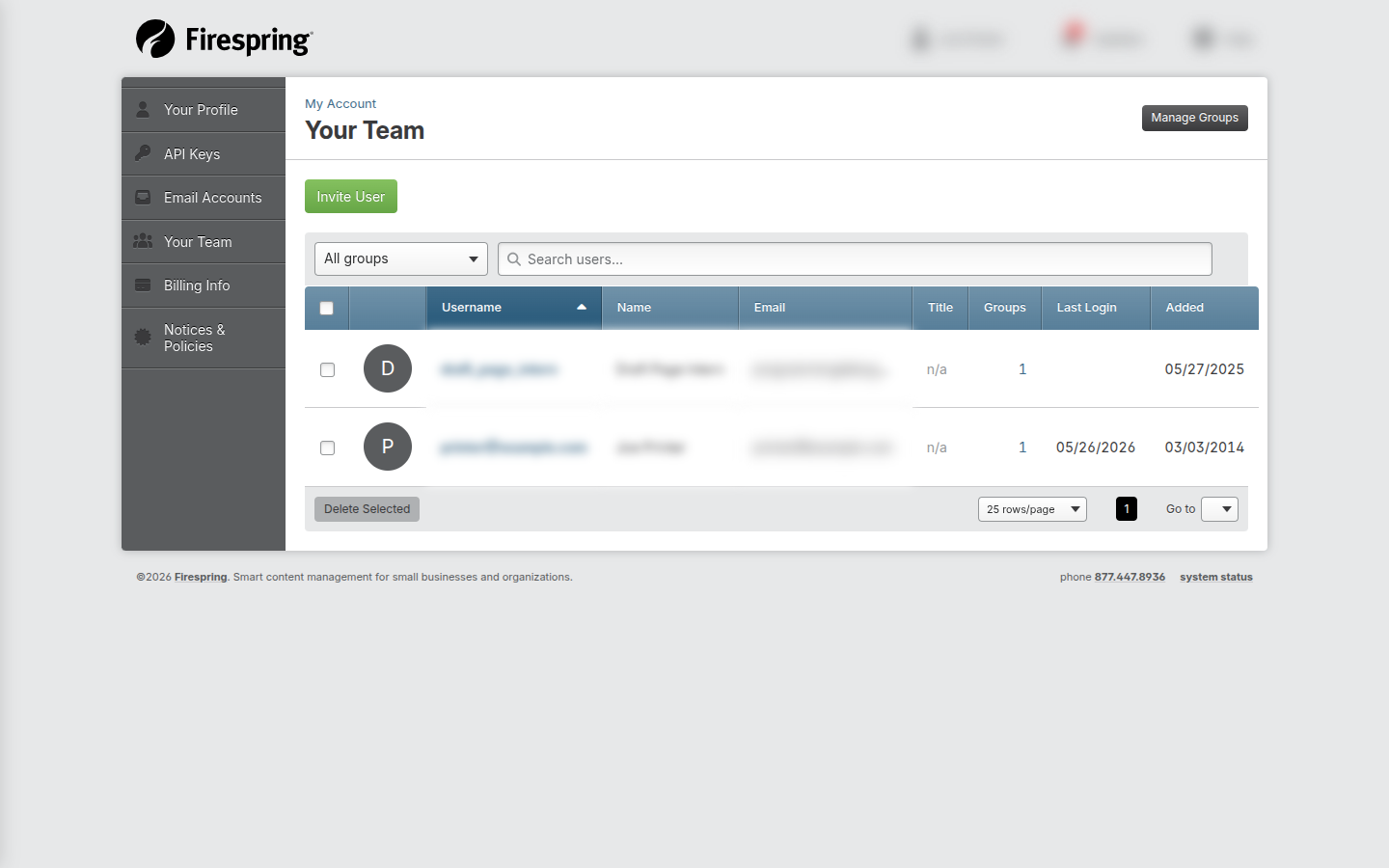
- Go to Your Name in the upper right hand corner → Your Team.
- Click Manage Groups.
- You will see a table of groups with Title, Members and Created date columns.
You can:
- Search for a group.
- Edit group permissions.
- Delete or add new groups.
Adding a Group
This is for primary administrators or users who manage team members.
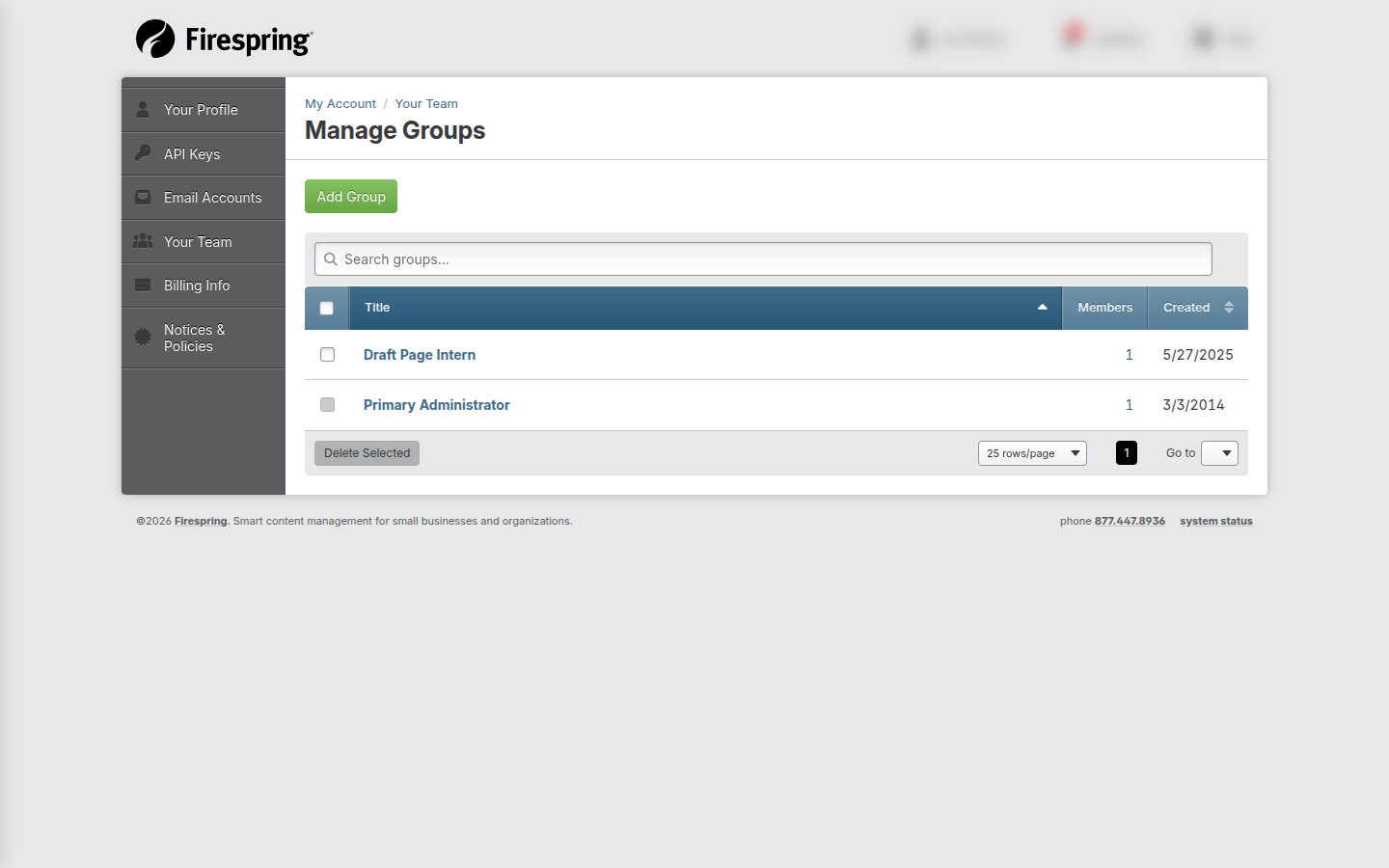
- Click Manage Groups.
- Click Add Group.
- Enter a Title for your group.
- Toggle to Yes next to any existing members you would like to assign to this group.
- Check the box(es) next to the items to which you would like to grant this group access.
- Click Save & Finish.
Editing or Deleting a Group
This is for primary administrators or users who manage team members.

- Click Manage Groups.
- Click the group you want to edit.
- Update Title, Users and Permissions as needed, then click Save & Finish.
- To delete a group, click Delete in the top right corner, then confirm.
Deleting a group is permanent. Some groups may not show a Delete button. These are required groups.
Managing Email Accounts (Mailboxes and Aliases)
This is for primary administrators or users who manage team members.

-
Go to Your Name in the upper right hand corner → Email Accounts.
-
You will see:
- An Add Mailbox button
- An Add Alias button
- A Sync Accounts button
- Links to policy and configuration help
- A list of active email addresses
-
Use the search box to find an account.
-
Click an account to edit it.
Add a Mailbox
- Click Add Mailbox.
- Fill out the Username and Password.
- Click Save & Finish.
If you see a warning about extra cost:
- Read the message.
- Decide if you want to continue.
- Contact Firespring Support with any questions.
Add an Alias
- Click Add Alias.
- Fill out Alias name, and set up to 15 forwards for your alias.
- Click Save & Finish.
Edit or Delete an Email Account
- Click the account in the list.
- Update details and click Save & Finish.
- To delete, click Delete and confirm.
What to Do If You See an Email Account Alert
Sometimes the email area shows a warning message.

- If you are in account management, the message may say the account is locked, suspended, or not active.
- Follow the message instructions on the screen.
- Contact your website administrator, or Firespring Support with any questions.
Managing API Keys
This is an administrator task. You will need to have Primary Administration access, or specific API access to manage API Keys.

- Go to Your Name in the upper right hand corner → API Keys.
- Click Add API Key.
- A new key will appear in the list.
To delete:
- Find the key in the list.
- Click Delete.
- Confirm the message.
Reading Account Notices and Policies
This is for all users.

- Go to Your Name in the upper right hand corner → Notices & Policies.
- Click a notice title to open details.
- Read the notice carefully.
Getting Billing Help
This is for all users.

- Go to Your Name in the upper right hand corner → Billing Info.
- Review the information provided.
- Use the phone or email link to contact Firespring Accounting.
Tips, Notes, and Helpful Guidance
- Grayed-out buttons mean you do not have permissions, or a required field is missing.
- Always click Save & Finish to save your changes.
- If you see Invited or Expired, the person has not accepted their Springboard invite.
- Groups help you control access. Make sure group names are clear and concise to keep your Springboard users organized.
- When adding mailboxes, watch for cost warnings.
- If you do not see a section, your group access may not allow it. Contact your website administrator to update your access or make edits on your behalf.
Troubleshooting
Problem: You can’t open the invite link.
Solution: The link may be expired. Contact your website administrator to resend the invitation, or reach out to Firespring Support using the email on the page.

Problem: You can’t click Save & Finish, or page reloads after clicking.
Solution: Look for red error messages and fill in any missing fields.
Problem: You don’t see Manage Groups.
Solution: Your role may not provide access to this area. Ask your website administrator to update your access, or make changes on your behalf.
Problem: The Email Accounts page shows a warning.
Solution: Read the message and follow the instructions. Contact Firespring Support if instructed, or with any questions you might have.
Problem: The Delete button is missing for a group.
Solution: Some groups are required and cannot be deleted.
Summary
This page helps you update your own profile, manage your team, organize groups, handle email accounts, and keep your account secure. Use the steps above for each task, and contact support if you get stuck.