Managing Inventory and Discounts
Complexity Level: Basic to Advanced
Overview
Learn how to add products, track inventory, create discount codes, and run inventory reports in Springboard.
Words used on this page
- Catalog: A collection of products you sell in your online store, organized into catalogs.
- Inventory: The items you have available to sell and how many of each item you have.
- Promo Code: A special code customers can enter at checkout to get a discount on their purchase.
- Discount: A reduction in price, either a percentage off (like 10% off) or a fixed dollar amount off (like $5 off).
- Subtotal: The total cost of items before shipping and taxes are added.
- Category: A group that helps organize similar products together (like "T-Shirts" or "Books").
When to Use This Feature
Use this section if you need to:
- Add new products to your online store
- Keep track of how many items you have in stock
- Get alerts when you're running low on inventory
- Set up discount codes for sales or special promotions
- Create special offers that reduce the price or shipping cost
- Check inventory levels across all your products
- Organize products into catalogs
Step-by-Step Instructions
Adding Products to Your Catalog
After opening the catalog where you want to add an item, click Add New Item or Create Catalog Item.
The form includes these fields:
- Title: The name of your product (what customers see)
- Parent catalog: Choose the catalog this item belongs to
- Mark item as a favorite: Select Yes or No to feature this item
- Item # (SKU): Unique code to help you track this product
- Description: Full details about the product
- Short description (Gallery only): Brief summary for gallery view and shopping cart
- Default quantity: The amount added to the cart by default
Pricing Grid:
- Add price tiers for bulk buying (e.g., 1-9 items = $10 each, 10+ = $8 each)
- Minimum quantity: Smallest amount a customer can buy
- Unit Price ($): Price per item at each quantity tier
- Use Add Tier to add more pricing levels
Attributes:
- Add qualities (like color, size, material)
- Each attribute can affect the price
- Use Add Attribute to create new options
Images & Files:
- Thumbnail: Small image shown in lists
- Preview image: Main product photo
- Preview file: Downloadable file for customers (if needed)
Inventory info:
- Available: How many you have in stock
- Minimum: The low-stock warning level
- Track automatically?: Yes/No — choose Yes to let Springboard update inventory as customers order
- Restrict orders to available inventory?: Yes/No — choose Yes to prevent overselling
Shipping info:
- Weight per piece: Enter pounds and ounces
- Is this item exempt from shipping charges?: Yes/No
Advanced options:
- Can this item be ordered/reordered?: Yes/No
- Is this item taxable?: Yes/No
- Details page layout (Gallery only): Choose how the product page looks (if using Gallery display)
When you’re done, click Save & Finish. Your product will be added to the catalog.
Setting Up Inventory Tracking
The Inventory info section on the catalog item form includes these fields:
- Available: How many you have in stock
- Minimum: Low-stock warning level
- Track automatically?: Yes/No — Yes updates inventory as items are sold
- Restrict orders to available inventory?: Yes/No — Yes prevents overselling
Fill out these fields as needed, then save your changes to update inventory tracking for this product.
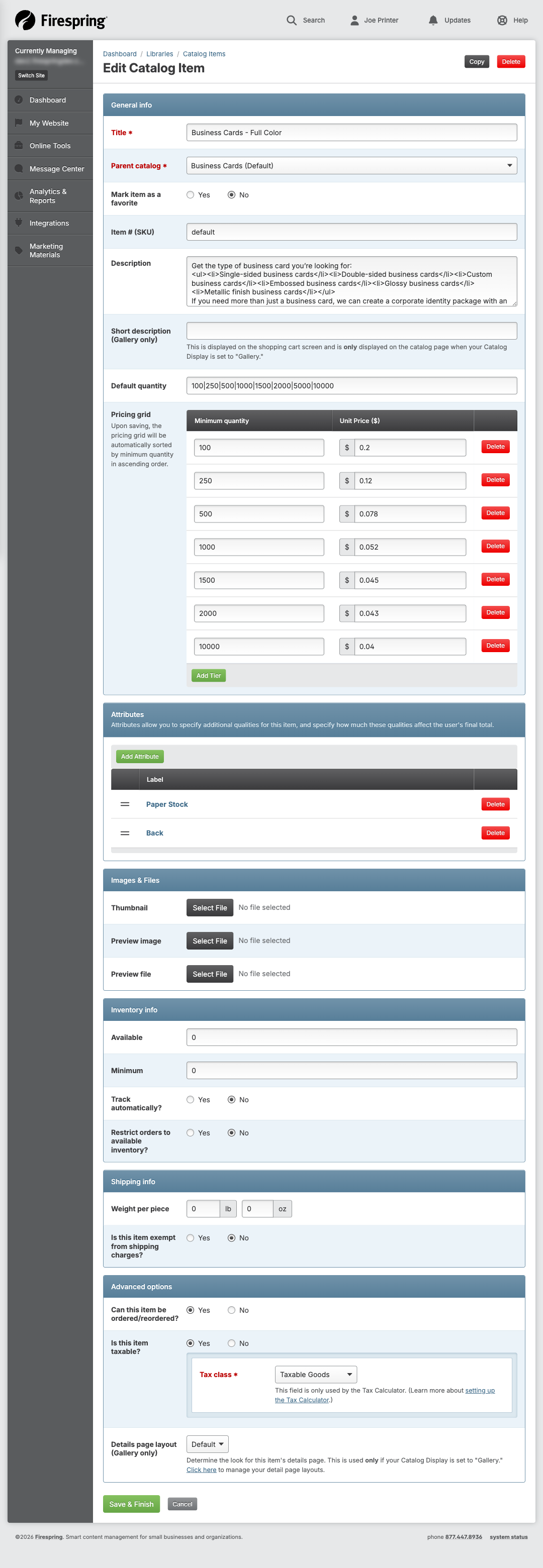
-
Click Save to update the product with inventory tracking.
-
Springboard will now automatically reduce the inventory count each time someone buys this product.
Creating Promo Codes for Discounts
Promo codes give customers a discount at checkout. You can make them for a percentage or a dollar amount off.
- Click Website Settings in the main menu.
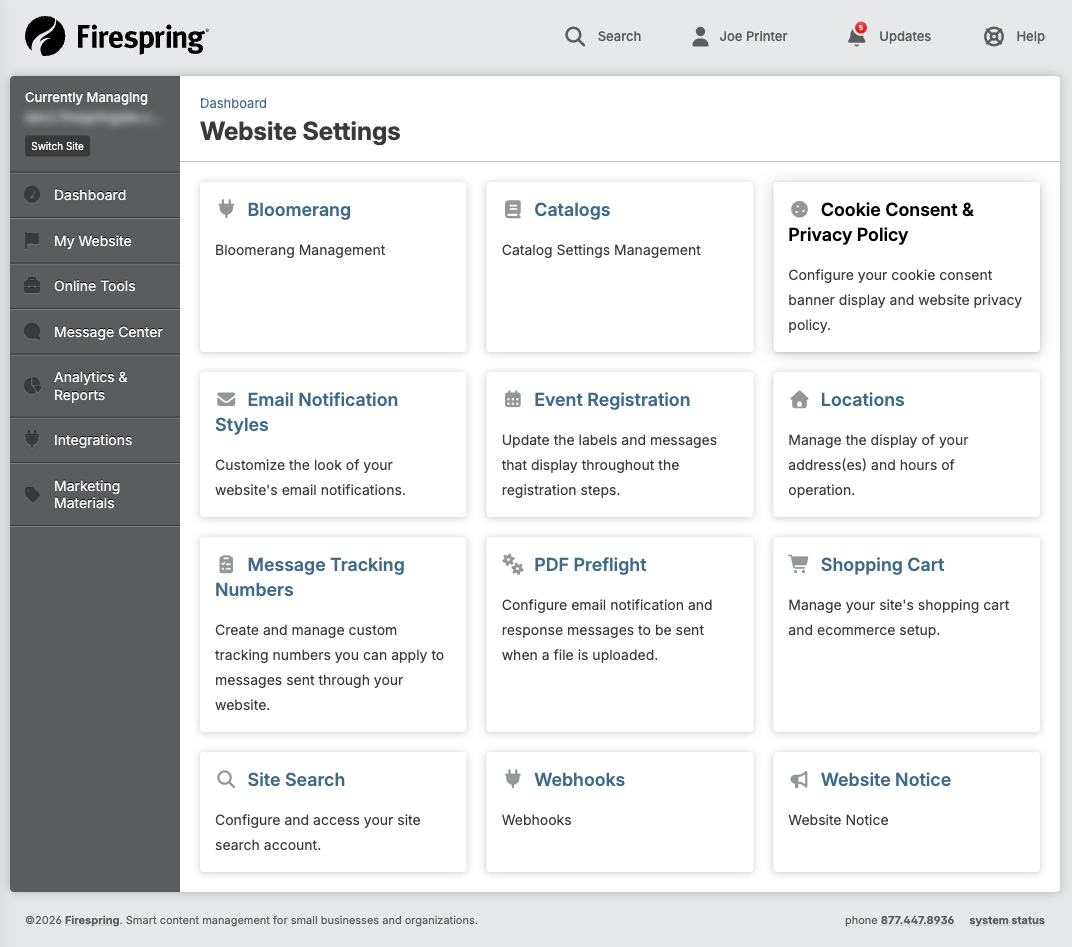
- Click Shopping Cart.
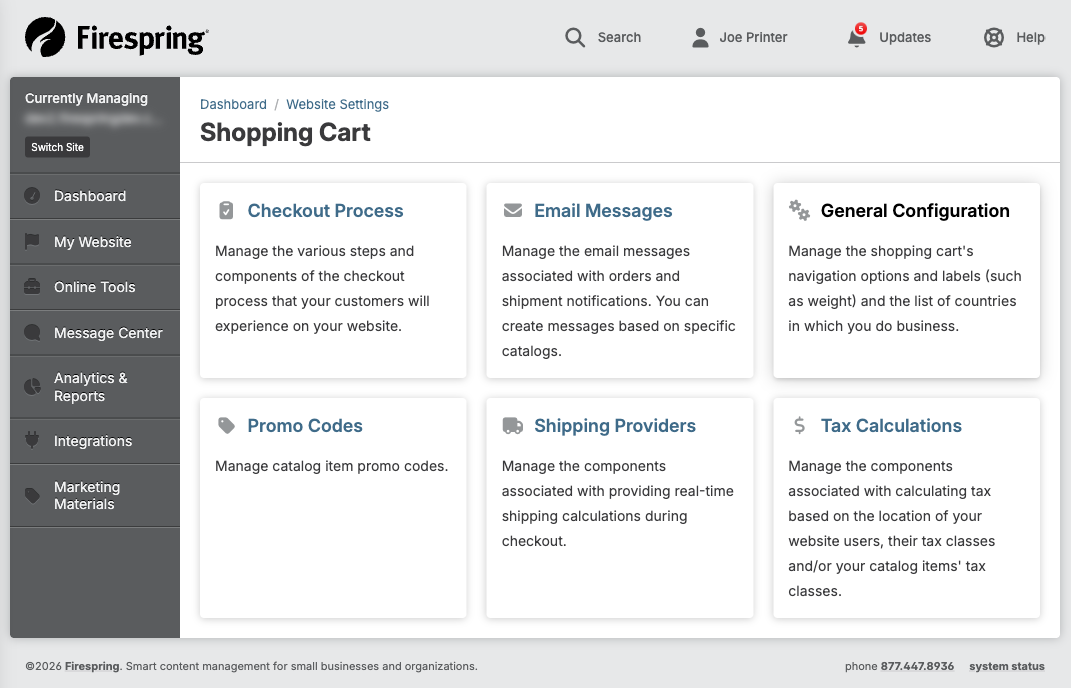
-
Click Promo Codes.
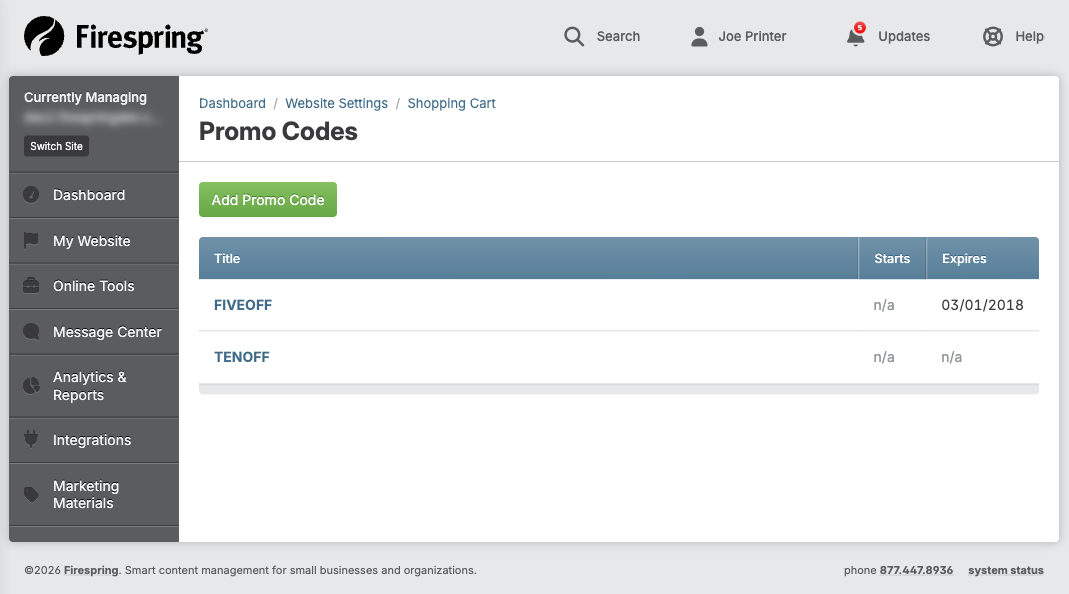
-
Click the Add Promo Code or Create New Promo Code button.
-
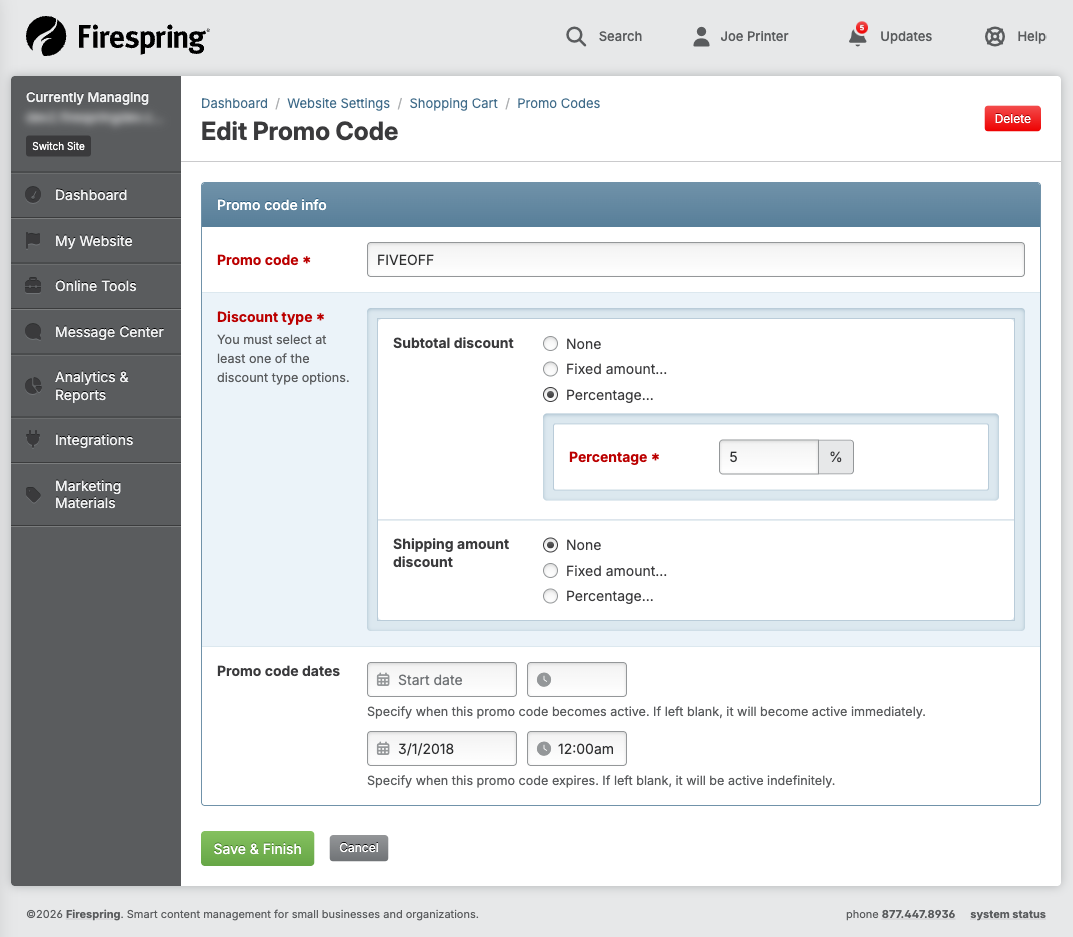
Enter a Code Name that customers can type easily. Make it memorable and simple.
- Good examples: "SAVE10", "FREESHIP", "SUMMER20"
- Avoid confusing characters like "0" (zero) and "O" (letter O) together
-
Choose what type of discount you want to offer:
- Percentage: Takes a percent off the order (like 10% off)
- Fixed Amount: Takes a specific dollar amount off (like $5 off)
-
Enter the discount amount:
- If you chose Percentage, enter just the number (like "10" for 10% off)
- If you chose Fixed Amount, enter the dollar amount (like "5.00" for $5 off)
-
Choose where the discount applies:
- Subtotal: Reduces the cost of the items
- Shipping: Reduces the shipping cost
- Both: Lets you set separate discounts for subtotal and shipping
-
Set rules for when the code can be used:
- Start Date: When the code becomes active
- End Date: When the code stops working (always set an end date)
- Minimum Order Amount: The smallest order total needed to use the code
- Maximum Uses: How many times the code can be used before it stops working
-
Click Save to create your promo code.
-
You will see your new promo code in the list. You can now share this code with your customers through email, social media, or your website.
Generating Inventory Reports
Inventory reports show how many of each product you have and help you know when to reorder.
- Click Reports in the main menu.
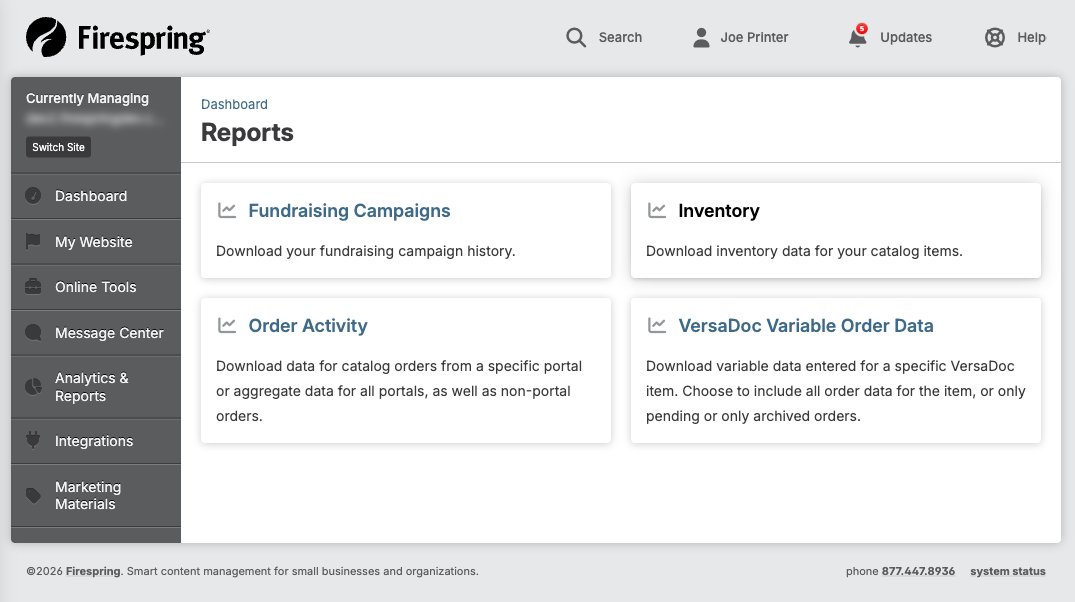
- Click Inventory or Inventory Reports.
-
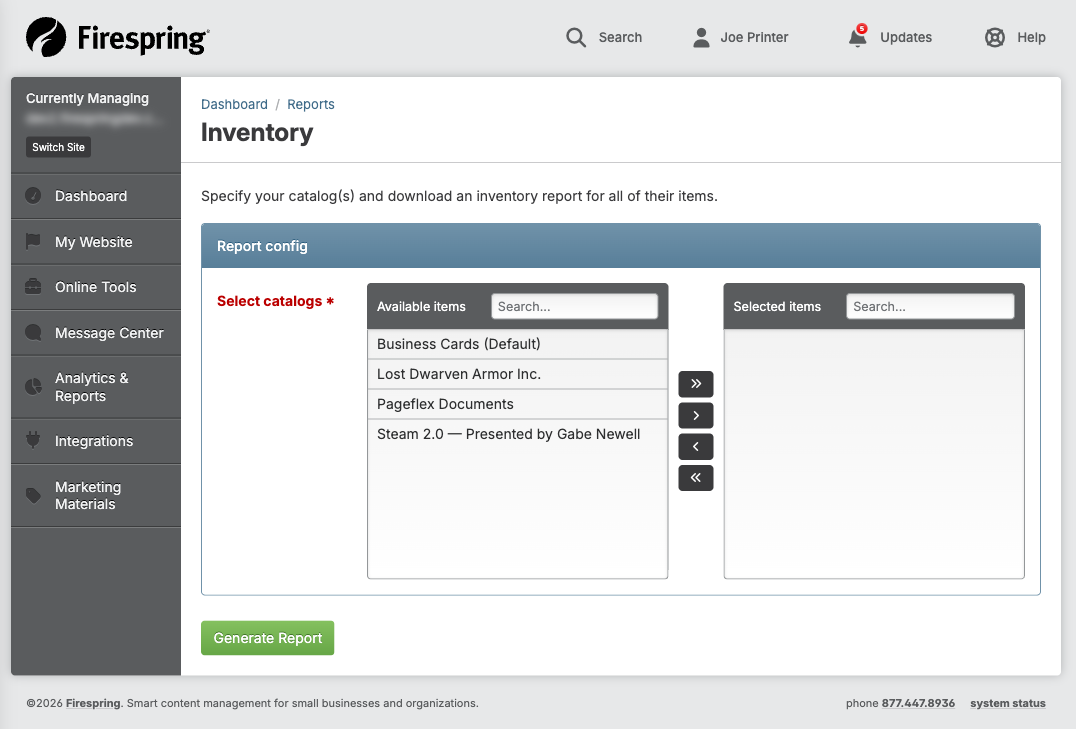
Choose which catalogs to include in your report.
-
Check the boxes next to the catalogs you want to include.
- You can select one catalog or multiple catalogs
- To see all your inventory, select all catalogs
-
Choose any other report options if available:
- Date range
- File format (Excel, CSV, PDF)
- Sort order
-
Click the Generate Report or Export button.
-
Springboard will create your report. This might take a few seconds if you have many products.
-
When the report is ready, use the download link, or wait for the file to download automatically.
-
Open the downloaded file (usually an Excel or CSV file) to see your inventory numbers.
-
The report will show:
- Product names
- Current inventory quantities
- Minimum inventory levels
- Which products are low on stock
Tips & Helpful Guidance
For Beginners
- Start simple: Add just a few products first to learn how the system works before adding your entire catalog.
- Use clear product names: Make product names easy to understand so customers know exactly what they're buying.
- Take good photos: Clear, well-lit product photos help customers see what they're buying.
- Test your promo codes: Create a test order to make sure your promo code works before sharing it with customers.
For Managing Inventory
- Keep inventory numbers current: Update your inventory quantities regularly so customers don't order items you don't have.
- Set realistic minimums: Choose a minimum inventory number that gives you enough time to reorder before you run out.
- Check reports weekly: Run an inventory report each week so you can reorder on time.
- Watch for negative numbers: If inventory shows negative, it means more items were sold than you had in stock. Fix this right away.
For Promo Codes
- Use clear code names: Make codes easy to type and remember.
- Set expiration dates: Always add an end date so old promo codes don't stay active forever.
- Limit uses if needed: For special promotions, set a maximum number of uses to control costs.
- Track which codes work: Pay attention to which promo codes customers use most often.
For Organization
- Use catalogs wisely: Create catalogs that make sense to your customers, not just to you.
- Don't create too many catalogs: Too many choices can confuse customers. Start with a few main catalogs.
- Review and reorganize: Every few months, look at your catalogs and products to see if they still make sense.
General Tips
- Save your work often: Always click Save before leaving a page or your changes will be lost.
- Use consistent naming: If you sell variations of the same product, use similar names (like "Blue T-Shirt," "Red T-Shirt," "Green T-Shirt").
- Add detailed descriptions: The more information you provide, the more confident customers feel about buying.
Troubleshooting
Problem: You can't find the inventory tracking fields
Solution:
- Make sure you are editing a catalog product, not another type of content.
- Scroll down in the form. The inventory section may be lower on the page.
- Check that you have permission to edit inventory. Ask your administrator if you're not sure.
Problem: Your promo code isn't working for customers
Solution: Check these common issues:
- Make sure the promo code hasn't expired (check the end date)
- Verify the code name is spelled exactly right (codes are case-sensitive, so "SAVE10" is different from "save10")
- Check if there's a minimum order amount required
- See if the code has reached its maximum number of uses
- Make sure the discount type and amount are set correctly
- Verify the start date has already passed
Problem: The inventory report is empty or missing products
Solution:
- Make sure you selected at least one catalog in the report configuration
- Check that the catalogs you selected have products with inventory tracking enabled
- Try selecting all catalogs to see if products appear
- Refresh the page and try generating the report again
- Check that the products actually have inventory tracking turned on
Problem: Inventory quantity shows as negative
Solution:
- This means more items were sold than were in stock.
- Update the quantity to the correct number you have now.
- Review your minimum inventory setting so you get earlier low-stock warnings.
- Check if there were any manual adjustments or errors in order processing.
Problem: You can't assign a product to a catalog
Solution:
- Make sure the catalog exists before trying to assign products to it.
- Check that you have permission to edit both products and catalogs.
- Try refreshing the page and opening the product again.
- If the catalog dropdown is empty, you may need to create catalogs first.
Problem: Customers say the discount isn't showing up in their cart
Solution:
- Ask the customer to check that they entered the code exactly as written (including capital letters).
- Verify the customer's order meets the minimum order amount requirement.
- Check that the promo code is still active and hasn't expired.
- Make sure the discount applies to the type of items in their cart (some codes might exclude certain products).
Problem: You need to change inventory for many products at once
Solution:
- Use the inventory report to export all your current inventory numbers.
- Update the numbers in the spreadsheet.
- Check if Springboard has a bulk import feature to upload the updated numbers.
- If not available, contact support to ask about bulk inventory updates.
Problem: A product isn't showing up in your catalog
Solution:
- Check that the product is marked as active or published.
- Verify the product is assigned to the correct catalog.
- Make sure the product isn't set to hide from customers.
- Check if there are any date restrictions on when the product should appear.
Summary
Managing inventory and discounts in Springboard helps you keep track of your products and offer special deals to customers. Start by adding products to your catalog and turning on inventory tracking so you know when to reorder. Create promo codes to attract customers with special offers. Run inventory reports regularly to stay on top of your stock levels. Organize products into catalogs to help customers find what they need. Remember to keep your information up to date and test your promo codes before sharing them with customers.