Processing and Managing Orders
Complexity Level: Basic to Intermediate
Overview
This page shows you how to handle customer orders in your online store. You'll learn how to view orders, process payments, arrange shipping, and keep track of everything your customers buy.
Words used on this page
- Order: When a customer buys something from your online store
- Dashboard: The main control screen where you manage your website
- Status: Shows where an order is in the process (like "pending" or "completed")
- Shipping: Sending products to your customers
- Payment: Money received from customers for their orders
When to Use This Feature
Use this section if you need to:
- See what customers have ordered from your store.
- Process new orders that come in.
- Track payments for orders.
- Set up shipping for customer orders.
- Add notes about special requests.
- Check if orders have been delivered.
Viewing Your Orders
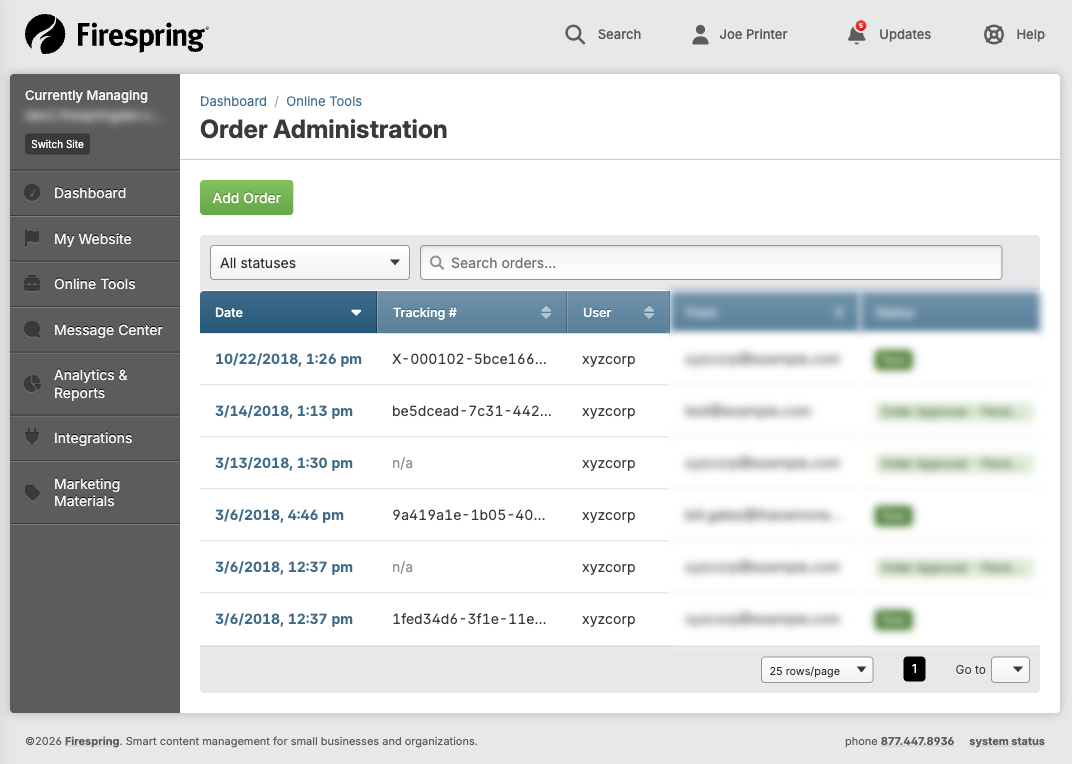
The orders list shows you all the orders from your online store in one place.
-
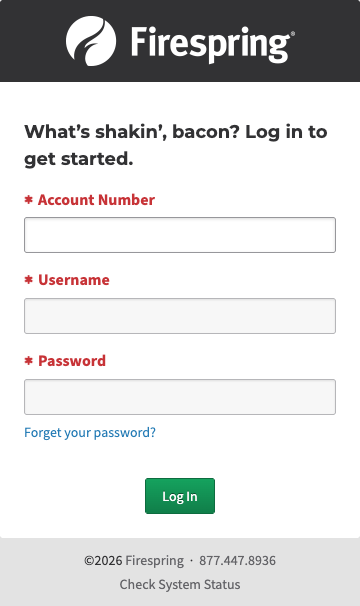
Log in to your Springboard account
-
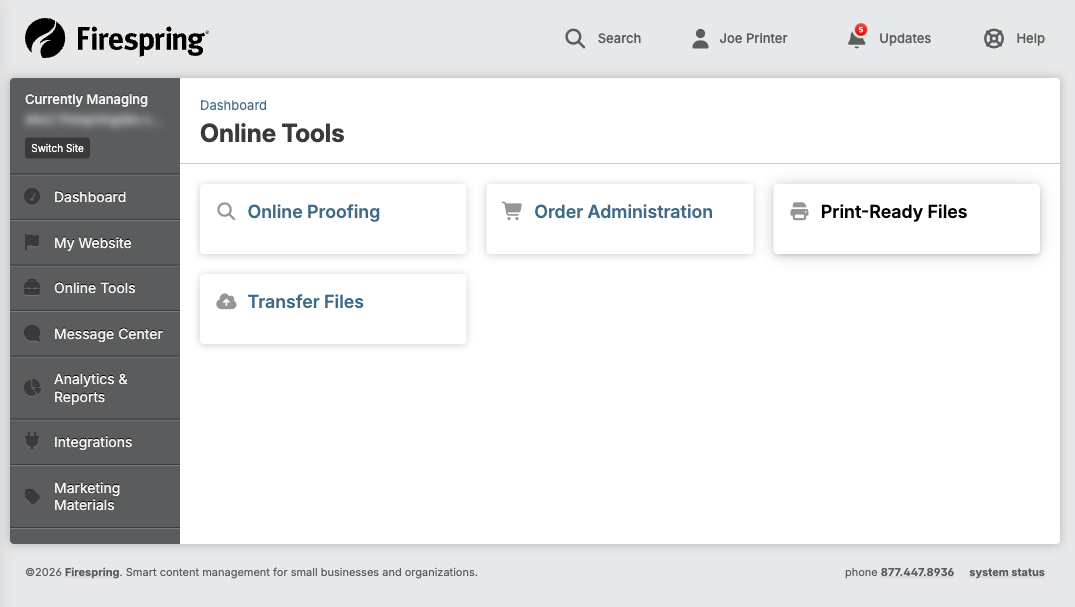
Click on "Online Tools" in the left menu
-
Select "Order Administration" from the dropdown menu
-
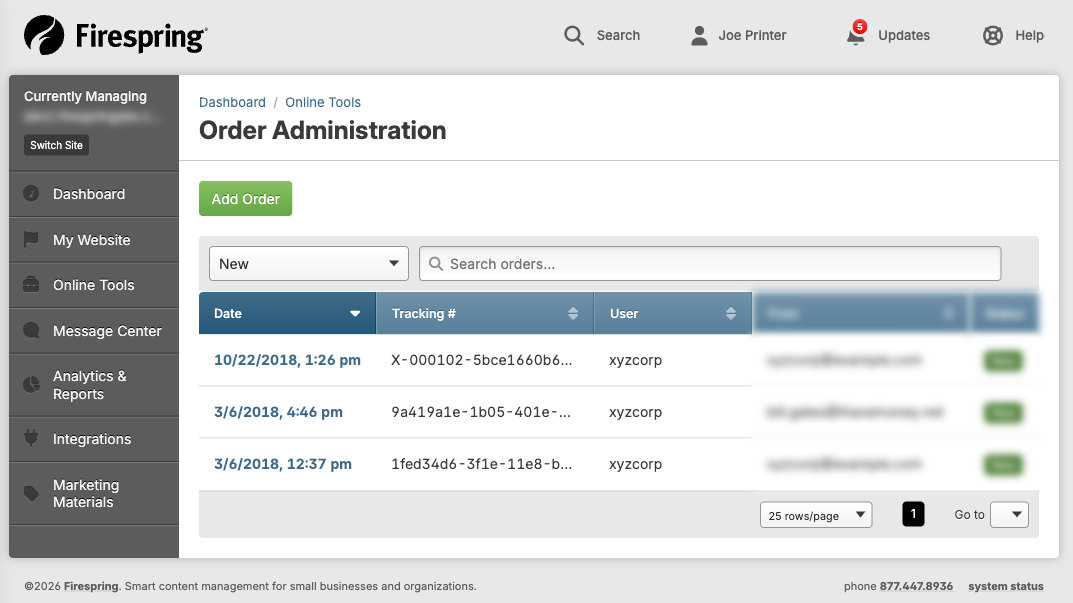
You will see a list of all orders with information like:
- Order number
- Customer name
- Order date
- Order status (Pending, Ordered, or Denied)
- Order total
-
You can sort the list by clicking on any column header
-
To find a specific order, type in the search box at the top of the list
Viewing Order Details
To see all the information about a specific order:
-
Find the order you want to view in the orders list
-
Click on the order number or customer name to open the order details
-
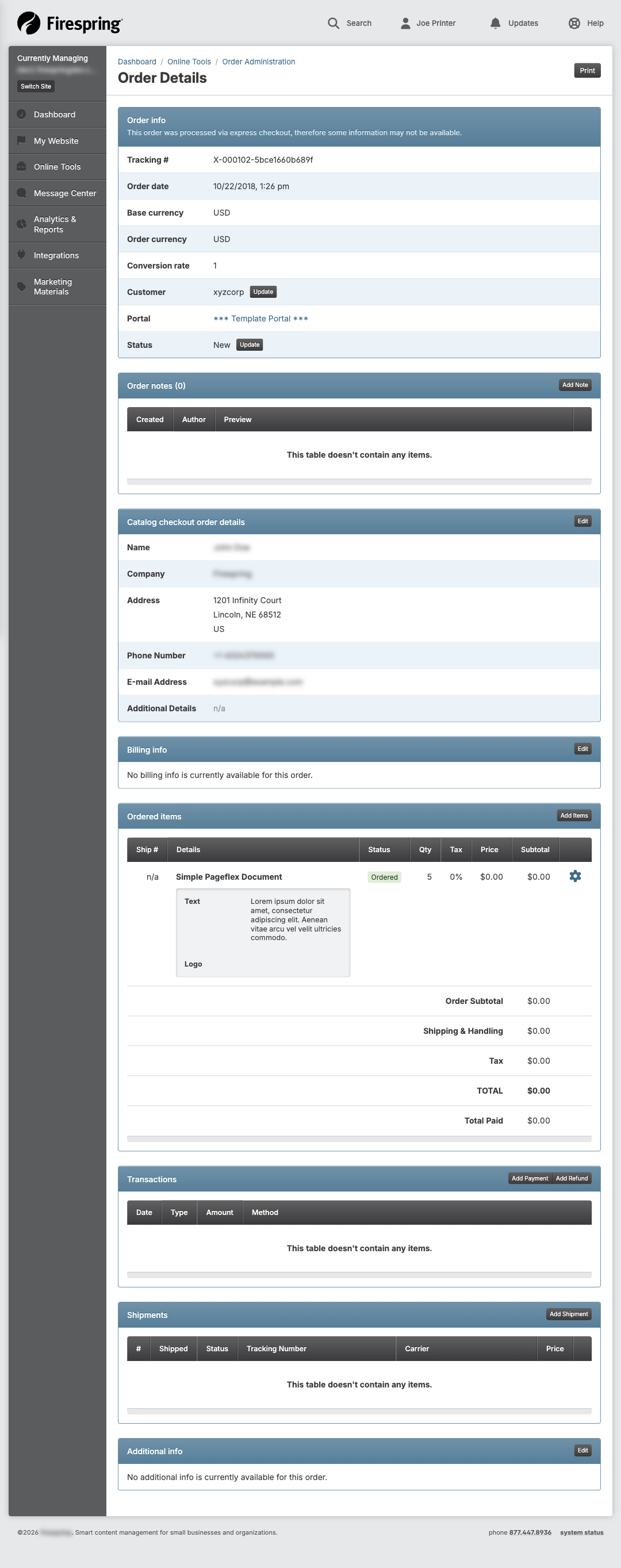
The order details page shows you:
- Customer information
- Items ordered
- Payment information
- Shipping details
- Order notes
Updating Order Status
Changing an order's status helps you keep track of which stage each order is in.
-
Open the order details page for the order you want to update
-
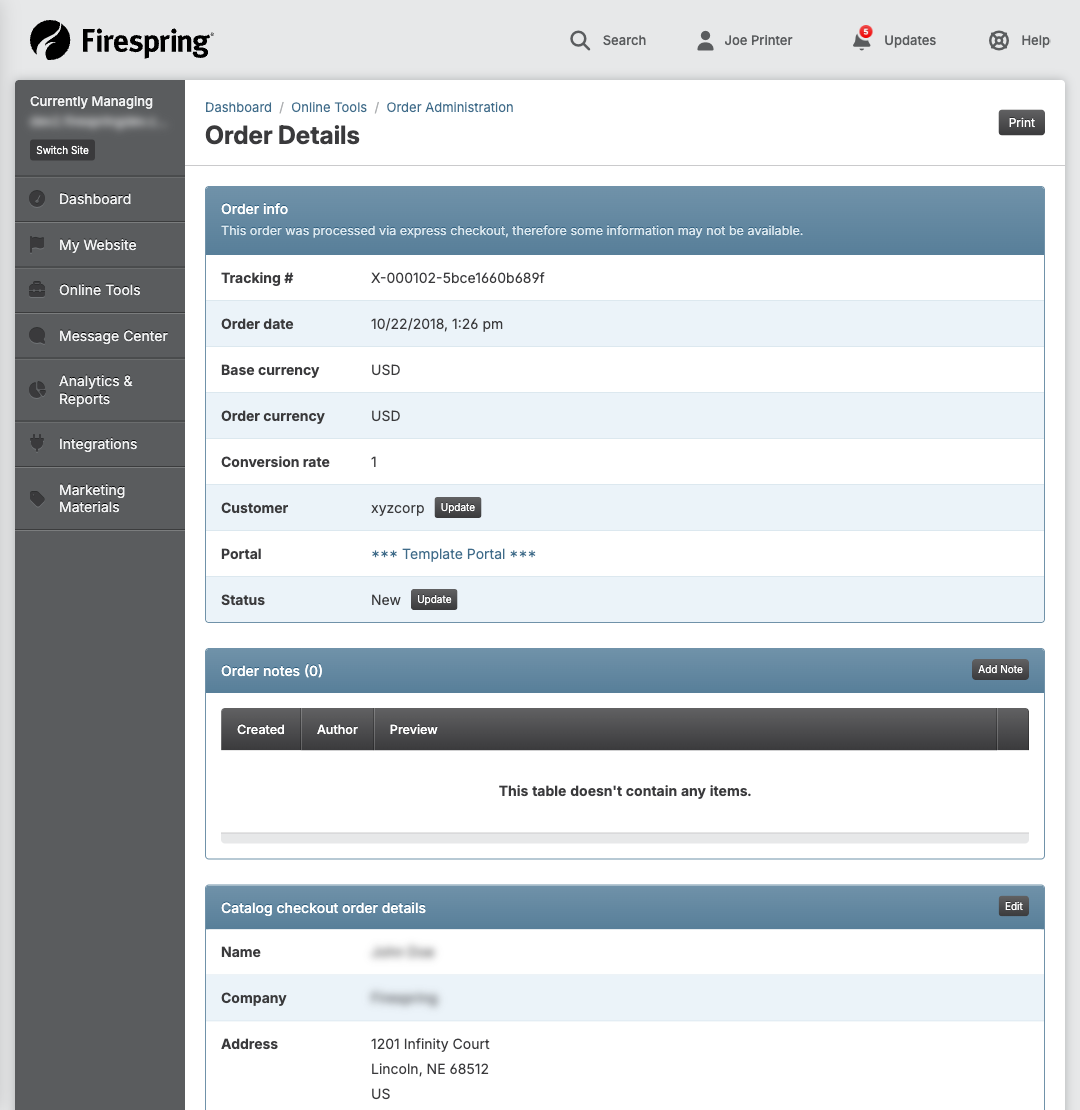
Find the "Status" section near the top of the page
-
Click the "Update" button next to the current status
-
Select the new status from the dropdown menu:
- Pending: Order is being reviewed
- Ordered: Order has been approved and is being processed
- Denied: Order has been rejected
-
Click "Save" to update the status
Adding Notes to an Order
Notes help you remember important information about an order.
-
Open the order details page
-
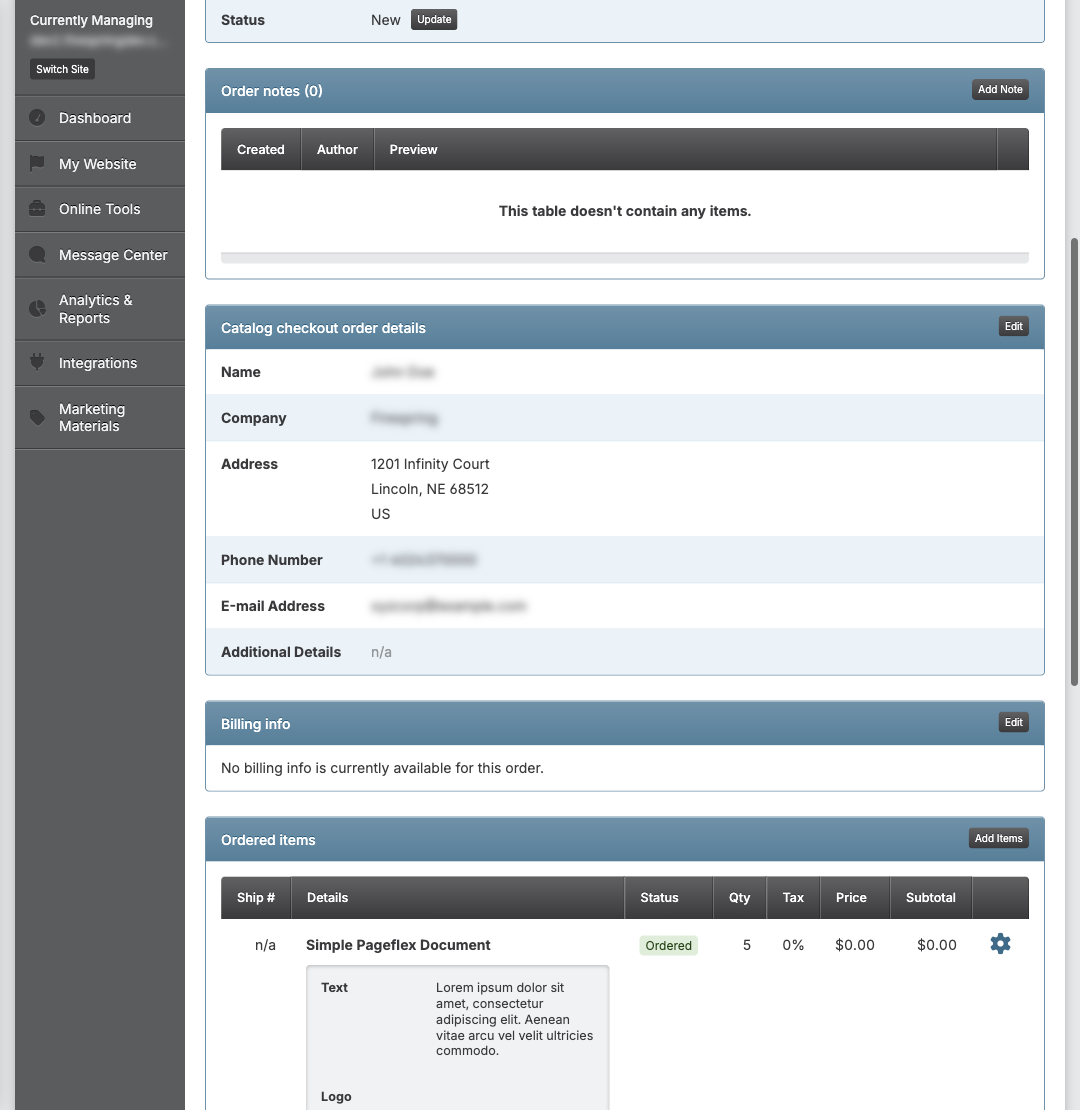
Find the "Notes" section
-
Click the "Add Note" button
-
Type your note in the text box
-
Click "Save" to add your note to the order
-
Your note will appear in the Notes list with the date and time it was added
Processing Payments
When a customer pays for an order, you need to record the payment.
-
Open the order details page
-
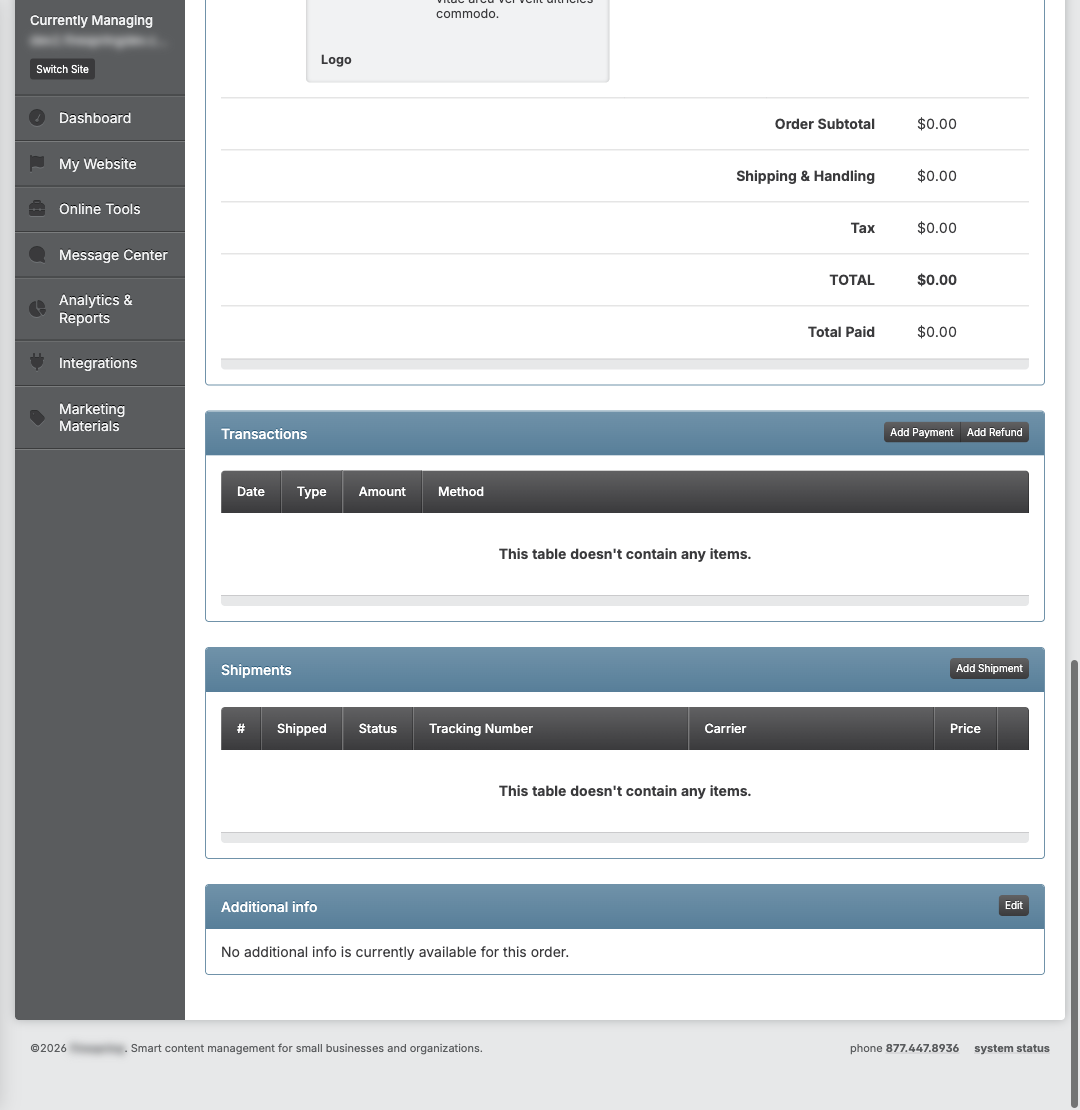
Find the "Transactions" section
-
Click the "Add Payment" button
-
Enter the payment amount
-
Click "Save" to record the payment
-
The payment will appear in the Transactions list
Processing Refunds
If you need to refund a customer:
-
Open the order details page
-
Find the "Transactions" section
-
Click the "Add Refund" button
-
Enter the refund amount
-
Click "Save" to process the refund
-
The refund will appear in the Transactions list with a negative amount
Creating a Shipment
When you're ready to ship items to your customer:
-
Open the order details page
-
Find the "Shipments" section
-
Click the "Add Shipment" button
-
Fill in the shipping information:
- Shipping address
- Shipping carrier (like FedEx, UPS, or your own method)
- Tracking number (if available)
- Shipping cost
-
Click "Save & Close" to create the shipment
-
The shipment will appear in the Shipments list
Adding Items to an Order
If you need to add more items to an existing order:
-
Open the order details page
-
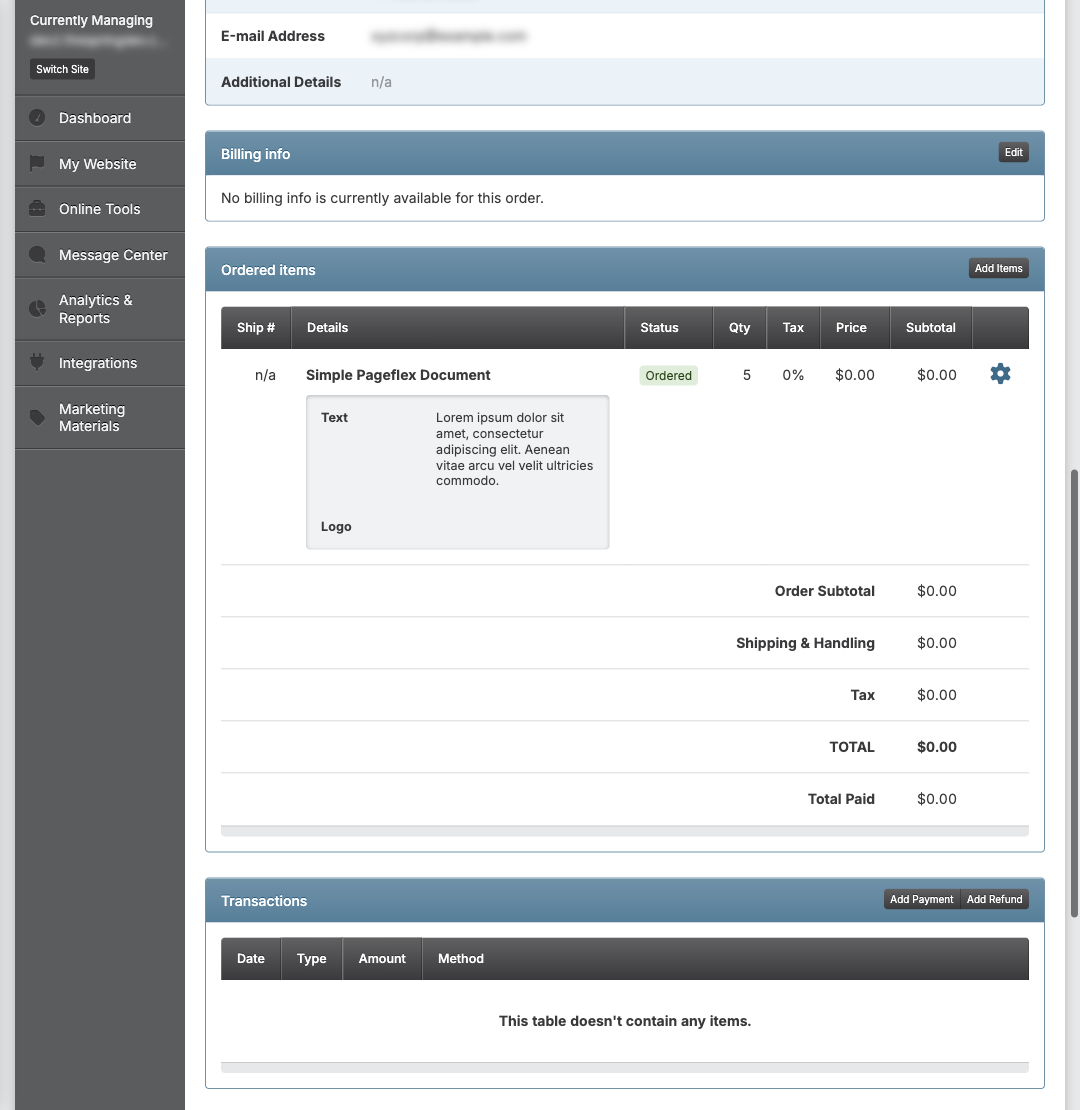
Find the "Items" section
-
Click the "Add Items" button
-
Search for the item you want to add
-
Select the item and enter the quantity
-
Click "Add" to add the item to the order
-
The new item will appear in the Items list
Printing an Order
You can print order details for your records:
-
Open the order details page
-
Click the "Print" button at the top of the page
-
Your browser's print dialog will open
-
Select your printer and click "Print"
Tips & Helpful Guidance
- Check your orders list daily to make sure you process new orders quickly.
- Use order notes to keep track of special requests or customer communications.
- Always update the order status as it moves through your process.
- If a button appears grayed out (disabled), it means you don't have permission to use that feature.
- The order total at the top of the order details page shows the sum of all items minus any refunds.
- You can see who created notes and shipments by looking at the name next to each entry.
Troubleshooting
Problem: You can't find a specific order
Solution: Try these steps:
- Check if you're using the correct search term.
- Make sure you've selected the right date range.
- Try searching by order number instead of customer name.
- Check if the order might be on another page of results.
Problem: The "Add Shipment" button is grayed out
Solution: This usually means:
- The order status is not set to "Ordered" yet.
- You don't have permission to create shipments.
- All items in the order have already been shipped.
Problem: Payment amount doesn't match the order total
Solution:
- Check if there are multiple payments or refunds in the Transactions list.
- Make sure all items have been added to the order.
- Verify if shipping costs have been included in the total.
Problem: You need to cancel an order
Solution:
- Change the order status to "Denied".
- Add a note explaining why the order was canceled.
- Process a refund if payment was already received.