Managing Print Orders
Complexity Level: Basic to Advanced
Overview
This page helps you handle print orders from start to finish. A print order is a request to print something, like flyers, postcards, or signs. You can use this page to check what is waiting, update progress, and keep your work organized.
Words used on this page
- Dashboard: The main home screen after you open Springboard.
- Menu: The list of choices you click to move to different screens.
- Order: One print request from a customer or team member.
- Status: A short label that shows where an order is right now.
- Priority: The urgency level of an order (which order needs attention first).
- Admin: A person with extra access to manage team-wide order settings and workflows.
When to Use This Feature
Use this section if you need to:
- View incoming print orders in one place.
- Track where each print order is in the process.
- Update order status as work moves forward.
- Process pending requests in priority order.
- Organize large projects with many related print items.
- Share clear updates with customers and team members.
Viewing Print Orders
This task is for all users who can open the print order list.
-
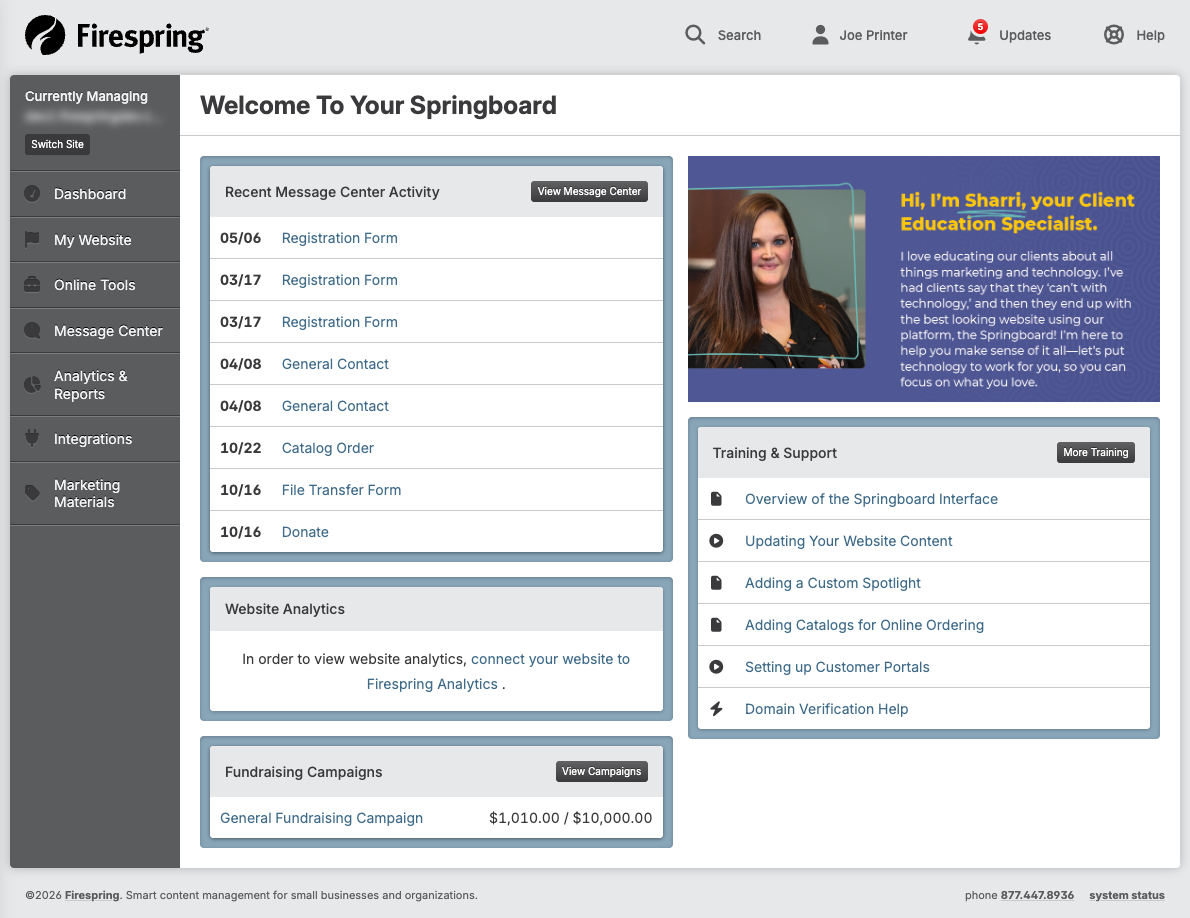
Open the Dashboard (the main home screen).
-
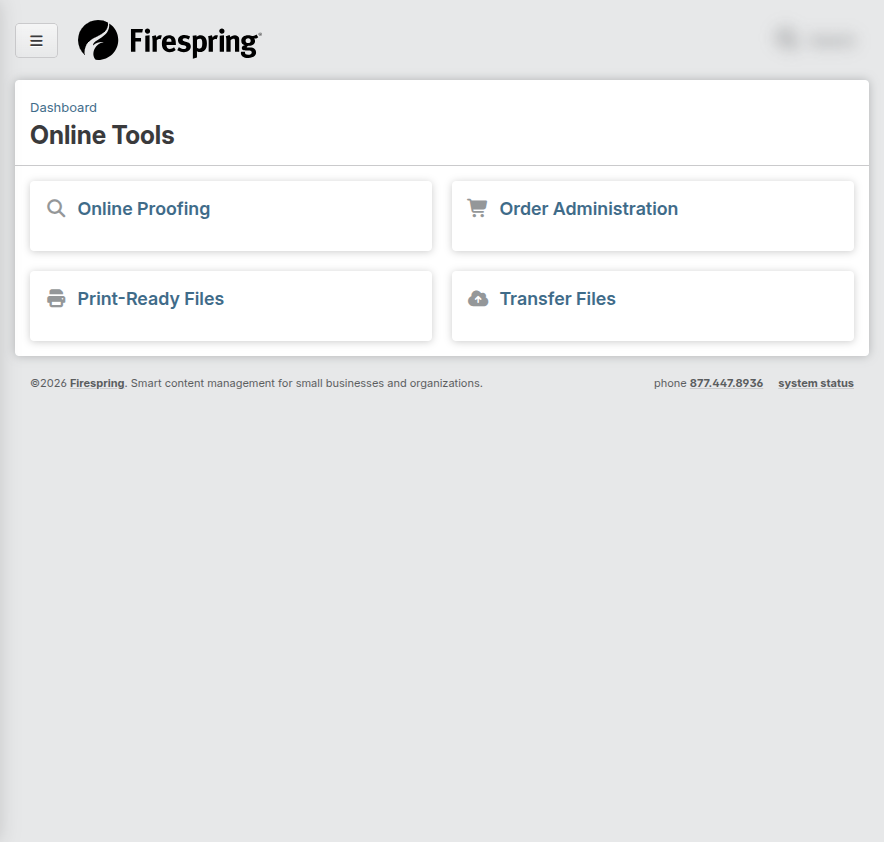
Click Online Tools in the left menu.
-
Click Order Administration.
-
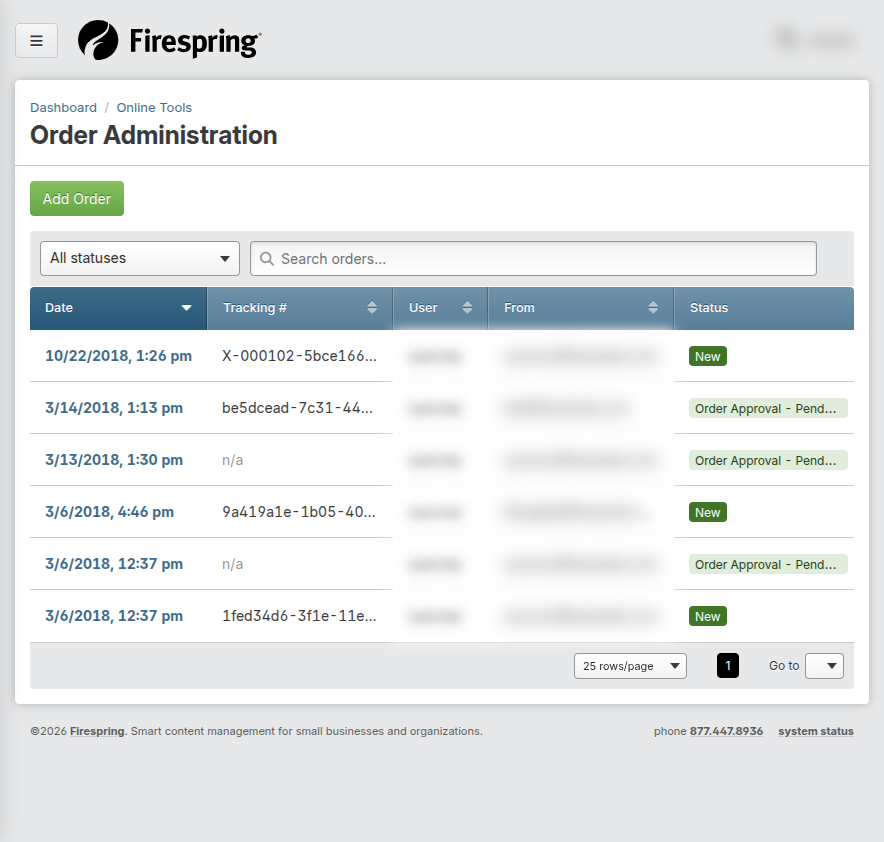
Review the order list.
- You will see one row for each order.
- You will usually see helpful details like order number, customer, date, status, and total.
- Start with the newest orders if you are checking recent work.
-
Click an order row to open its full details page.
Tracking Print Order Status
This task is for all users who can update orders they are assigned to.
-
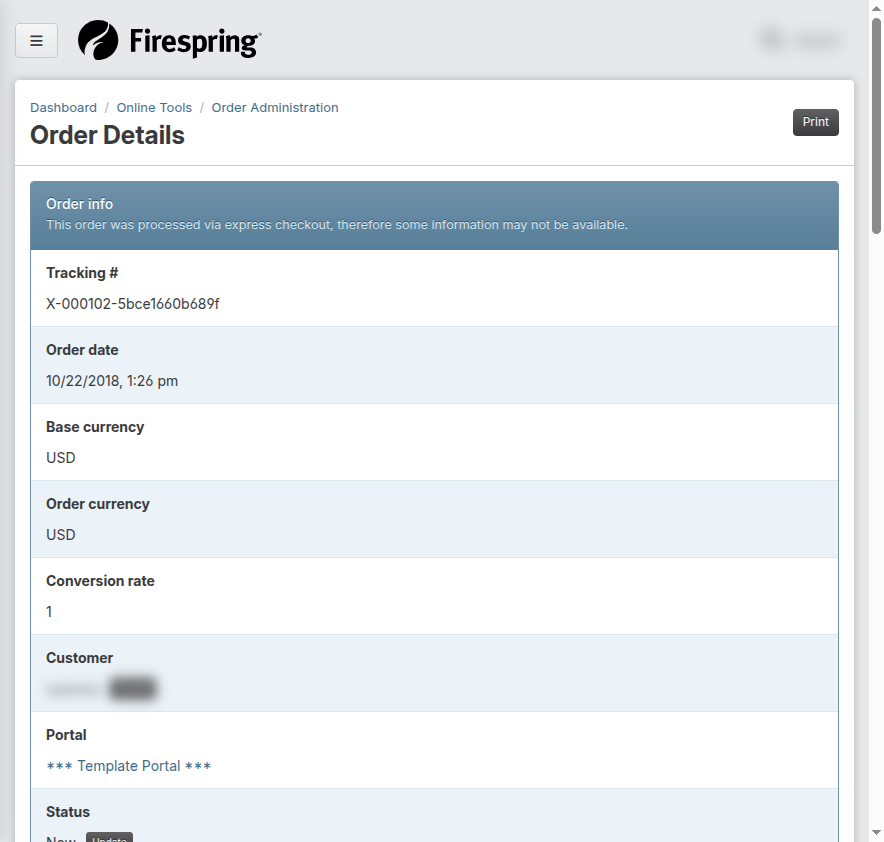
Open the order details page.
-
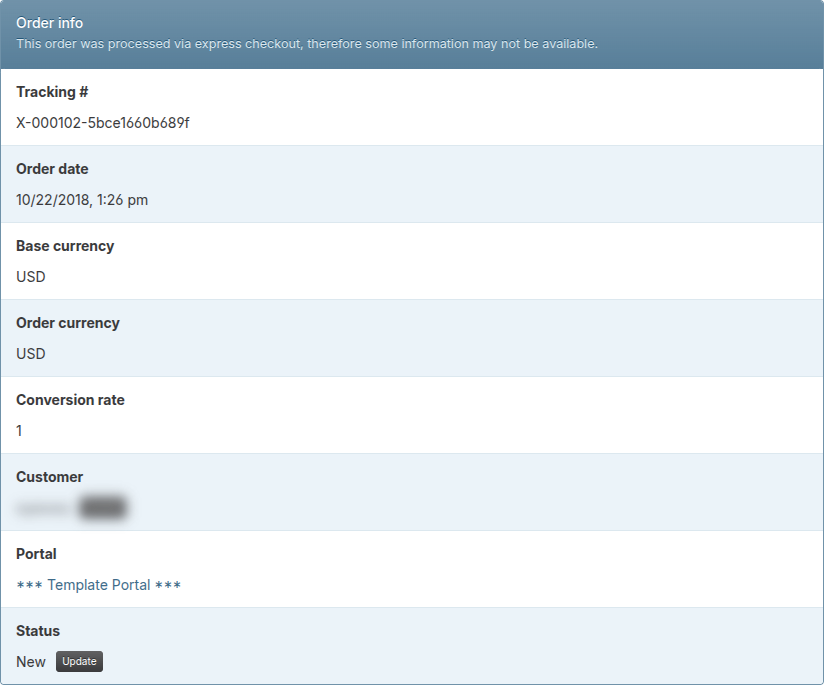
Find the Status area.
- Status tells you where the order is right now.
- Common examples are pending, ordered, or denied.
-
Click the Update button next to the current status.
-
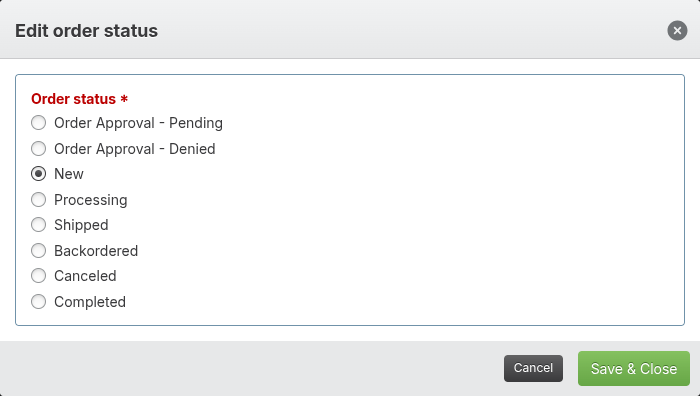
Pick the new status from the list.
- Choose the option that best matches the current real-world step.
- If you are not sure, pause and check with your manager before saving.
-
Click Save.
Processing Pending Print Requests
This task is most common for admins and lead team members. Regular users may see fewer controls.
-
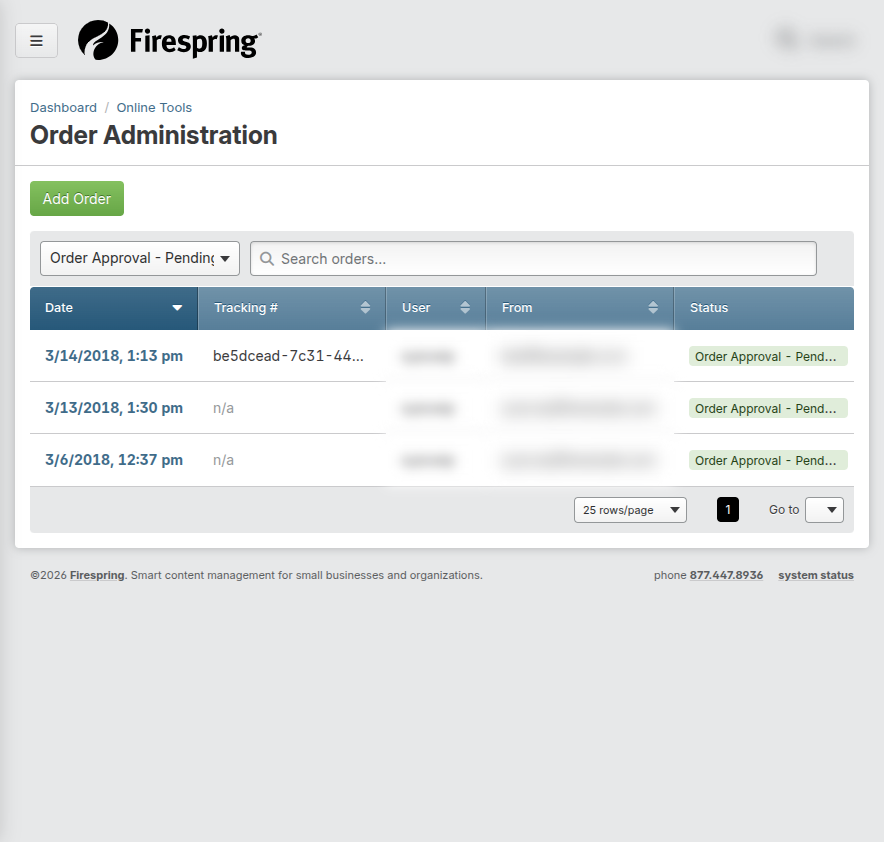
Open the print order list.
-
Find orders marked as Pending.
- These are waiting for action.
- Review the date and any notes to understand urgency.
-
Open one pending order.
-
Review key details before moving it forward.
- Requested items
- Quantities
- Deadlines
- Special instructions in notes
-
Set the order status to the next correct step.
-
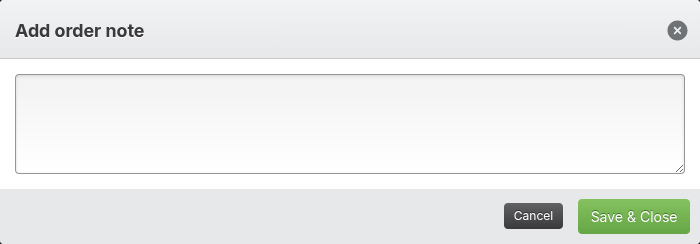
Add a short note explaining what you changed.
- Example: "Approved for production. Waiting on final artwork check."
-
Repeat for the next pending order.
- Work from highest urgency to lowest urgency.
- Keep notes clear so teammates can continue work smoothly.
Managing Complex Print Projects
This task is advanced and usually handled by admins or senior staff. Complex projects often include many items, shipments, payments, and updates.
-
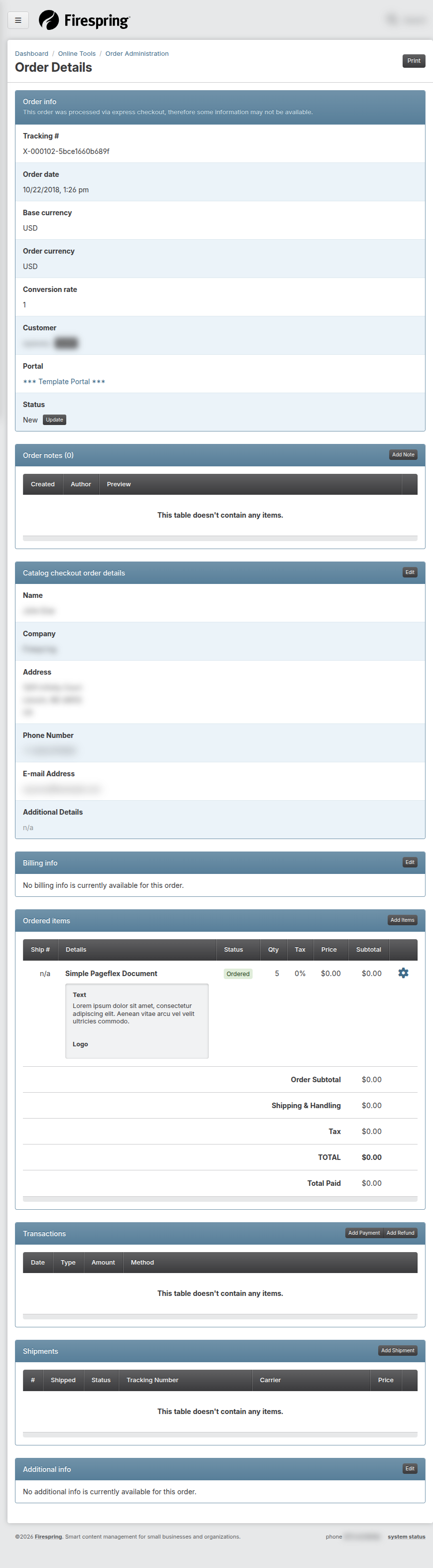
Open the main order record for the project.
-
Check all project parts before making changes.
- Order items
- Shipments
- Payments and refunds
- Notes and communication history
-
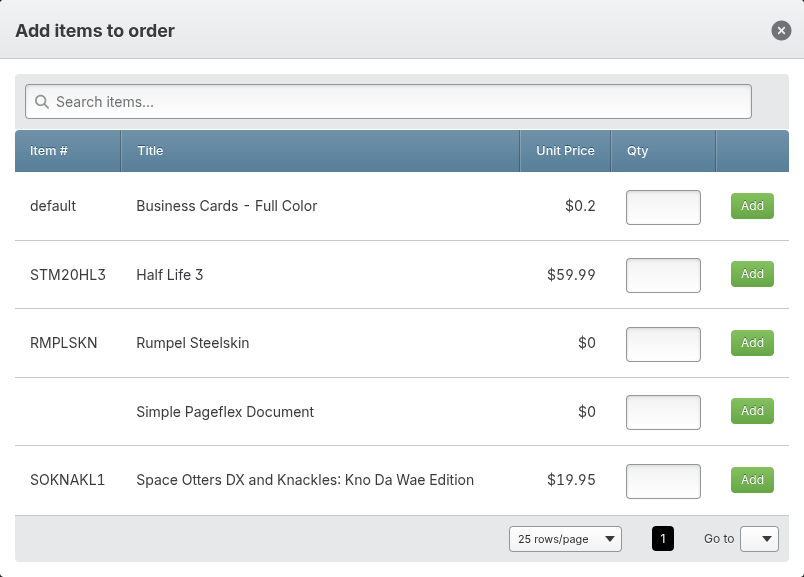
Add missing items if the project expanded.
- Click Add Items.
- Search for the needed print item.
- Set quantity.
- Save.
-
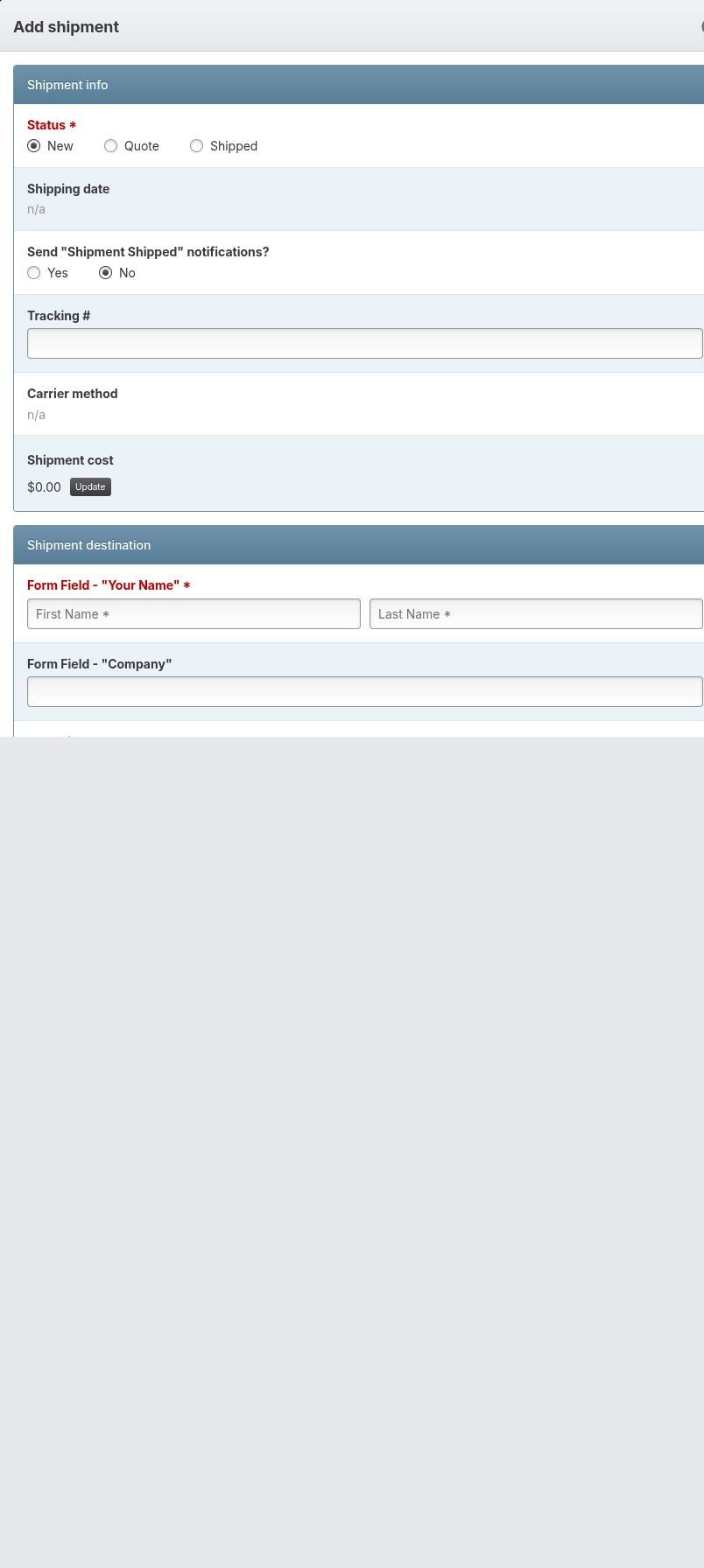
Update shipping when partial deliveries are needed.
- Create a shipment for each package or delivery stage.
- Confirm destination details before saving.
-
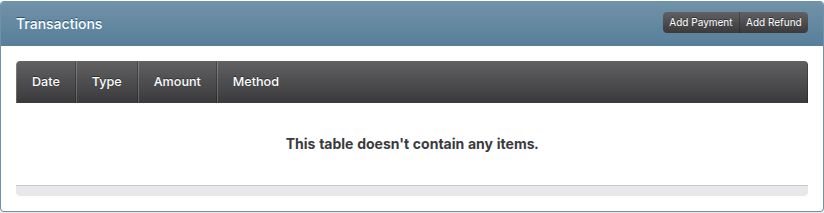
Record payments or refunds as the project changes.
- Use Add Payment when money is received.
- Use Add Refund when money is returned.
-
Keep the status and notes updated after each major step.
- This helps your team and customers understand progress at a glance.
Communicating Print Order Updates
This task is for both regular users and admins. Admins may have more responsibility for final customer updates.
-
Open the order details page.
-
Read existing notes first so you do not repeat information.
-
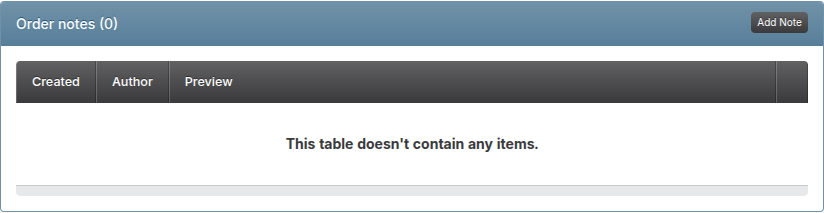
Add a new note with plain, clear wording.
- Keep the message short.
- Include what changed and what happens next.
-
Save the note.
-
If your team uses alerts, verify the order shows the latest status and note.
- This helps customer-facing teammates give correct updates.
Tips & Helpful Guidance
- If a button looks gray and cannot be clicked, the action may require admin access.
- Update status and notes together so your record stays clear.
- Keep note messages short and specific.
- Review pending orders daily to avoid delays.
- For large projects, check items, shipping, and payments in that order.
- Use clear language in notes so teammates can quickly understand what happened.
Troubleshooting
Problem: You cannot find a print order
Solution:
- Check the search field spelling.
- Try searching by order number instead of customer name.
- Check if the order is on another list page.
- Ask an admin if your role can view that order.
Problem: The status update button is not available
Solution:
- Refresh the page once.
- Confirm you opened the correct order.
- Check if your role allows status changes.
- Ask an admin to make the update if needed.
Problem: You are not sure which pending order to process first
Solution:
- Start with the closest due date.
- Check notes for rush requests.
- Ask your admin for priority rules if two orders look equal.
Problem: Project details seem out of sync across teammates
Solution:
- Open the latest notes and read top to bottom.
- Confirm current status matches the most recent note.
- Add a new note to summarize the current agreed plan.
- Ask an admin to review shared workflow settings if this keeps happening.
Summary
Managing print orders in Springboard means keeping each order clear, up to date, and easy for others to follow. When you review pending work, update status carefully, and leave simple notes, your team can process jobs faster and with fewer mistakes.