Managing Your Image Library
Complexity Level: Basic to Intermediate
Overview
This page shows you how to work with images in your Springboard website. You'll learn how to organize images into folders, edit images, and use them in different ways on your website. Good image management helps keep your website looking professional and loading quickly.
Words used on this page
- Image: A visual element such as a photo, graphic, or illustration.
- Thumbnail: A small version of an image used for previews.
- Alt Text: Hidden description of an image that helps people using a screen reader to view your website.
- Resolution: How clear and detailed an image is.
When to Use This Feature
Use this section if you need to:
- Keep your images organized in folders.
- Find specific images quickly.
- Edit images without using other software.
Step-by-Step Instructions
Searching for Images
-
Click My Website, then Images (under Libraries).
-
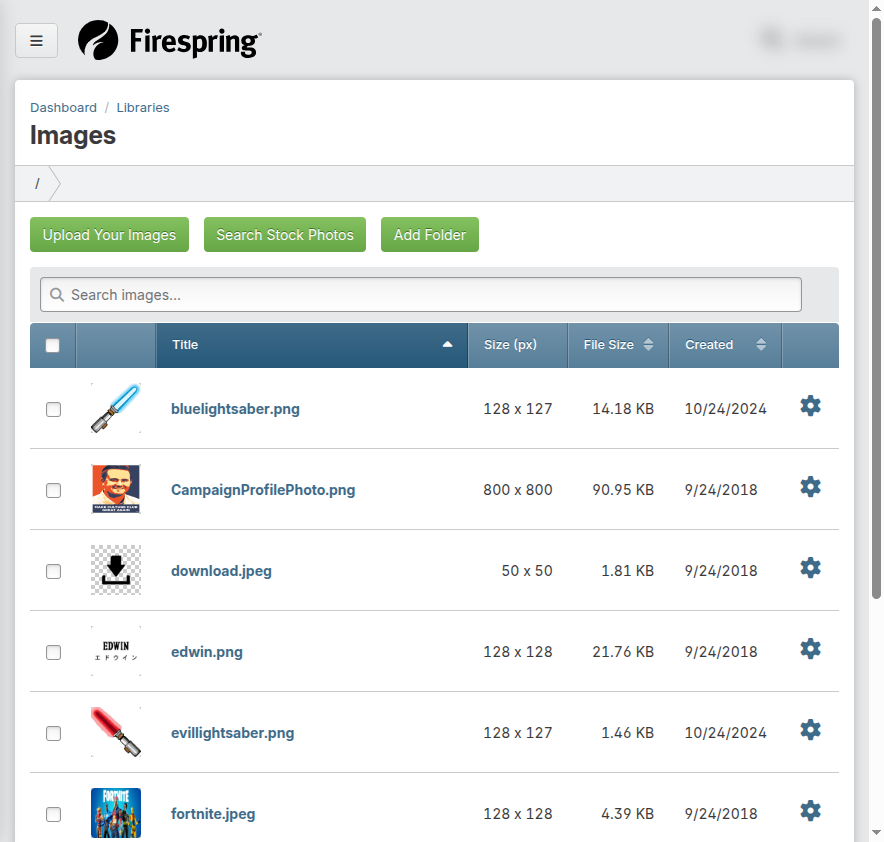
Look for the search bar at the top of the page.
-
Type the name of the image you're looking for, such as "Logo" or "Team."
-
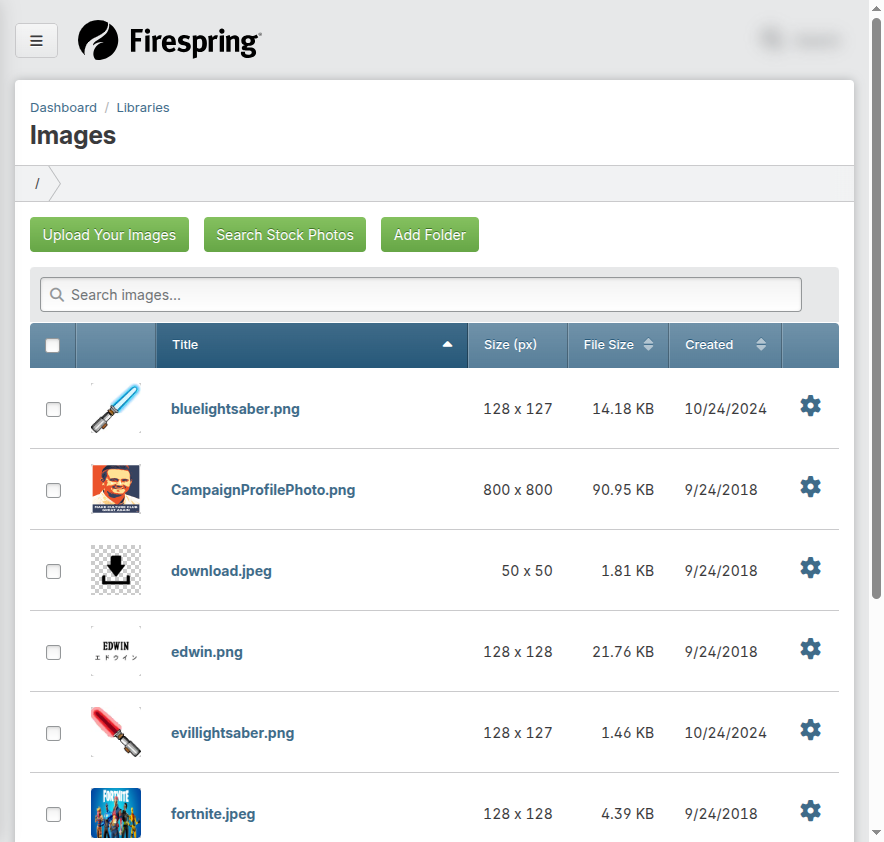
Your search results will display images matching your search term.
Editing Image Information
Adding a good, descriptive title for your images will make it easier to locate your images when you're adding them to a page. You can also replace images that need updating, to update it across your site. For example, if you have an updated team photo that appears in multiple places across your site, you can change the image in the Image Library instead of adding it as a new image, and updating every page individually.
-
Navigate to your Image Library by clicking My Website, then Images (under Libraries).
-
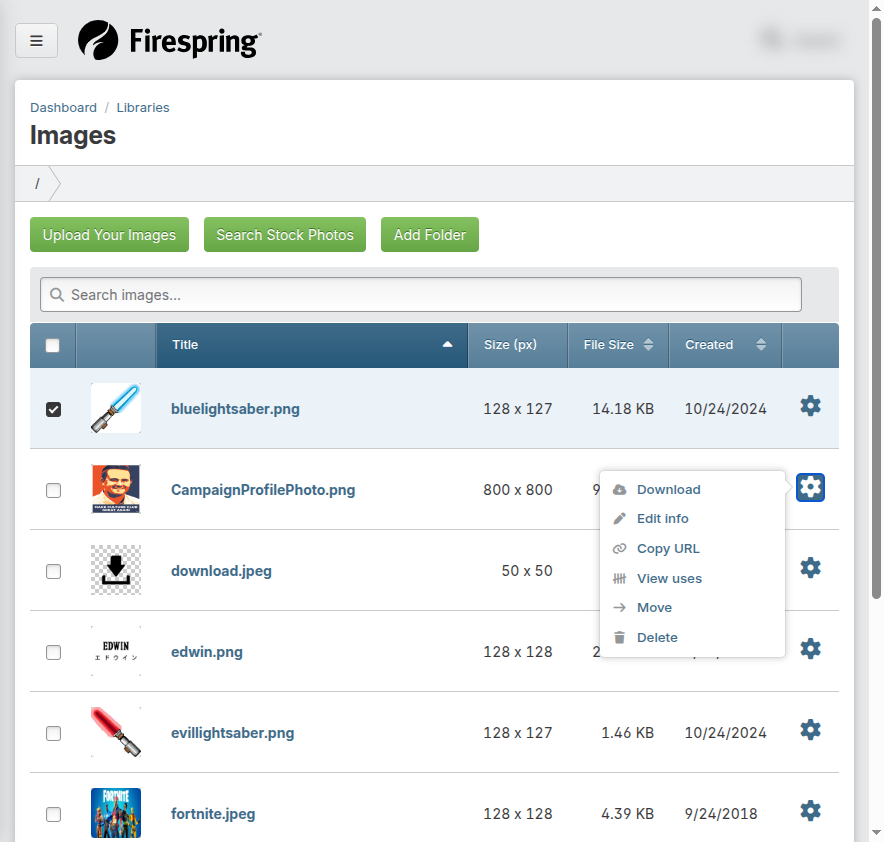
Locate the image you would like to edit the title for, and click the gear icon.
-
Click Edit info.
 4. A form will open where you can make edits to the Current image, Title, and Folder:
- Click Select New Image if you would like to replace the current image with an updated one. Only do this if you will not need the original image anymore for your site.
- Update the Title as needed. Use a short, descriptive title to make it easy to find when adding images to a page.
- Use the dropdown menu to update the Folder if necessary.
-
Click Save & Finish.
Using the Image Editor
-
Click My Website, then Images (under Libraries).
-
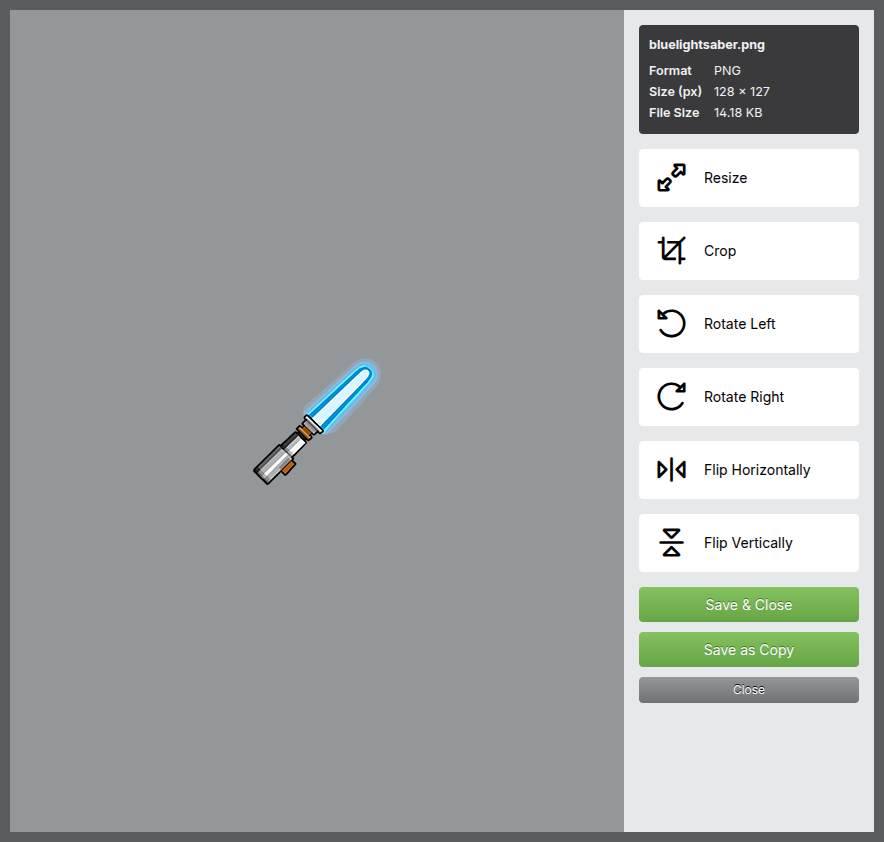
Locate the image you wish to edit, and click the title of the image to open the image editor.
-
Click the "Edit Image" button.
-
The image editor will open with several tools:
- Resize: Click Resize to make your image smaller. Enter your preferred width or height in pixels. The second number will update automatically to keep the original proportions of the image. Click Apply Changes.
- Crop: Click Crop to crop, or cut out part of your image. Click your preferred Aspect ratio, then move the box on the image to your preferred placement. Click Custom to allow the box to be dragged into your preferred crop. Click Apply Changes.
- Rotate Left: Click Rotate Left to rotate your image to the left.
- Rotate Right: Click Rotate Right to rotate your image to the right.
- Flip Horizontally: Click Flip Horizontally to flip your image horizontally.
- Flip Vertically: Click Flip Vertically to flip your image vertically.
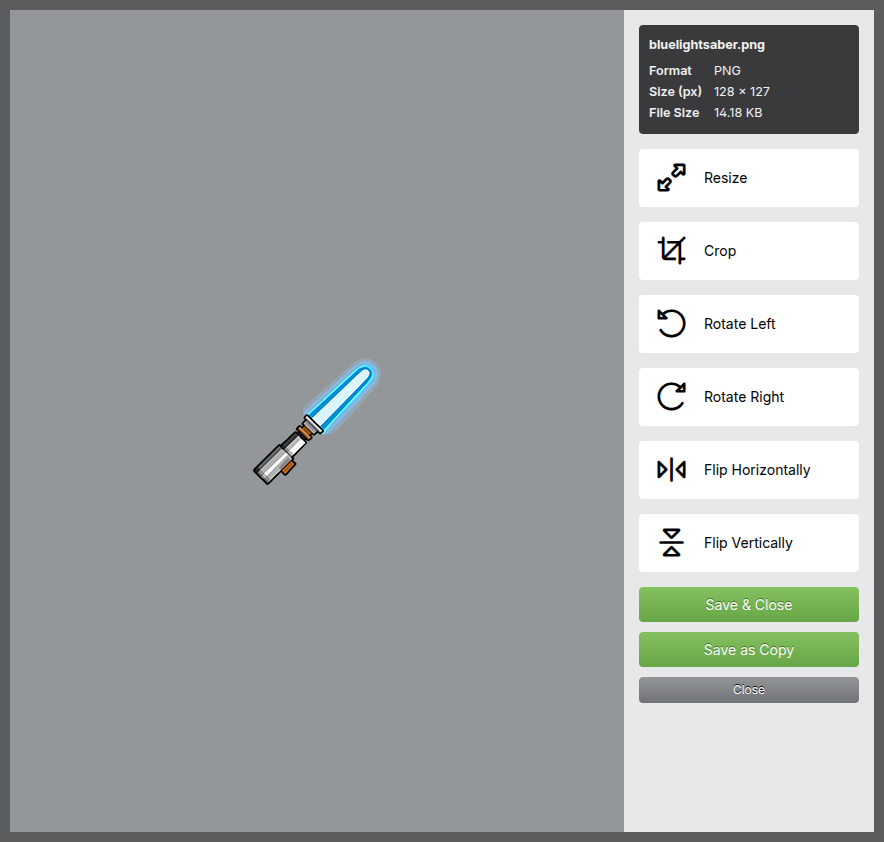
-
When you're done editing, click Save & Close to save the edits to the original image. If you made extensive edits and would like to save the edited version as a new copy, click Save as Copy. Enter a Title for your image copy, and select a Folder for your new image using the dropdown menu.
Tips & Helpful Guidance
-
Image quality: Use high-quality images, but avoid extremely large file sizes. Images between 500KB and 2MB usually work well.
-
Picture sizes: For best results, resize large pictures before uploading them. Pictures wider than 2000 pixels might slow down your website.
-
File types: The Springboard works best with these image types:
- JPG/JPEG: Best for photographs and colorful images
- PNG: Best for logos and images that need transparent backgrounds
- GIF: Best for simple animations
- SVG: Best for logos and icons that need to be resized without losing quality
-
Picture names: Give your pictures clear names before uploading them. Names like "team-photo.jpg" are better than "IMG_12345.jpg".
-
Organizing: Create a clear folder structure before uploading lots of images. For example:
- Logo and Branding
- Team Photos
- Product Images
- Event Photos
-
Alternate text: Always add alternate text (alt text) to your images. This helps people who use screen readers and improves your website's accessibility.
-
Avoid text in images: When possible, use real text, such as titles and captions, instead of images of text. This makes your website more accessible and easier to read on mobile devices.
Troubleshooting
Problem: Your picture looks blurry on your website
Solution: You might be using a small picture and stretching it too large. Try uploading a larger, higher-quality version of the picture.
Problem: Your picture won't upload
Solution: Check that your picture isn't too large. Try making it smaller or saving it in a different format (like JPG). Pictures should be less than 10MB in size.
Problem: You can't find a picture you uploaded
Solution:
- Use the search box at the top of the Image Library to search by name.
- Click Title or Created above your images to sort alphabetically or by date added.
- Check if the picture was added in a folder by clicking on the different folder names.