Setting Up Shipping Methods
Complexity Level: Intermediate
Overview
This page shows you how to set up different ways to ship products to your customers. You'll learn how to create shipping options with different prices, connect with shipping companies like FedEx and UPS, and organize shipping by zones.
Words used on this page
- Shipping Method: A way to send products to customers (like Standard, Express, or Free Shipping)
- Shipping Carrier: A company that delivers packages (like FedEx, UPS, or your own delivery service)
- Shipping Zone: An area where shipping costs the same amount (like local, national, or international)
- Handling Fee: Extra cost added to shipping for packaging materials or processing
When to Use This Feature
Use this section if you need to:
- Set up different shipping options for your customers.
- Create custom shipping methods with your own prices.
- Connect your store with FedEx or UPS for shipping.
- Charge different shipping rates based on order price or weight.
- Set up shipping to different areas (like local, national, or international).
Accessing Shipping Settings
-
Log in to your Springboard account
-
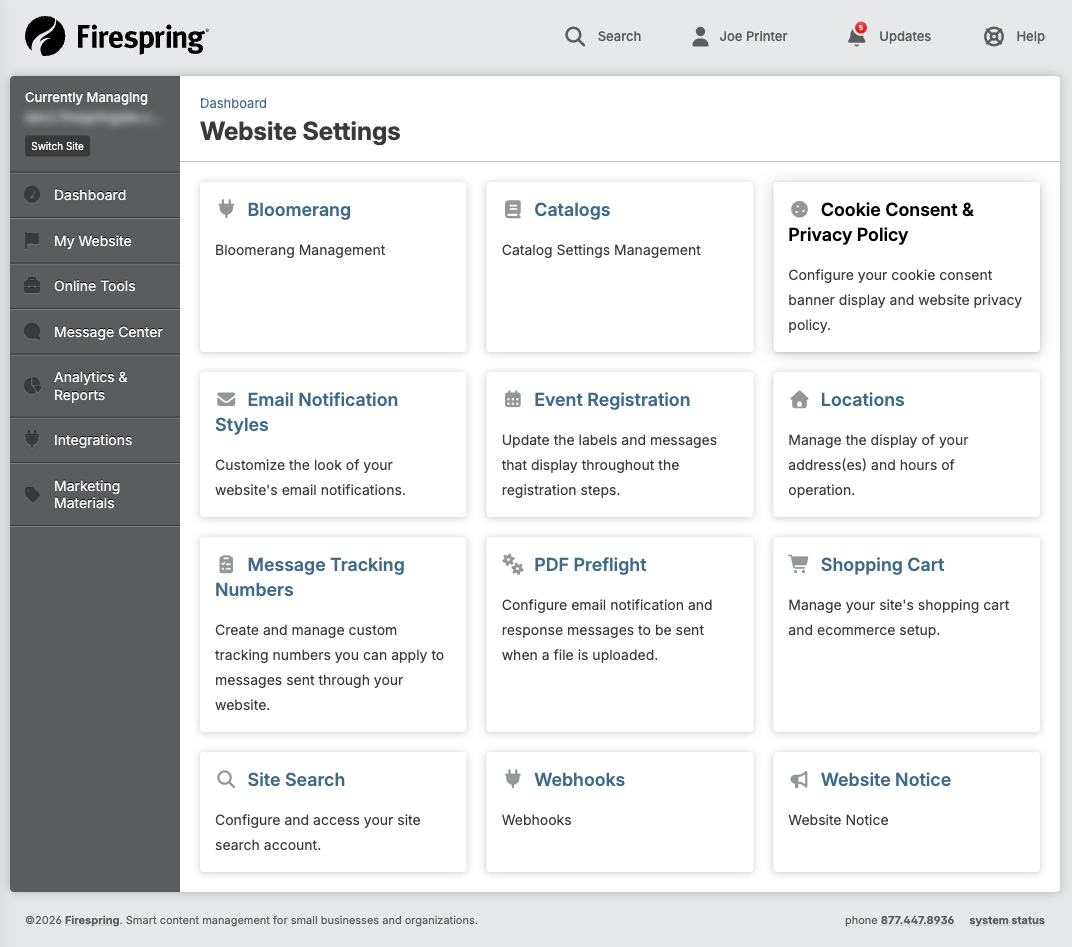
Click on "Website Settings" in the left menu
-
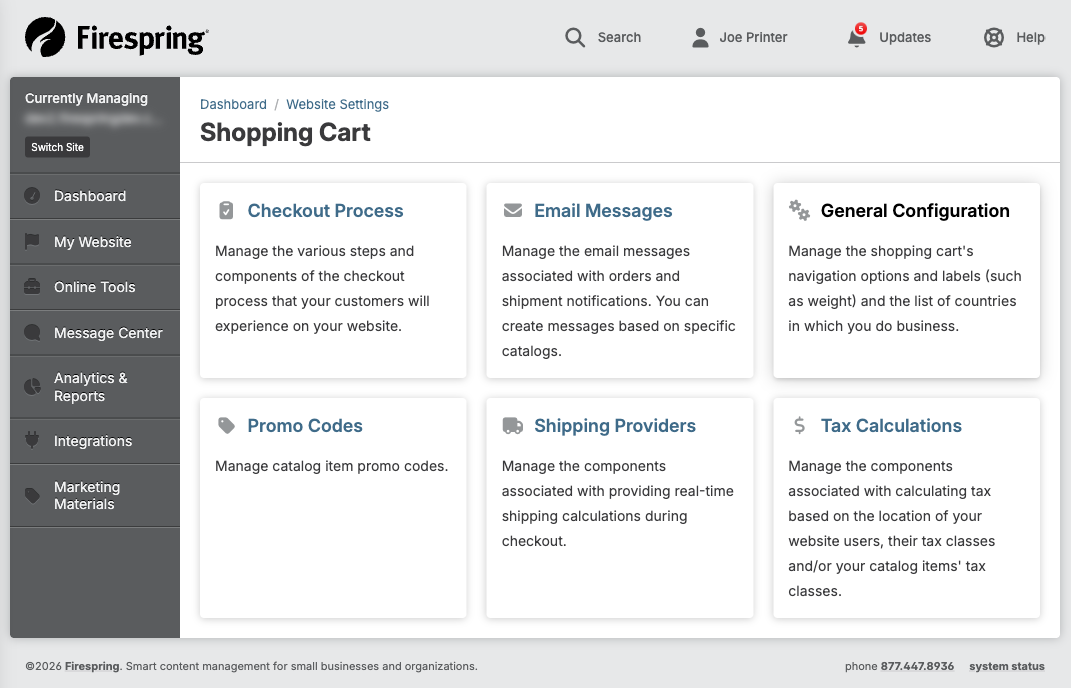
Select "Shopping Cart" from the dropdown menu
-
Click on "Shipping" in the submenu
-
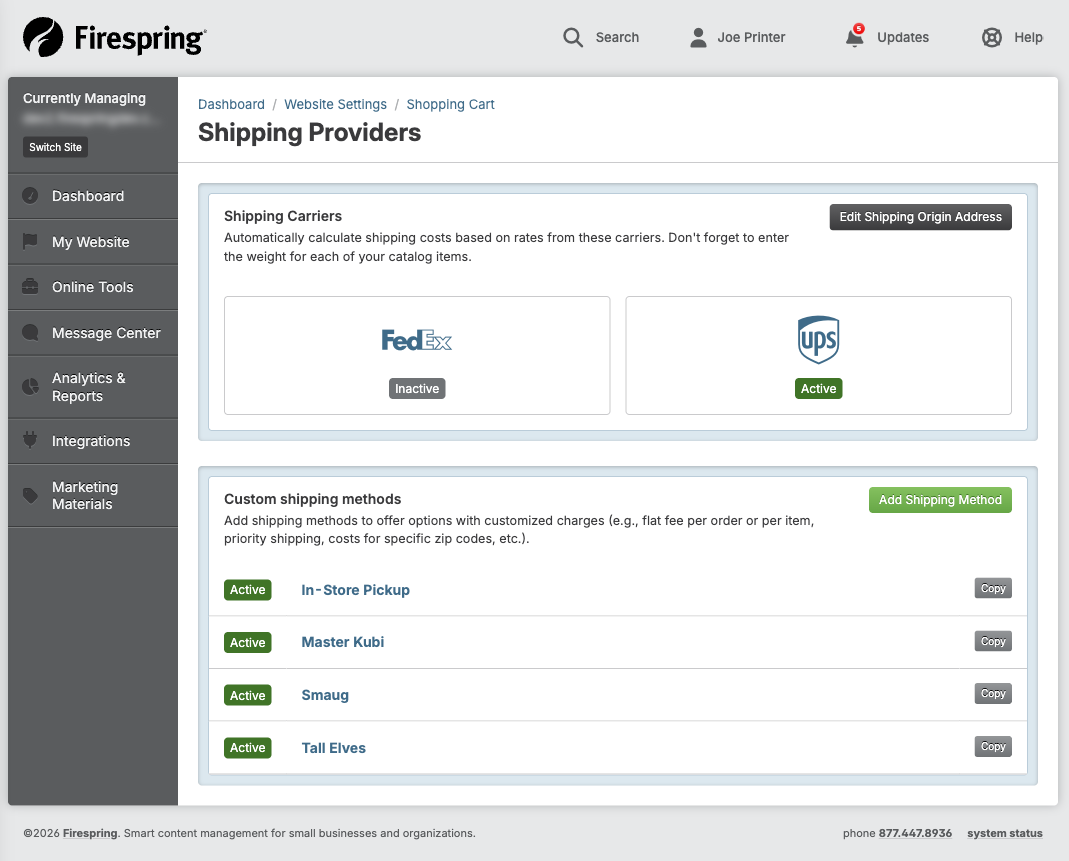
You will see the Shipping Providers page with three sections:
- FedEx
- UPS
- Custom Shipping Methods
Setting Up Custom Shipping Methods
Custom shipping methods let you create your own shipping options with prices you set.
-
On the Shipping Providers page, find the "Custom Shipping Methods" section
-
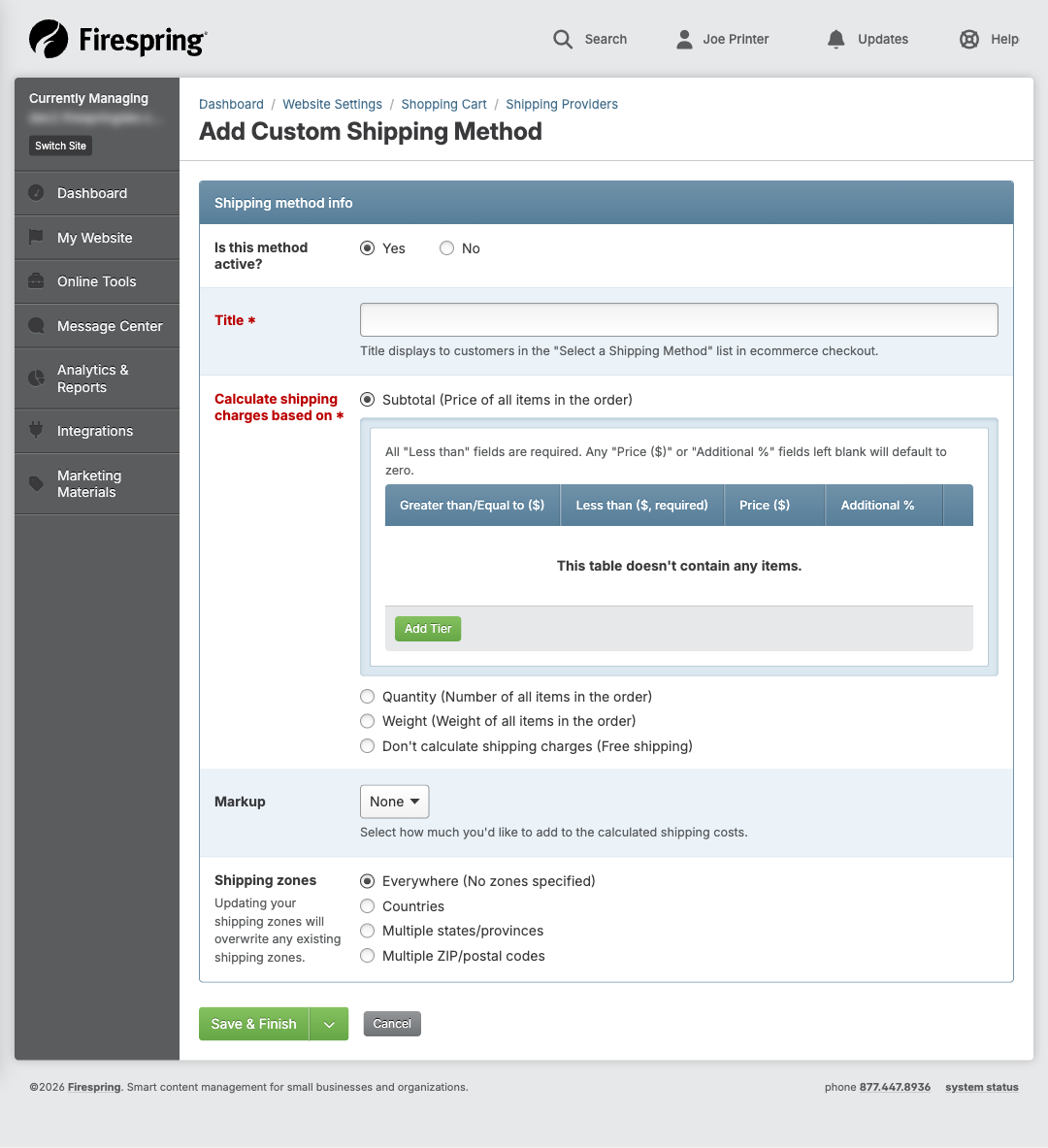
Click the "Add Shipping Method" button
-
Enter a title for your shipping method (like "Standard Shipping" or "Free Shipping")
-
Choose how you want to calculate shipping costs:
- By order price (cheaper or more expensive based on how much the customer spends)
- By order weight (cheaper or more expensive based on how heavy the order is)
-
Set up your pricing rules:
- For price-based shipping: Enter minimum and maximum order amounts and the shipping cost for each range
- For weight-based shipping: Enter minimum and maximum weights and the shipping cost for each range
-
To add another price range, click "Add Tier"
-
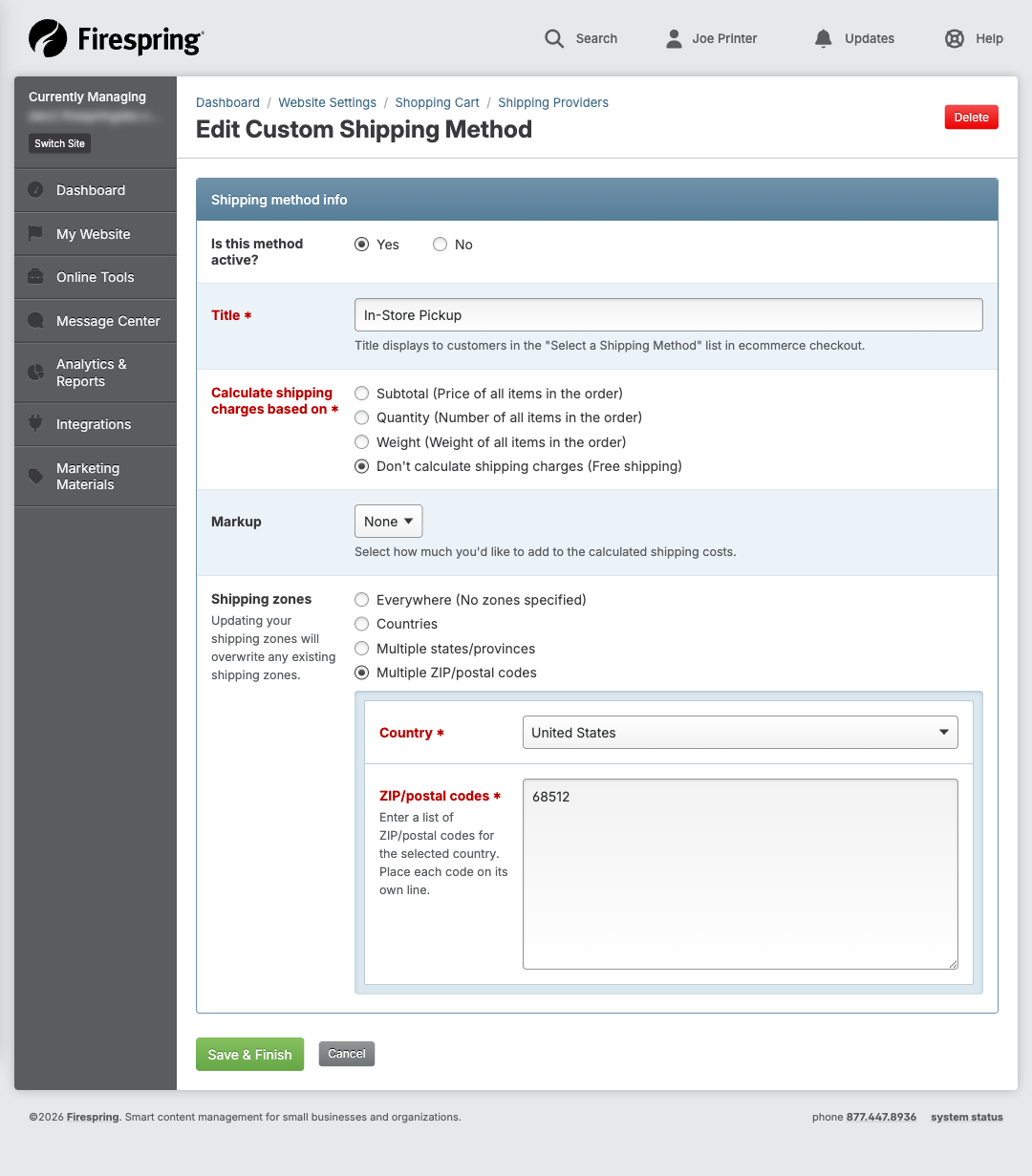
Choose where this shipping method will be available:
- All locations (worldwide)
- Specific countries
- Specific states/provinces
- Specific postal codes
-
If you selected specific locations, choose the countries, states, or postal codes
-
Add a handling fee if needed (extra cost for packaging or processing)
-
Click "Save" to create your shipping method
-
Your new shipping method will appear in the Custom Shipping Methods list
Setting Up FedEx Shipping
Connecting with FedEx lets your customers choose from official FedEx shipping options. FedEx offers two ways to connect: OAuth credentials (recommended) and legacy SOAP credentials.
FedEx is retiring SOAP credentials
FedEx is retiring their SOAP-based Web Services in favor of RESTful APIs. We strongly recommend switching to OAuth credentials as soon as possible. You can register for API credentials at developer.fedex.com.
Connecting with OAuth credentials (recommended)
-
On the Shipping Providers page, find the "FedEx" section and click "Configure FedEx."
-
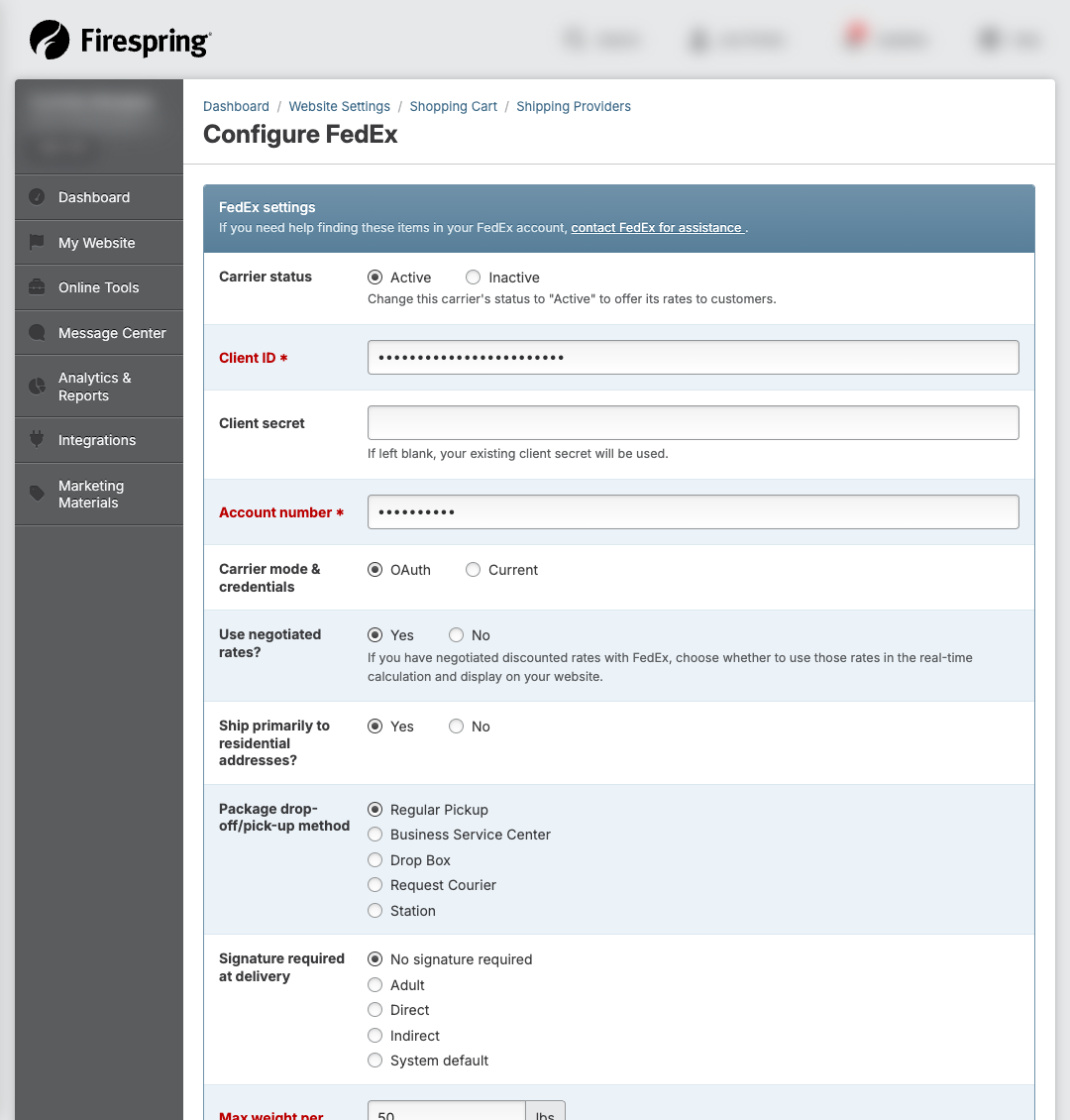
Set the carrier status to "Active."
-
Enter your OAuth credentials from your FedEx Developer Portal account:
- Client ID — Your API key from the FedEx Developer Portal.
- Client secret — Your secret key. If left blank when editing, your existing secret will be used.
- Account number — Your FedEx account number.
-
For "Carrier mode & credentials," select OAuth.
-
Configure your shipping preferences:
- Use negotiated rates — Select "Yes" if you have discounted rates with FedEx.
- Ship primarily to residential addresses — Select "Yes" if most of your shipments go to homes.
- Package drop-off/pick-up method — Choose how you send packages (Regular Pickup, Drop Box, etc.).
- Signature required at delivery — Choose whether a signature is needed.
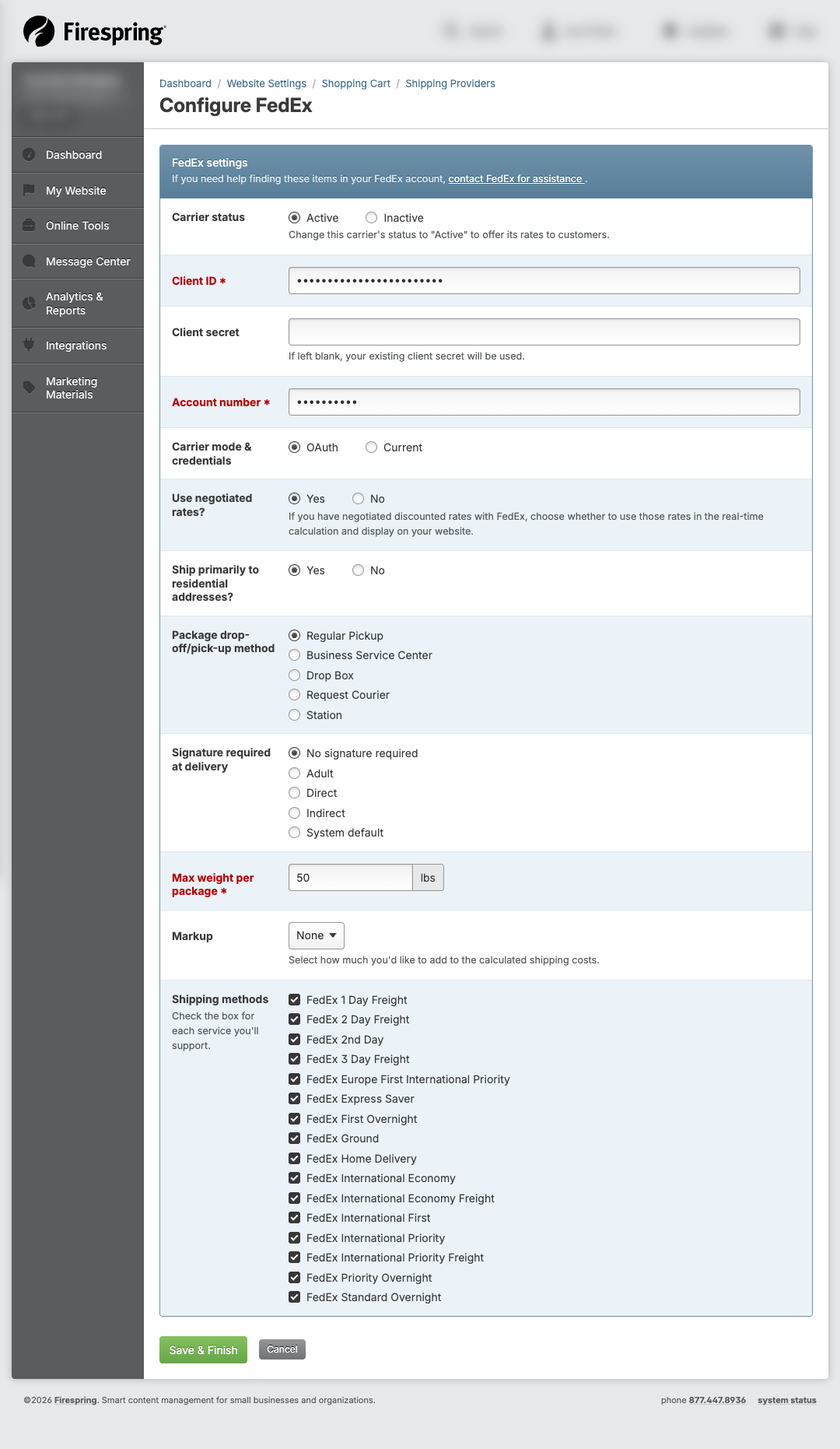
- Max weight per package — Enter the maximum weight in pounds.
- Markup — Add a handling fee as a flat dollar amount or percentage, if needed.
-
Select which FedEx shipping methods you want to offer:
- FedEx Ground
- FedEx Express Saver
- FedEx 2Day
- FedEx Priority Overnight
- And others
-
Click "Save & Finish" to connect your FedEx account.
Connecting with legacy SOAP credentials
If you have not yet migrated to OAuth, you can still use your existing SOAP credentials.
-
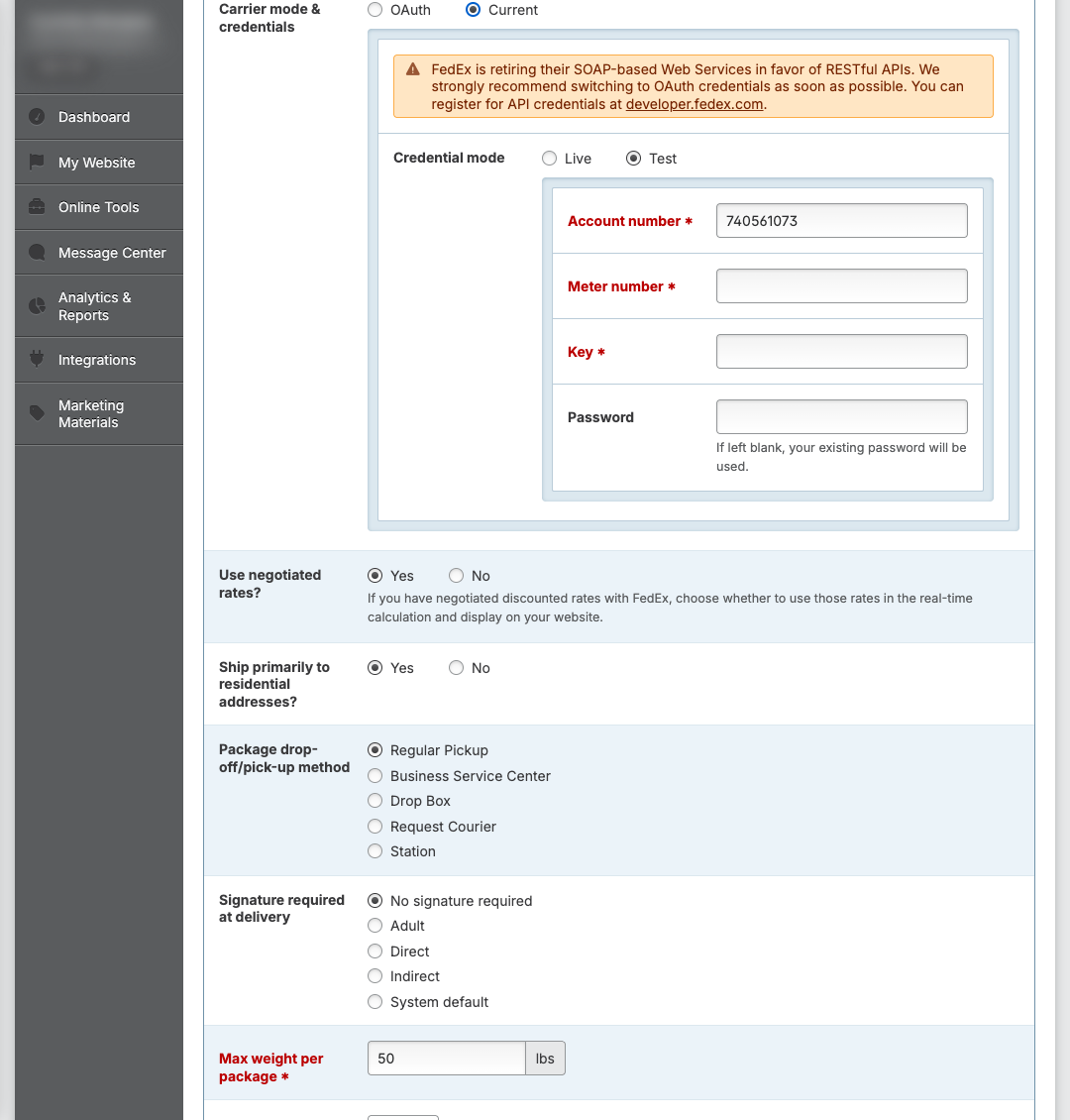
On the Configure FedEx page, set "Carrier mode & credentials" to Current.
-
You will see a notice recommending that you switch to OAuth credentials.
-
Choose your credential mode (Live or Test) and enter your SOAP credentials:
- Account number — Your FedEx account number.
- Meter number — Your FedEx meter number.
- Key — Your FedEx API key.
- Password — Your FedEx API password. If left blank when editing, your existing password will be used.
-
Configure your shipping preferences and methods (same options as the OAuth flow above).
-
Click "Save & Finish" to connect your FedEx account.
Setting Up UPS Shipping
Connecting with UPS lets your customers choose from official UPS shipping options.
-
On the Shipping Providers page, find the "UPS" section
-
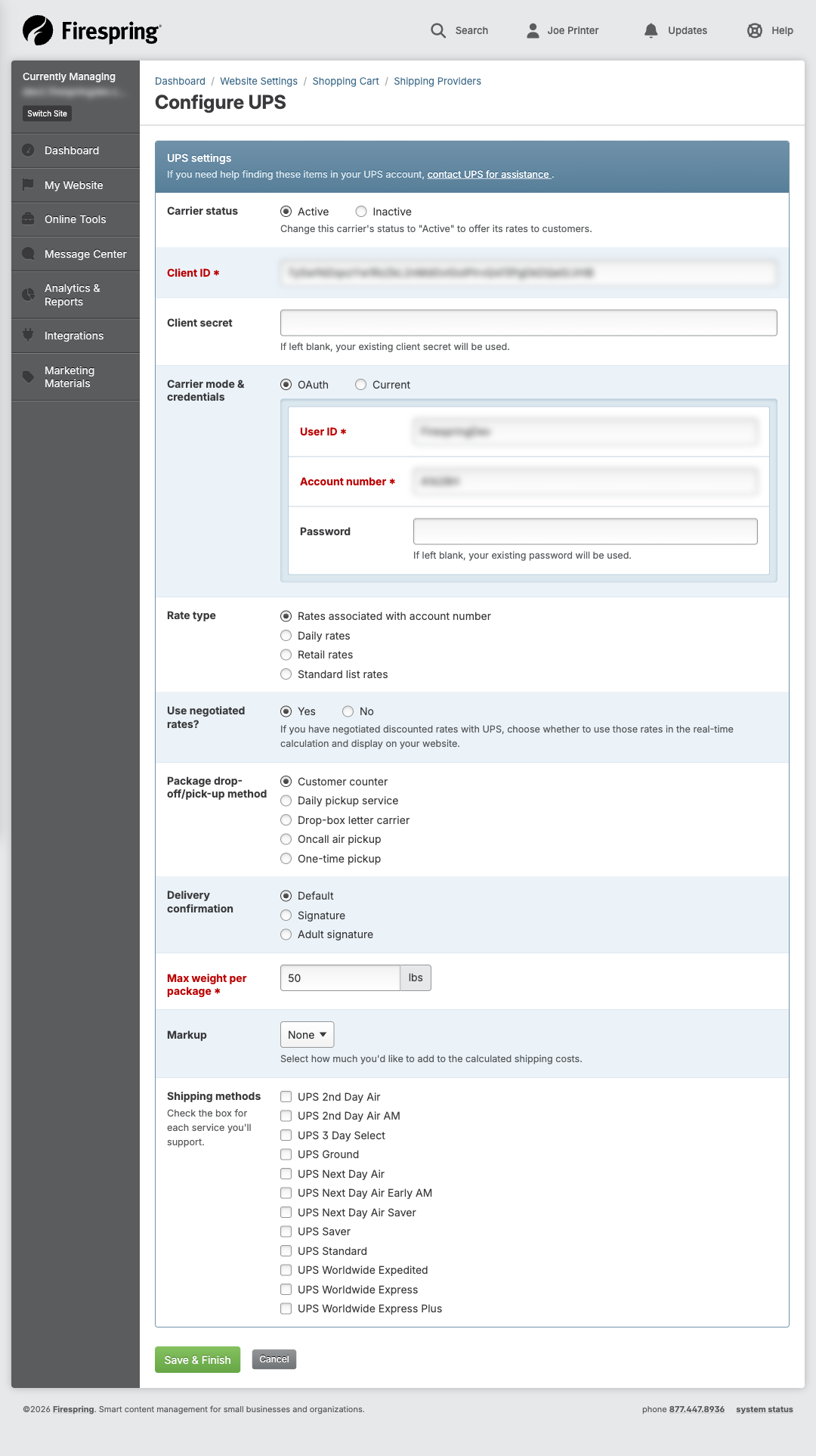
Click "Configure UPS"
-
Enter your UPS account information:
- Account number
- Access key
- Username
- Password
-
Enter your company information:
- Company name
- Address
- Phone number
-
Select which UPS shipping methods you want to offer:
- UPS Ground
- UPS 3 Day Select
- UPS 2nd Day Air
- UPS Next Day Air
- And others
-
Set a handling fee if needed
-
Click "Save" to connect your UPS account
Editing a Custom Shipping Method
-
On the Shipping Providers page, find the shipping method you want to edit in the Custom Shipping Methods list
-
Click the "Edit" button next to the shipping method
-
Make your changes to the shipping method
-
Click "Save" to update the shipping method
Activating or Deactivating a Shipping Method
-
On the Shipping Providers page, find the shipping method in the list
-
Click the toggle switch in the "Status" column
- Toggle to the right (green) to activate
- Toggle to the left (gray) to deactivate
-
The status will update immediately
Tips & Helpful Guidance
- Start with simple shipping methods (like flat rate) before setting up more complex options.
- If you ship internationally, create separate shipping methods for domestic and international shipping.
- Consider offering free shipping for orders over a certain amount to encourage larger purchases.
- Test your shipping methods by creating test orders to make sure the costs calculate correctly.
- If you currently use FedEx with legacy SOAP credentials, plan to migrate to OAuth credentials soon. FedEx is retiring SOAP-based Web Services.
- If you use FedEx or UPS, make sure your product weights and dimensions are accurate in your inventory.
- Remember that customers often abandon their shopping carts if shipping costs are too high.
- You can create a "Free Local Pickup" shipping method by setting the cost to $0 and limiting it to your local area.
Troubleshooting
Problem: Your FedEx or UPS account won't connect
Solution:
- Double-check that all credentials are entered correctly. For FedEx OAuth, verify your Client ID, Client secret, and Account number match what is shown in your FedEx Developer Portal account.
- Make sure your FedEx or UPS account is active and in good standing.
- If using FedEx OAuth, confirm that your API project in the FedEx Developer Portal is approved and not in a sandbox/test state.
- If using legacy SOAP credentials, note that FedEx is retiring SOAP — consider switching to OAuth.
- Verify that your company address matches the address on your shipping carrier account.
- Contact FedEx or UPS customer service if you continue to have problems.
Problem: Shipping costs seem too high or too low
Solution:
- Check your pricing tiers to make sure they're set correctly.
- Verify that product weights and dimensions are accurate.
- Make sure handling fees aren't set too high.
- Test with different order amounts to see how the costs change.
Problem: Customers can't see certain shipping methods at checkout
Solution:
- Check if the shipping method is activated (status should be green).
- Verify that the customer's shipping address is in the zone where the shipping method is available.
- Make sure the order amount or weight falls within the ranges you've set for that shipping method.
- Check if the shipping method is set up correctly in your shopping cart configuration.